Problem Solving
Observe what happens, narrow down the cause and choose a sensible next step.
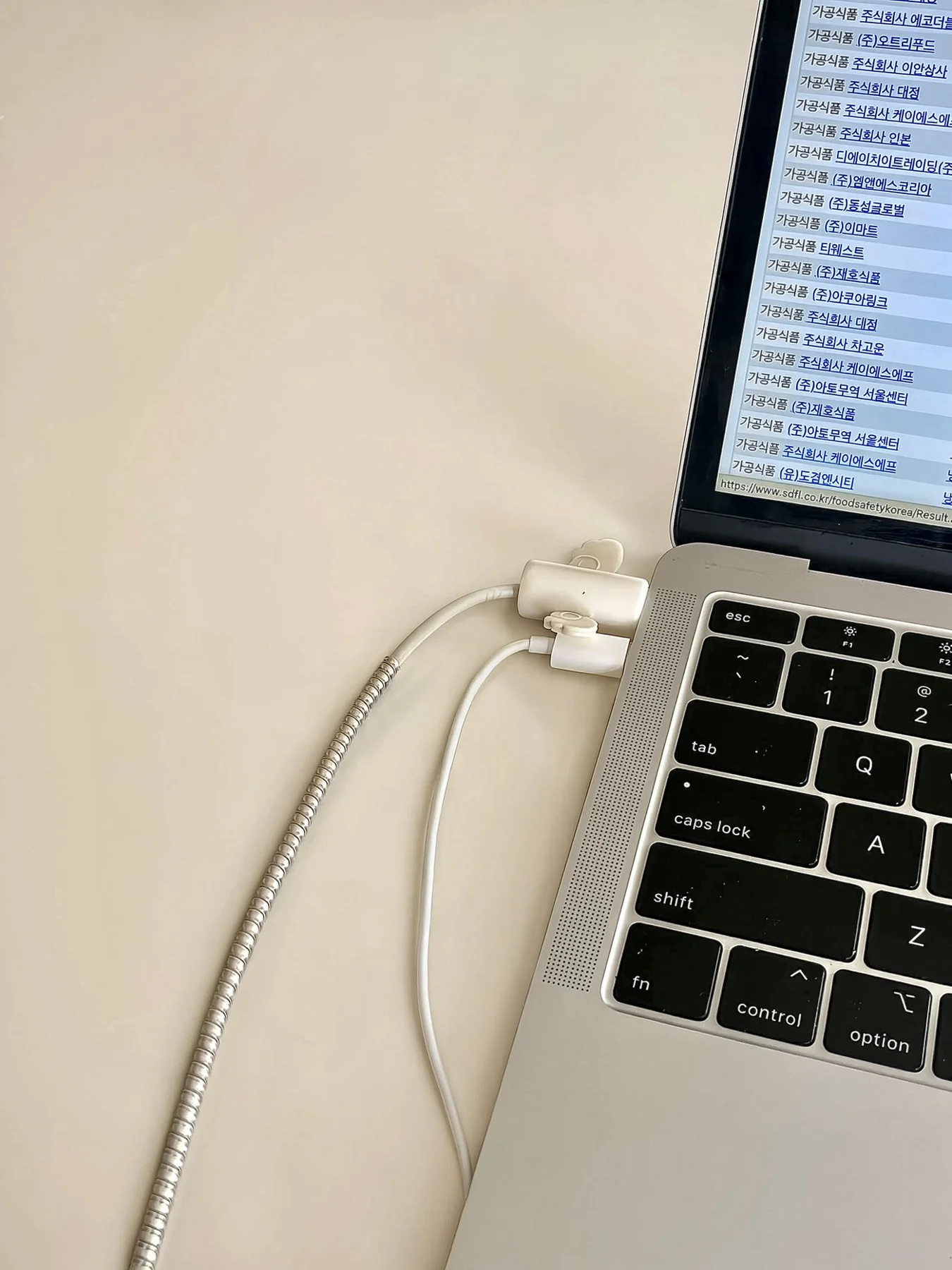
When your laptop will not charge
A laptop that will not charge can have several causes. Start with safe inspection and the correct power supply.
Read the guide ↗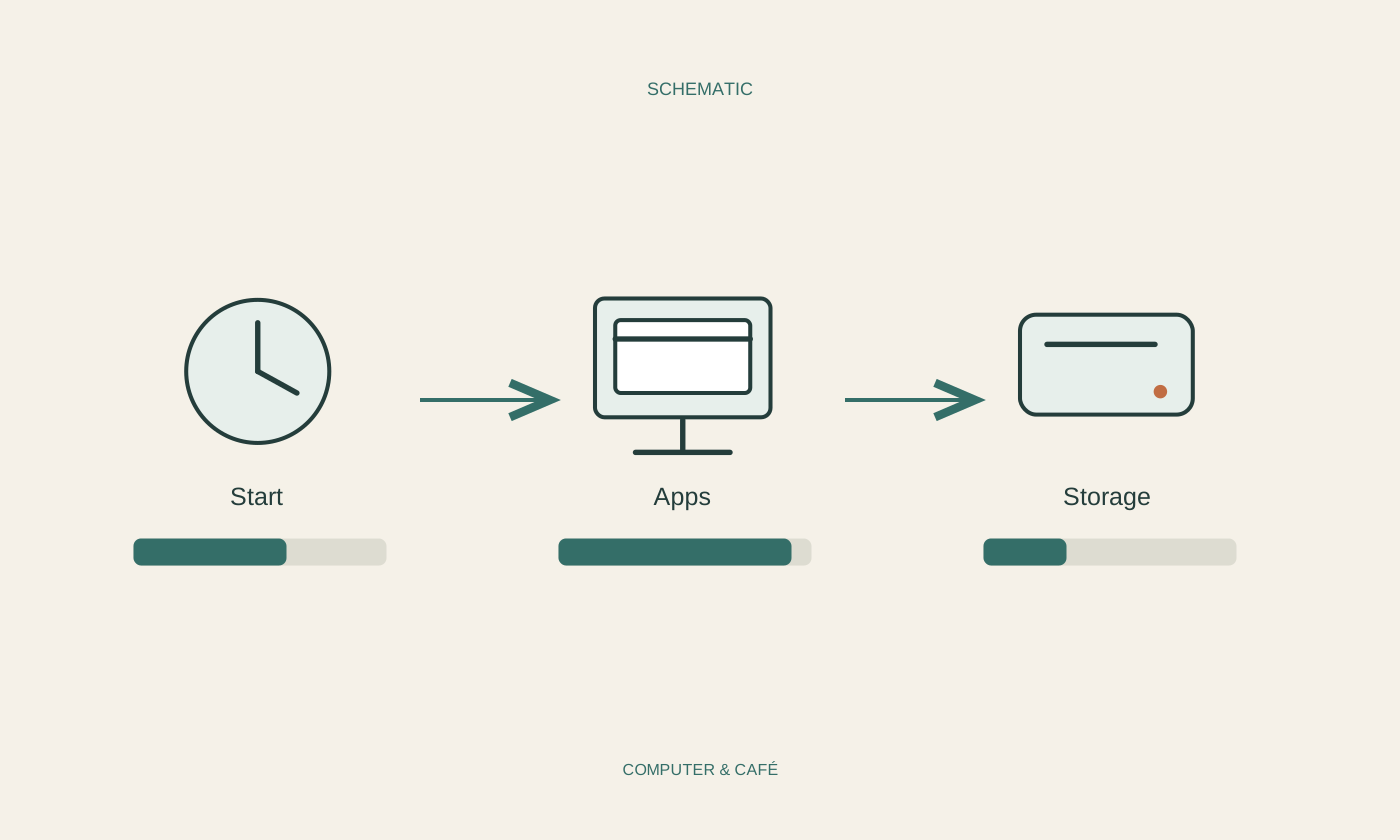
A slow computer: start by observing
Slow can mean several different things. First identify when the computer waits and which task is affected.
Read the guide ↗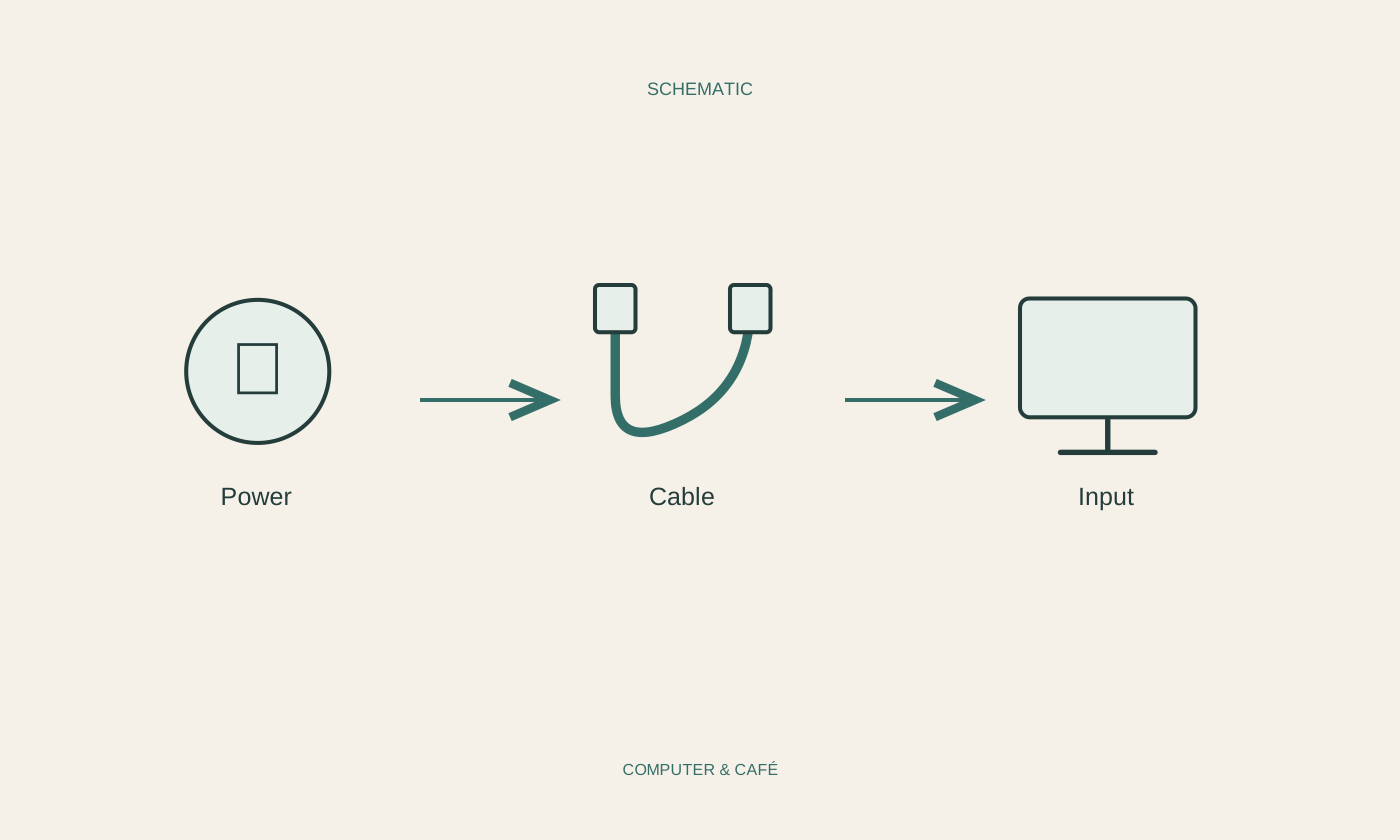
When the monitor stays black
A black screen does not always mean the computer is off. Check power, input selection and connection separately.
Read the guide ↗
Troubleshoot an erratic mouse
An erratic pointer can come from the surface, connection or settings. Begin with a calm, repeatable movement.
Read the guide ↗
When individual keys stop responding
When individual keys fail, test them in a neutral application. Treat layout, special functions and hardware as separate possibilities.
Read the guide ↗
Narrow down an intermittent Wi-Fi problem
For intermittent Wi-Fi failures, timing is often the most useful clue. Collect a few comparable observations.
Read the guide ↗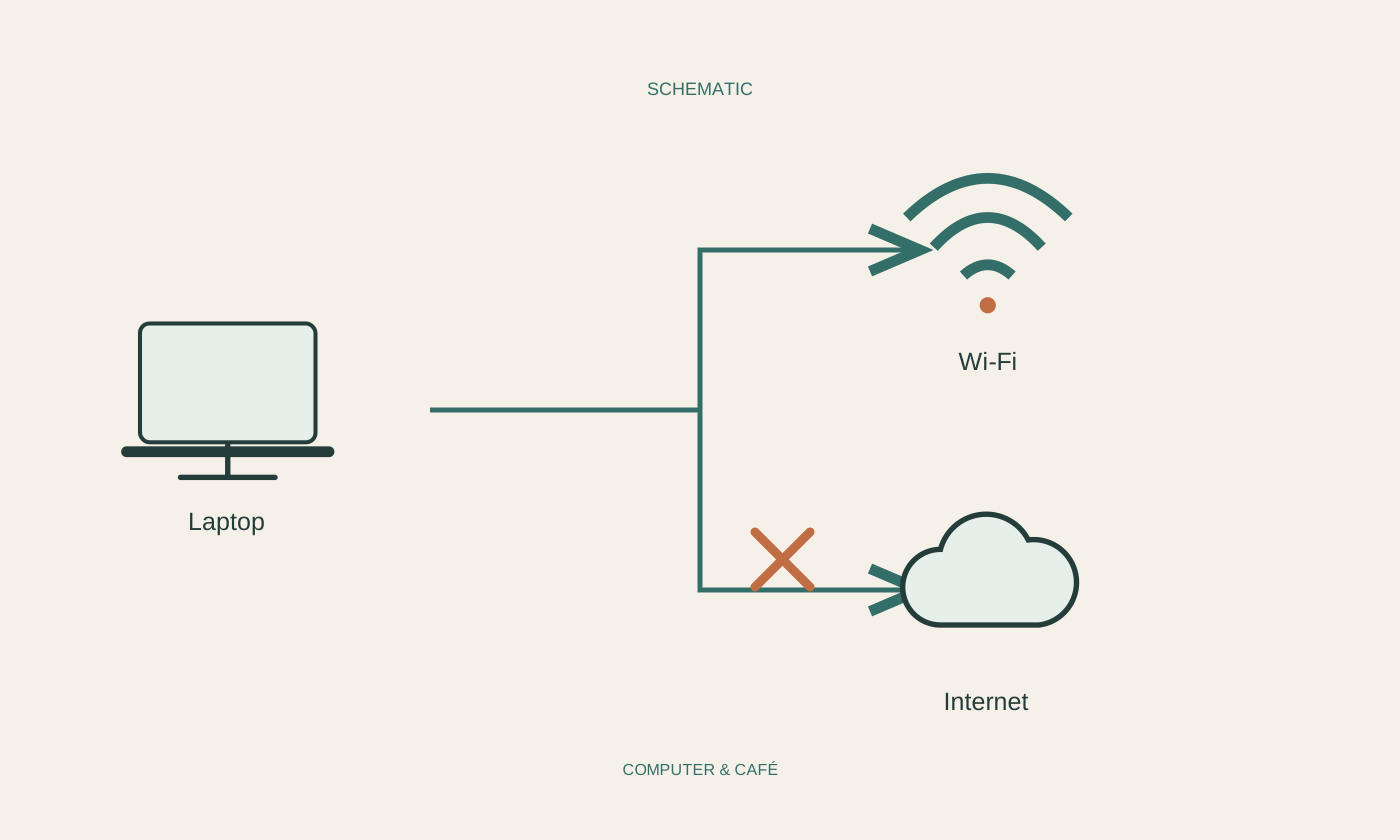
Connected to Wi-Fi but without internet
Connected Wi-Fi initially confirms a local wireless link. Next identify which part of the route to the internet is missing.
Read the guide ↗
When a print job gets stuck
A stuck print job does not immediately require reinstalling the printer. Check the device, selected printer and queue first.
Read the guide ↗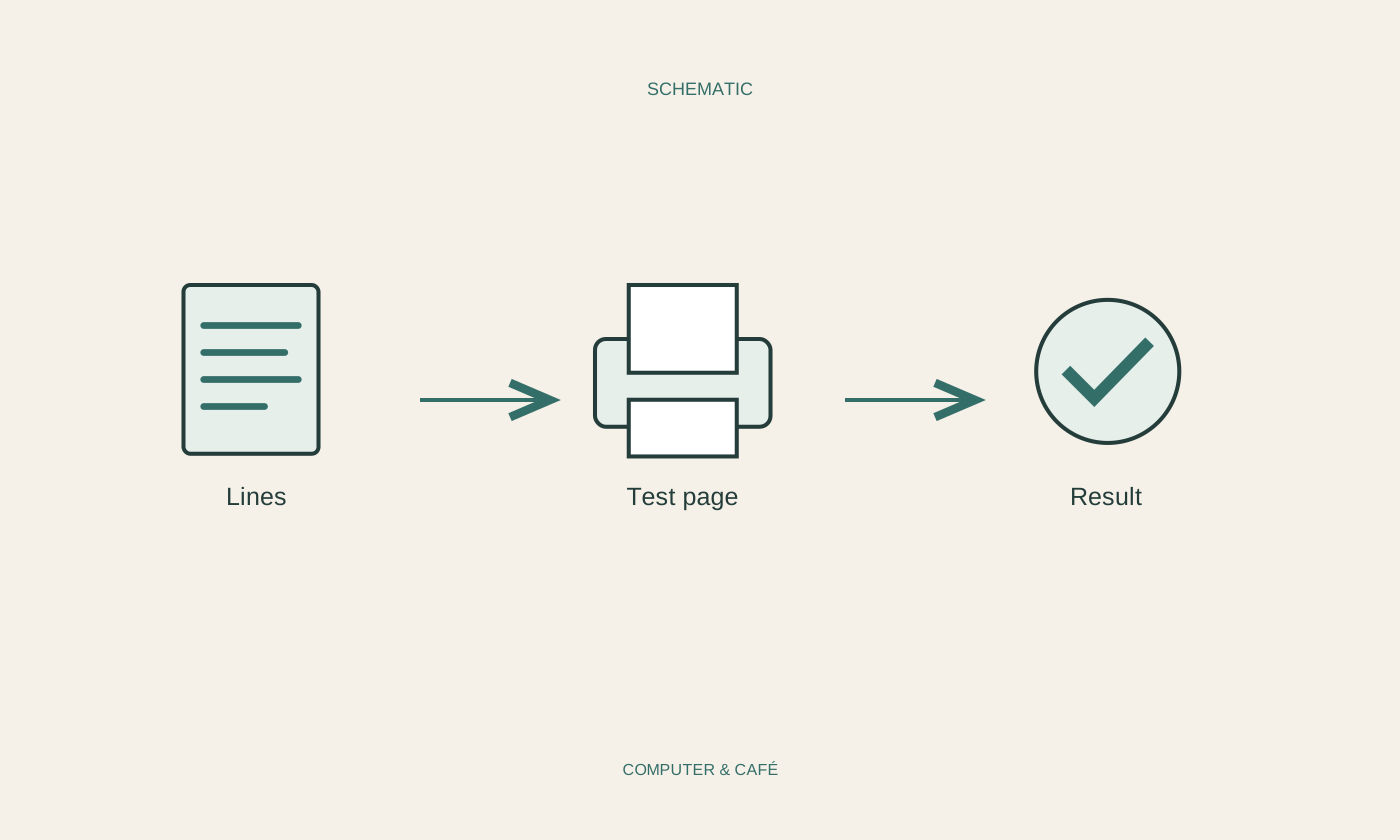
Investigate lines on a printout
Lines on paper can have several causes. Compare the output, source document and an internal test page before cleaning anything.
Read the guide ↗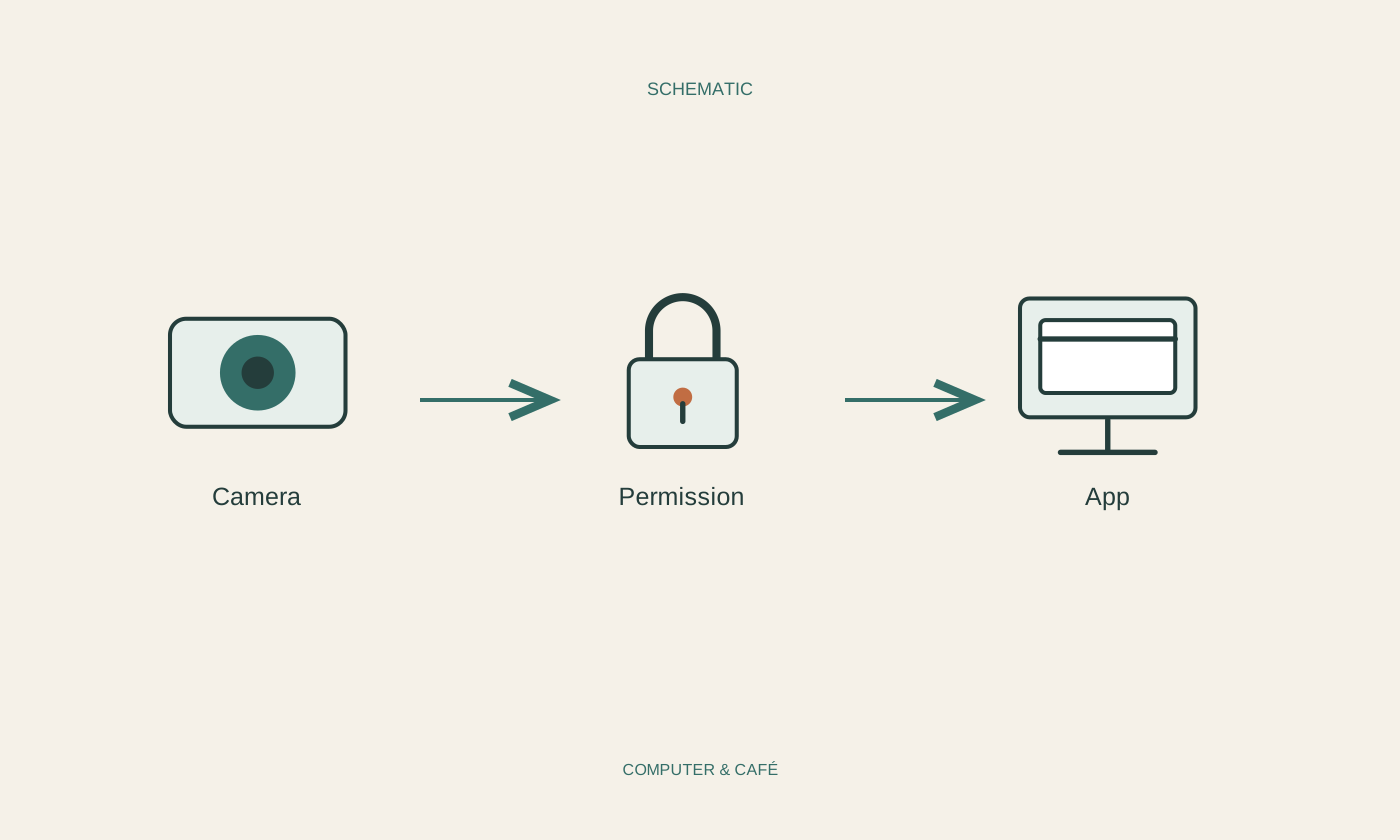
When an app cannot find your webcam
A webcam that an application cannot find is not necessarily broken. Physical controls, permissions and application selection need separate checks.
Read the guide ↗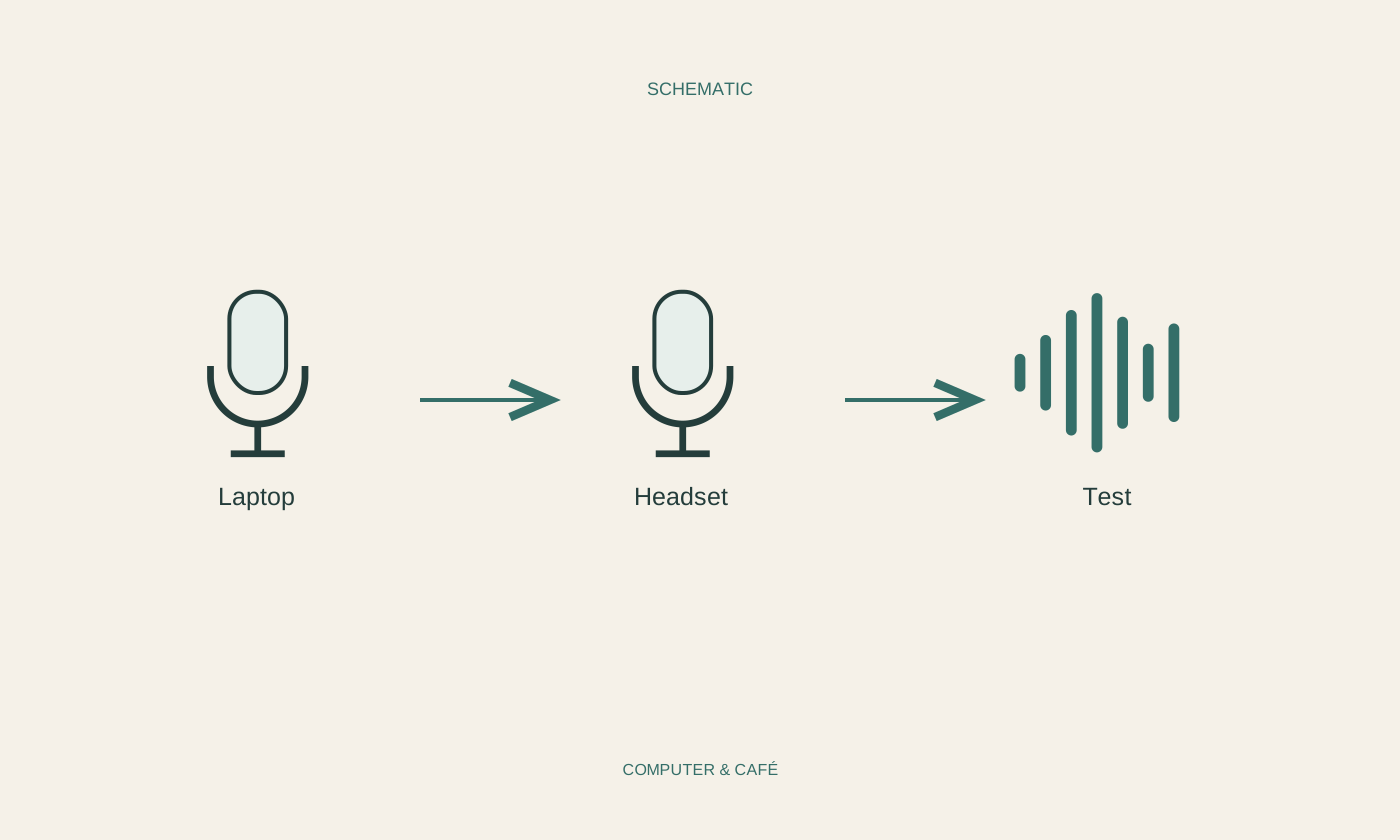
Choose the right microphone for a call
The best connected microphone is unhelpful if the calling application uses another one. Check the active source from your actual seat.
Read the guide ↗
When your speakers stay silent
Silence can come from the selected output, one muted app or the speaker itself. A few controlled comparisons separate those possibilities.
Read the guide ↗
When Bluetooth headphones will not connect
A headset may already belong to another active connection. Check pairing mode and competing devices before clearing its settings.
Read the guide ↗
When a USB drive does not appear
A missing drive is not an invitation to format it. First establish whether it contains important files and where the device is still recognised.
Read the guide ↗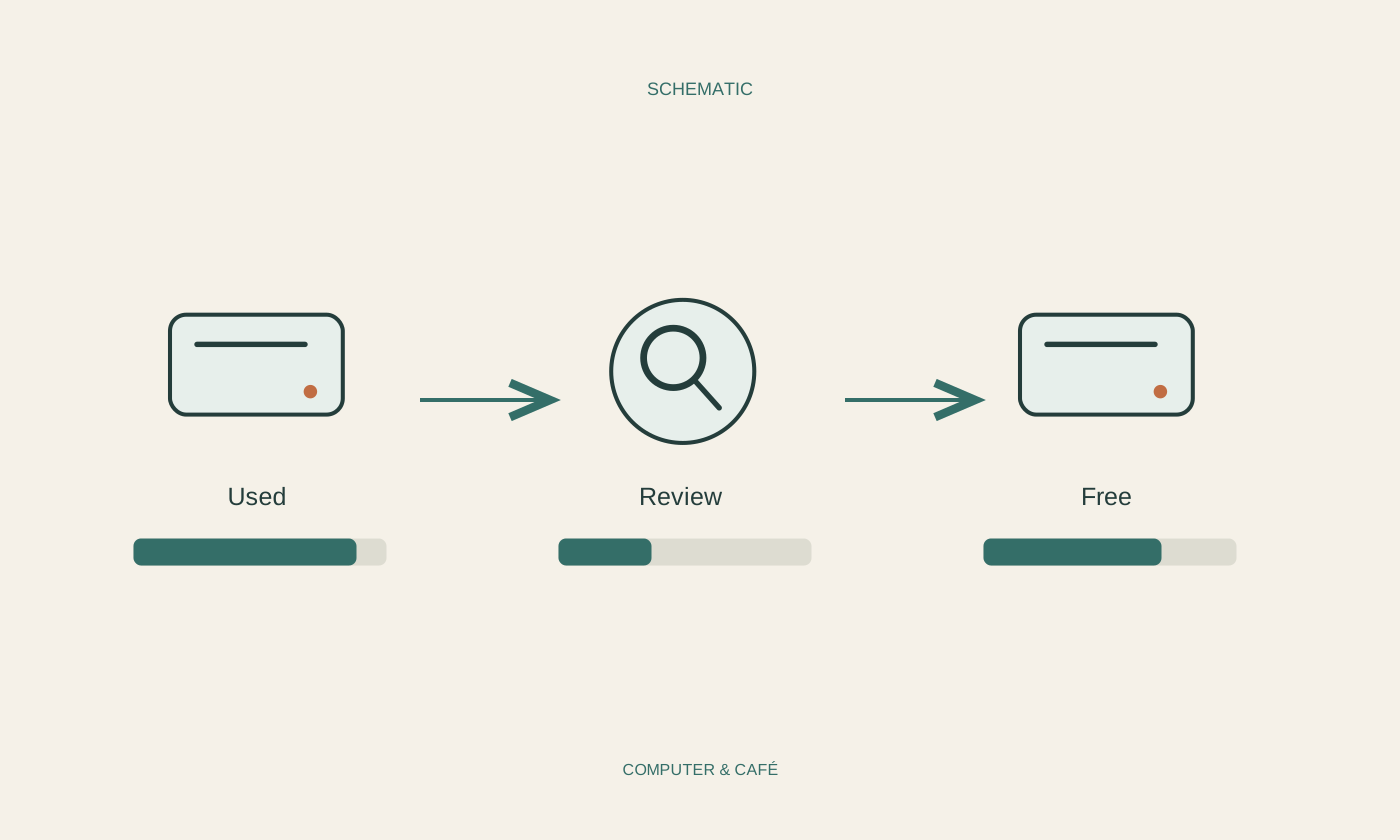
Free storage without deleting blindly
Reclaim storage by identifying large, understandable files. Deleting, moving and releasing a local cloud copy are different decisions.
Read the guide ↗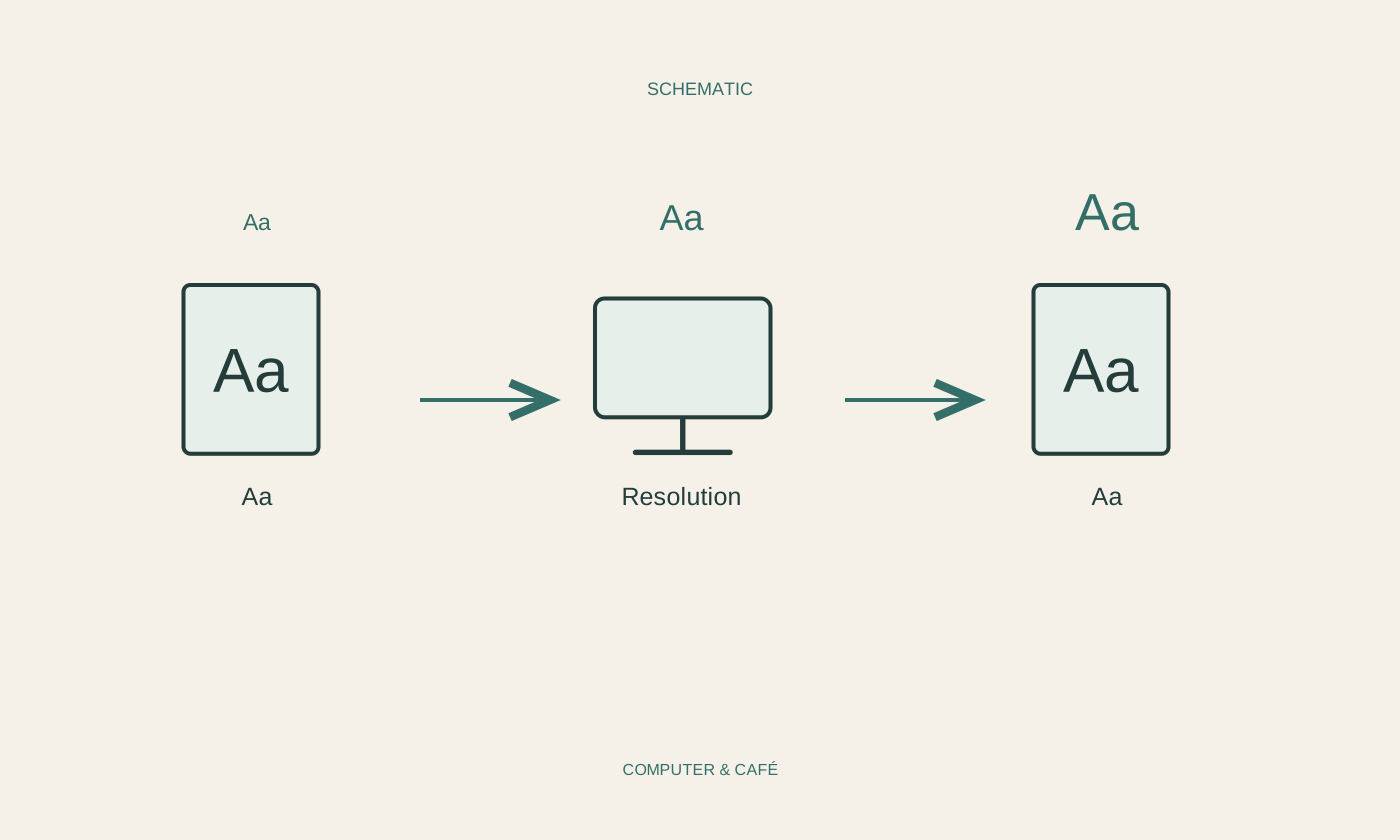
Investigate blurry text on a monitor
Soft text may come from resolution, scaling or one application. Comparing it with the system interface gives you a sensible place to start.
Read the guide ↗
Give a warm laptop room to breathe
Warmth under load does not automatically mean a fault. Clear ventilation and an understanding of the current workload help you interpret what is happening.
Read the guide ↗
When battery life becomes shorter
Shorter runtime can reflect a different workload or an ageing battery. A fair comparison is more useful than one percentage reading.
Read the guide ↗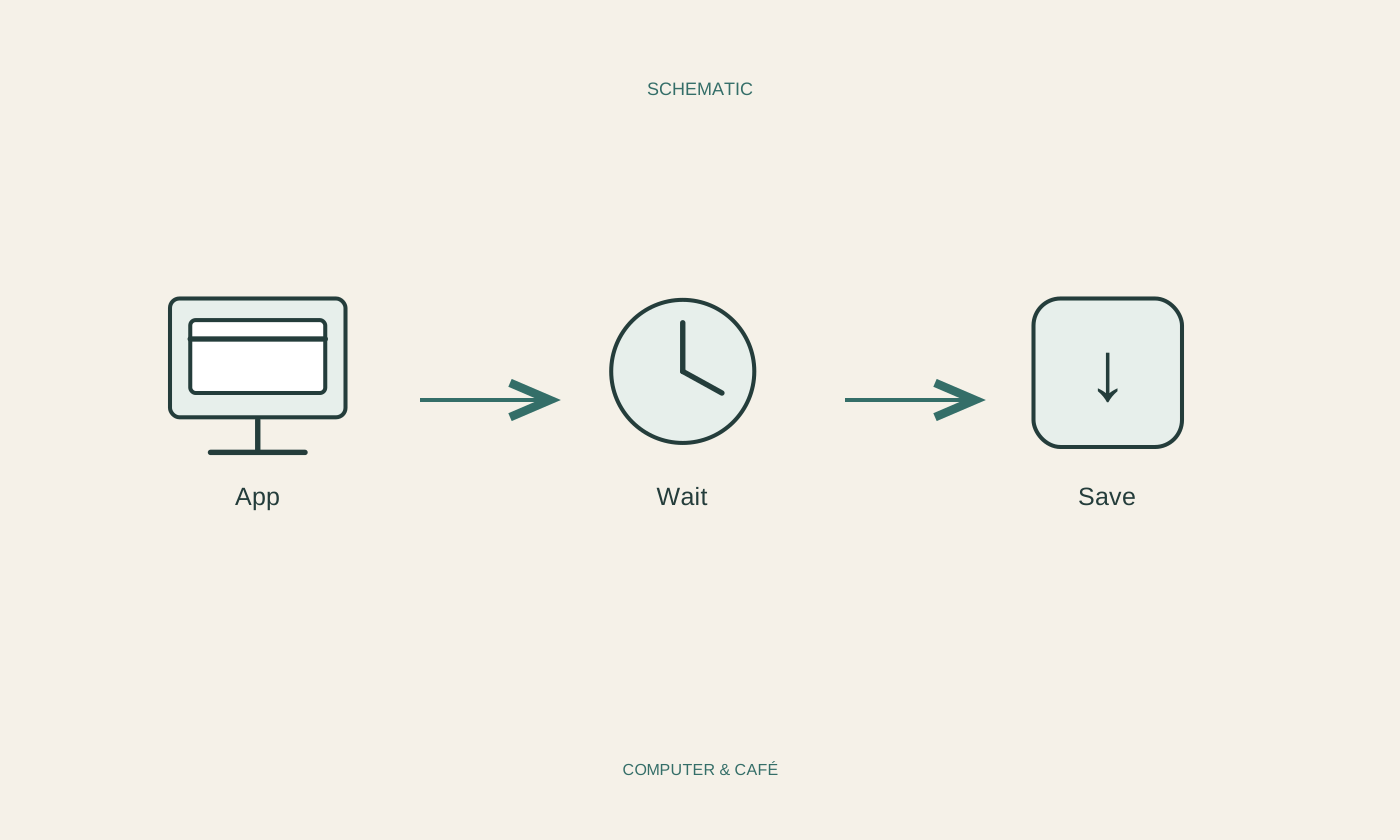
When an application stops responding
When an application stalls, unsaved work comes first. Observe briefly and, if necessary, close only the affected program.
Read the guide ↗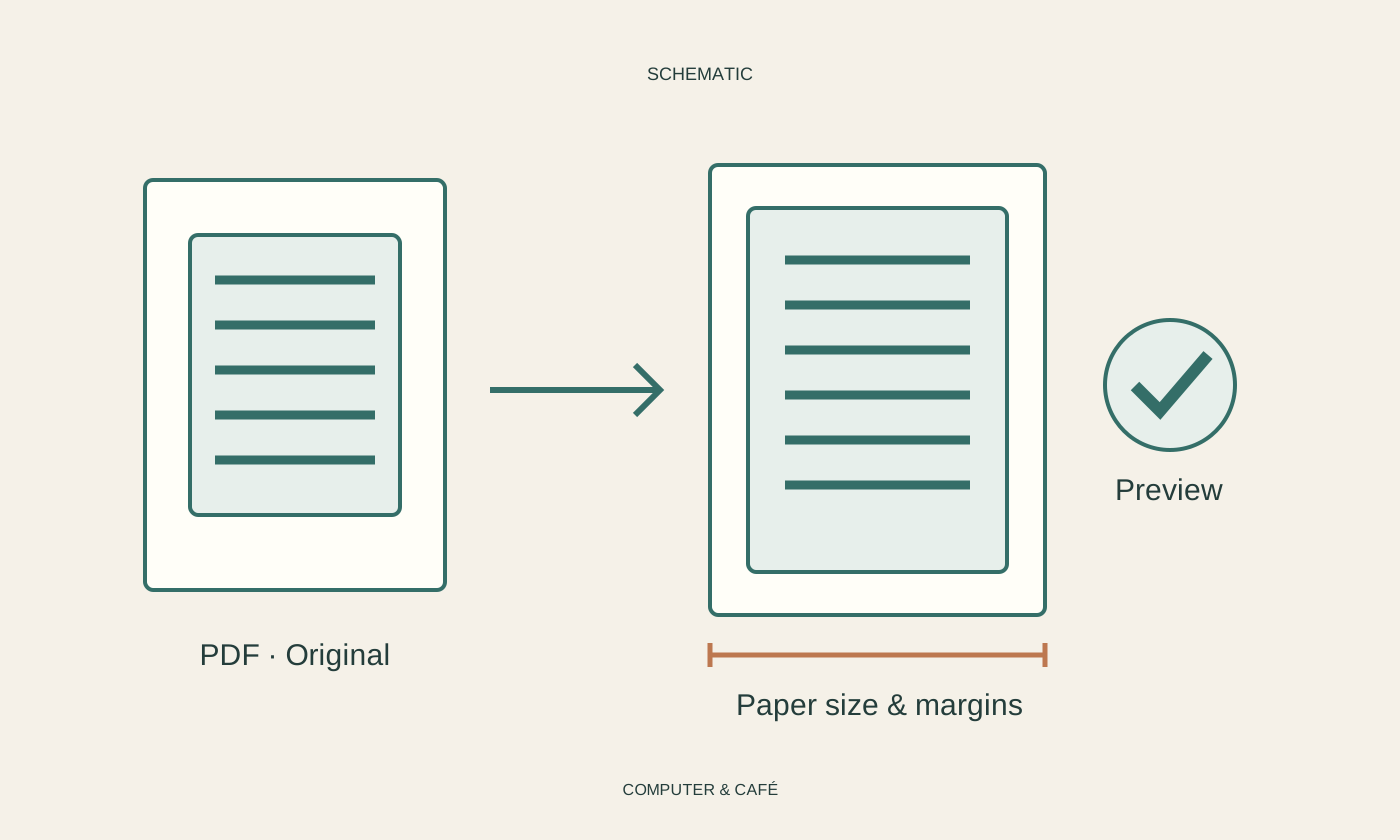
When a PDF will not print correctly
A preview, a paper-size check and one test page can explain a faulty PDF printout without wasting a whole document's worth of paper.
Read the guide ↗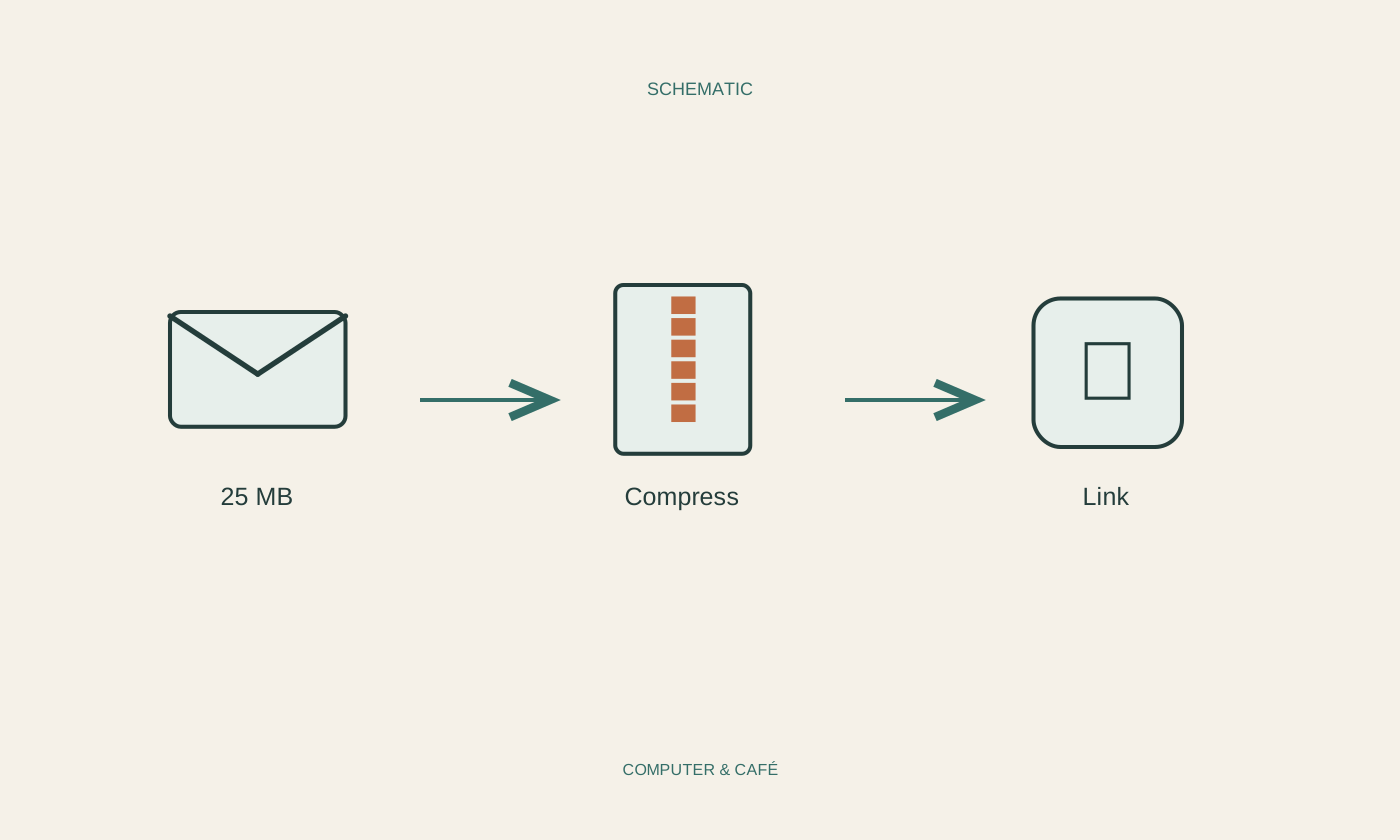
Handle an email attachment that is too large
A selective attachment or a carefully configured sharing link often works better than repeatedly trying to send an oversized message.
Read the guide ↗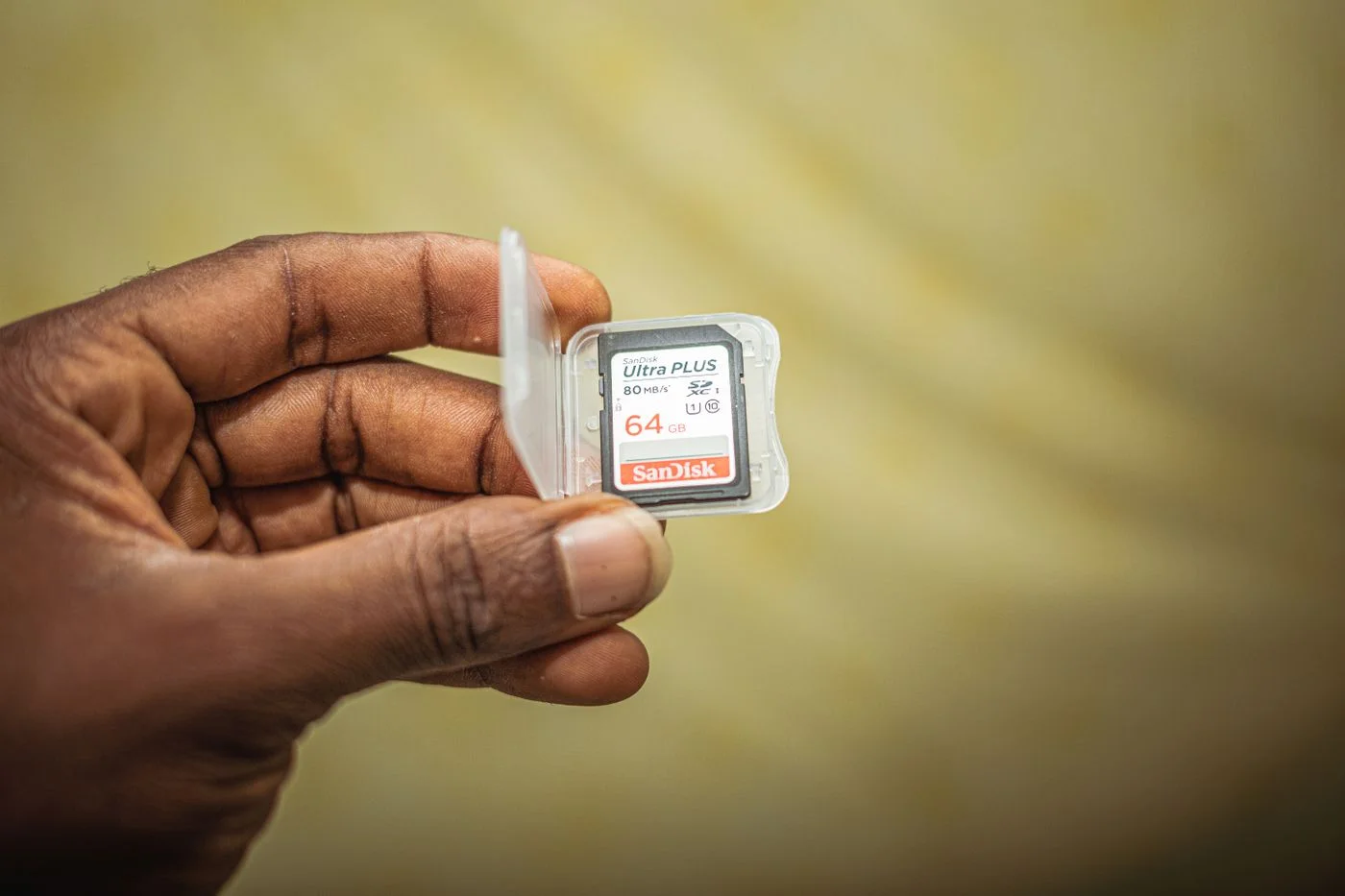
When a memory card cannot be read
When a memory card cannot be read, preserving the photographs comes first. Separate reader compatibility from problems reported about the card itself.
Read the guide ↗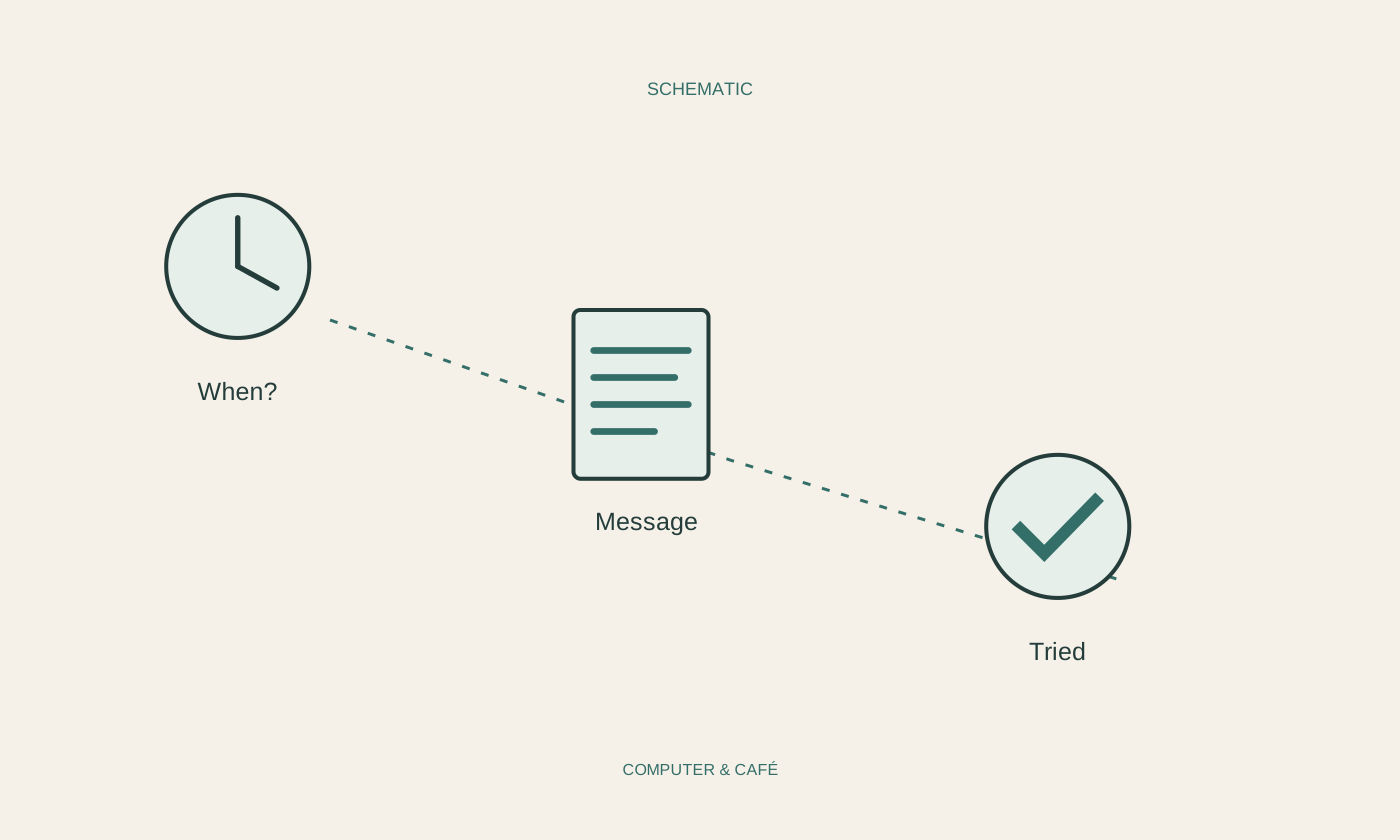
Prepare useful notes before contacting support
Useful support notes contain a few verifiable details. You do not need a technical diagnosis to give someone a clear starting point.
Read the guide ↗