Identify the available sources
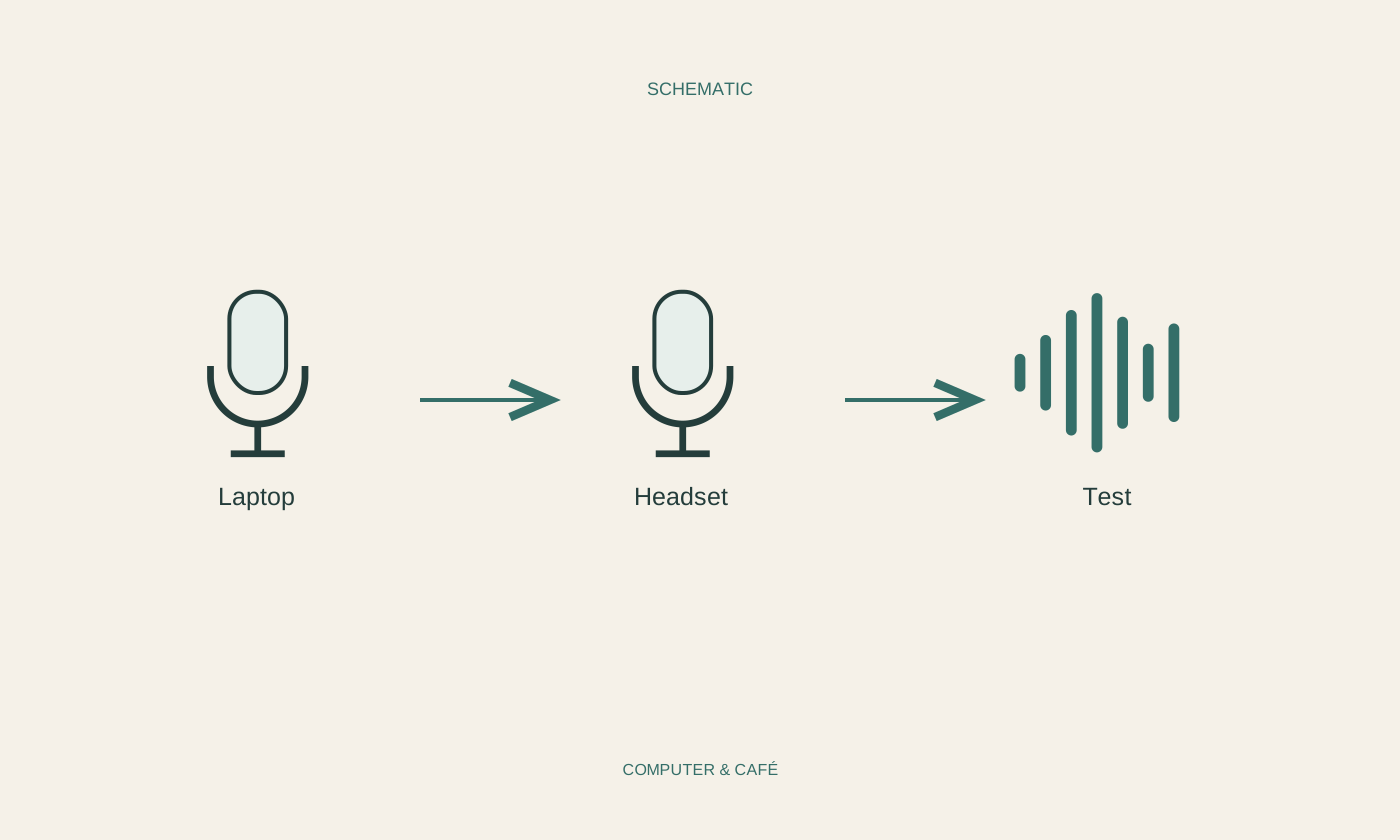
A computer may offer microphones in the laptop, webcam, headset or another attached device. Open the intended calling application’s audio settings and read the available names. A general entry such as Default may refer to the current system selection. Establish which device that means, or explicitly choose a known source. Do not confuse microphone input with speaker output. Hearing other people does not confirm that they receive your voice through the intended microphone. Both paths need appropriate, independent configuration, especially after adding a webcam or display that introduces another audio device into the selection list.
Speak from the normal position
Sit where you will remain during the call and speak a short sentence at a normal level. Use an input meter, test recording or intended test function. A webcam above the monitor and a headset near your mouth capture the surroundings differently. The goal is intelligible speech, not the highest possible meter reading. Adjust position according to the manufacturer’s advice without blowing into or tapping the microphone. Keep ventilation and cables clear. Repeat the same sentence after a change so differences are easier to recognise instead of comparing entirely different speech and background conditions.
Check mute and permission separately
Inspect a physical mute control, the application’s microphone status and the required system permissions. A headset may be muted internally while the application shows an active icon. Browser-based calls may additionally need permission for the particular website. Follow the service’s current guidance and avoid granting general access to unfamiliar sites. Managed work devices may have central rules; ask the responsible IT team rather than bypassing them. After granting access, check the selected source again. Recording can be permitted while still coming from the wrong connected device, leaving the original practical problem unresolved despite the changed permission.
Treat the room as part of the recording
Listen to a short sample where the application allows it. Notice keyboard noise, fans, traffic and other people. A quieter position may help more than raising input gain. If speakers feed call audio back into the microphone, consider appropriately configured headphones. Several active calling devices in one room can also create echo. Noise suppression is an available feature in some applications, but its effect depends on the software and sound. Compare one setting with the same sample and retain only a recognisable improvement. Technology cannot always substitute for choosing a quieter place to capture speech.
Test device changes before the appointment
A Bluetooth headset or dock can add audio sources when connected. Briefly inspect the active selection before important calls, particularly after moving between workplaces. Know the charge level and intended connection of wireless equipment. Music playback can differ from simultaneous headphone and microphone use during a call, so test the actual conversation setup rather than relying on a music sample. Keep a simple working alternative available when the appointment matters. Record the device name and suitable position. Next time, you can check deliberately instead of trying every audio option under time pressure while others wait for you to become audible.
Select the source in the calling application and test normal speech from your actual seat.