Record the precise symptom
Distinguish a camera missing from the device list, a black preview and an explicit access warning. Write down the wording instead of grouping everything under no camera. Check whether the issue occurs only in one calling application or also in an intended simple camera app. Close the first application normally before testing so it does not continue using the camera. Avoid unfamiliar websites that request broad camera and microphone access. A known local preview or the application’s official test feature provides a more understandable starting point and limits the number of new permissions introduced during troubleshooting.
Inspect shutter, switch and connection
Check a physical camera cover and any camera key or switch on the laptop. Depending on the model, a shutter may only block the picture while a switch disables the camera differently. Consult the device instructions. For an external webcam, inspect a secure connection and an undamaged cable. A suitable direct connection can temporarily remove a hub from the setup. With several cameras, select the intended source inside the application. Connecting an accessory does not necessarily replace the previously selected built-in camera automatically. Read the device name and inspect the preview together before concluding that the new camera is unavailable.
Review permissions at the relevant levels
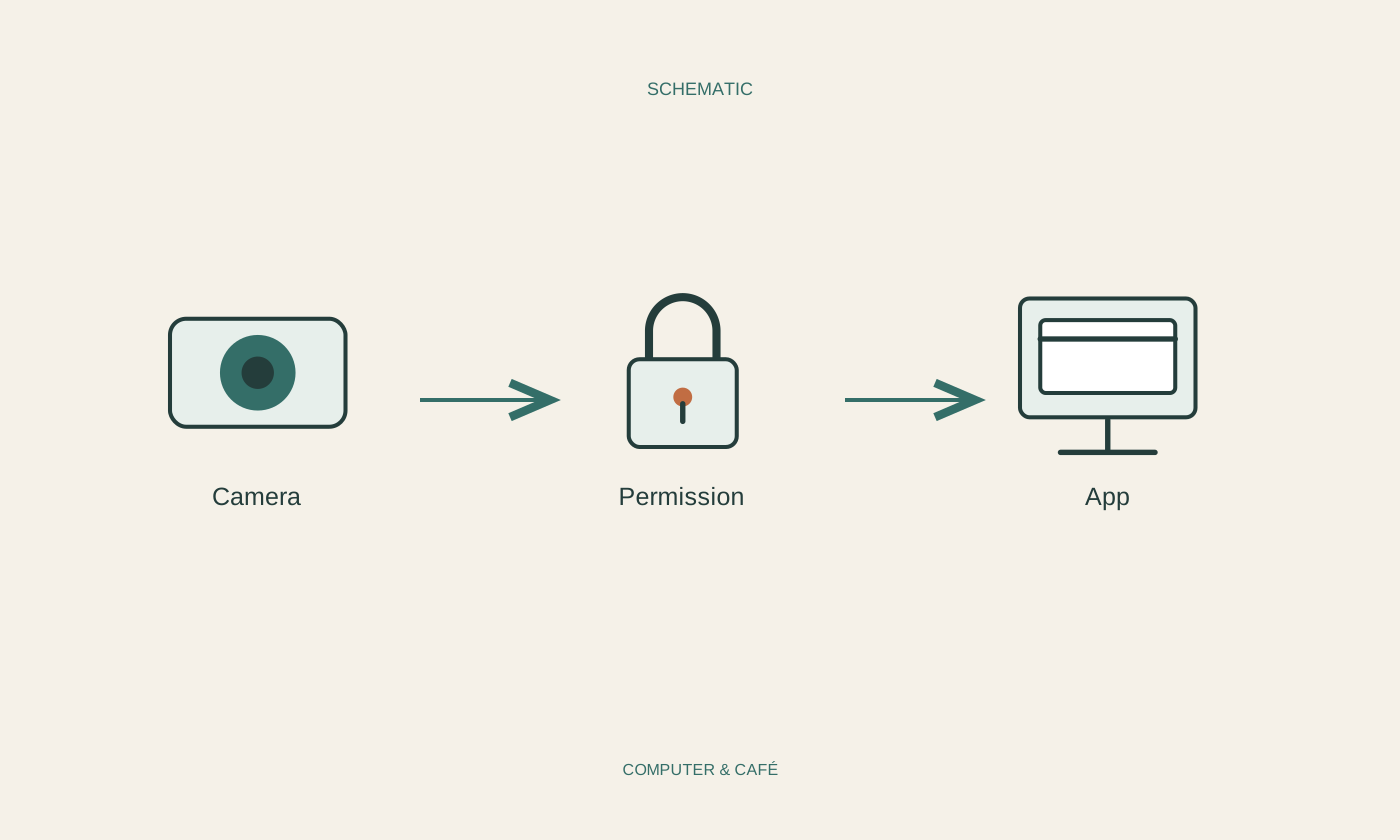
The operating system can restrict camera access for applications. A browser may additionally request permission for an individual website, while the calling application has its own device selection. Check these levels deliberately using current system and service guidance. Grant access only to the known application or site you intend to use. Organisational management may impose settings; do not bypass those controls with unfamiliar utilities. Contact the responsible IT team when an option is locked. Record each adjustment so a temporary permission can be reviewed later instead of becoming an unnoticed permanent change made during a hurried test.
Consider competing use and a normal restart
Close unnecessary programs that could be using the camera and try the known preview again. Save open work before restarting the computer normally if appropriate. Afterwards, test the same application with the same camera. Obtain necessary updates through official channels. A random driver package from an unrelated download site is not a sensible first measure. For an external webcam, another explicitly suitable port can provide a comparison. Change one thing at a time so the result shows whether access, connection or another application made the difference, rather than leaving several possible explanations mixed together.
Choose a practical temporary arrangement
If the camera still fails before an imminent appointment, joining with audio or using another already configured device may be appropriate when the occasion permits. Explain the limitation briefly instead of making unplanned system changes during the conversation. Later, collect the model, application, error wording and test results for official support. A camera working in a second application points towards closer examination of the first, but does not prove every detail of the cause. Once connection works again, review necessary permissions and remove unnecessary trial access. Keep the successful arrangement understandable for the next appointment.
Check the symptom, physical control, selected source and permissions before replacing drivers or equipment.