Narrow down the situation first
Record whether the display is black from the beginning or goes dark during use. Computer lights, fan noise or audible sound can provide clues, but do not prove the system has fully started. On an external monitor, inspect its own power indicator and see whether its menu opens. A visible monitor menu establishes that this part of the display works. Move the mouse or press a harmless key to check for ordinary sleep. Do not immediately repeat forced restarts, particularly if an update or recovery operation may be running and interrupting it could introduce another problem.
Check power and brightness
For an external display, inspect its adapter, switch and safe power connection. Handle only dry, undamaged components and do not experiment with suspicious cables. On a laptop, very low brightness may contribute; use its intended brightness control where operation is possible. Some models require a function-key combination. Follow the particular model’s instructions. If several displays are attached, see whether another one shows the sign-in screen or an open window. An unexpected arrangement can resemble a failed display when the output has simply been assigned elsewhere, especially after connecting a dock or returning to a previous workspace.
Choose the correct monitor input
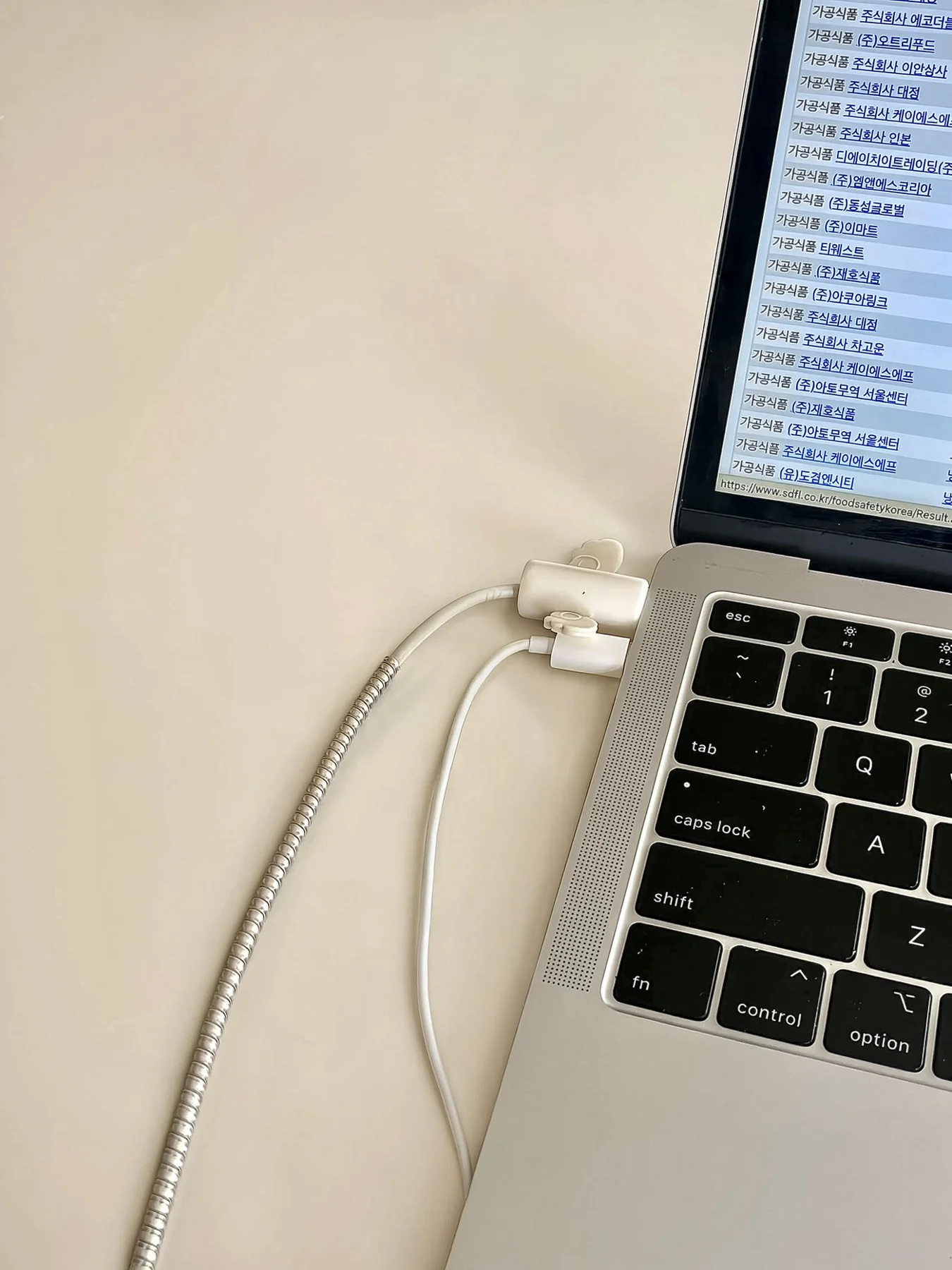
A monitor with several sockets may be set to a different source from the port in use. Select the matching input through its menu and inspect the cable at both ends. A USB-C connector does not guarantee that the selected connection supports video. Consider the computer, cable and any adapter together. If a dock is involved, an appropriate direct connection described by the manufacturer can simplify the arrangement. Change one component at a time and record the effect. This avoids reaching a working result accidentally without knowing which combination needs to be restored next time.
Use a known comparison
Another suitable cable or previously working monitor can help if available. Use supported combinations and avoid repeatedly reconnecting cables under tension. Note whether the monitor reports no signal or remains completely dark. These are different observations worth recording. If the computer works normally on another display, use it to inspect display detection and a supported resolution. Do not select unusual values blindly. When the problem followed a settings change, investigate using the documented way to reverse that setting where possible, rather than adding unrelated changes that make the original cause increasingly difficult to identify.
Avoid forcing an uncertain situation
If safe, straightforward checks do not explain the issue, note the model, connection route and last known working state. Appropriate support or repair is more useful than opening a display without suitable instructions. Stop use where safe if there is liquid, unusual heat, smell or visible damage. If the picture returns, save and back up important work, then observe whether the same condition triggers the issue again. One success does not prove a permanent repair. Record the specific change that restored the display so further investigation begins with evidence rather than a general impression that it somehow started working.
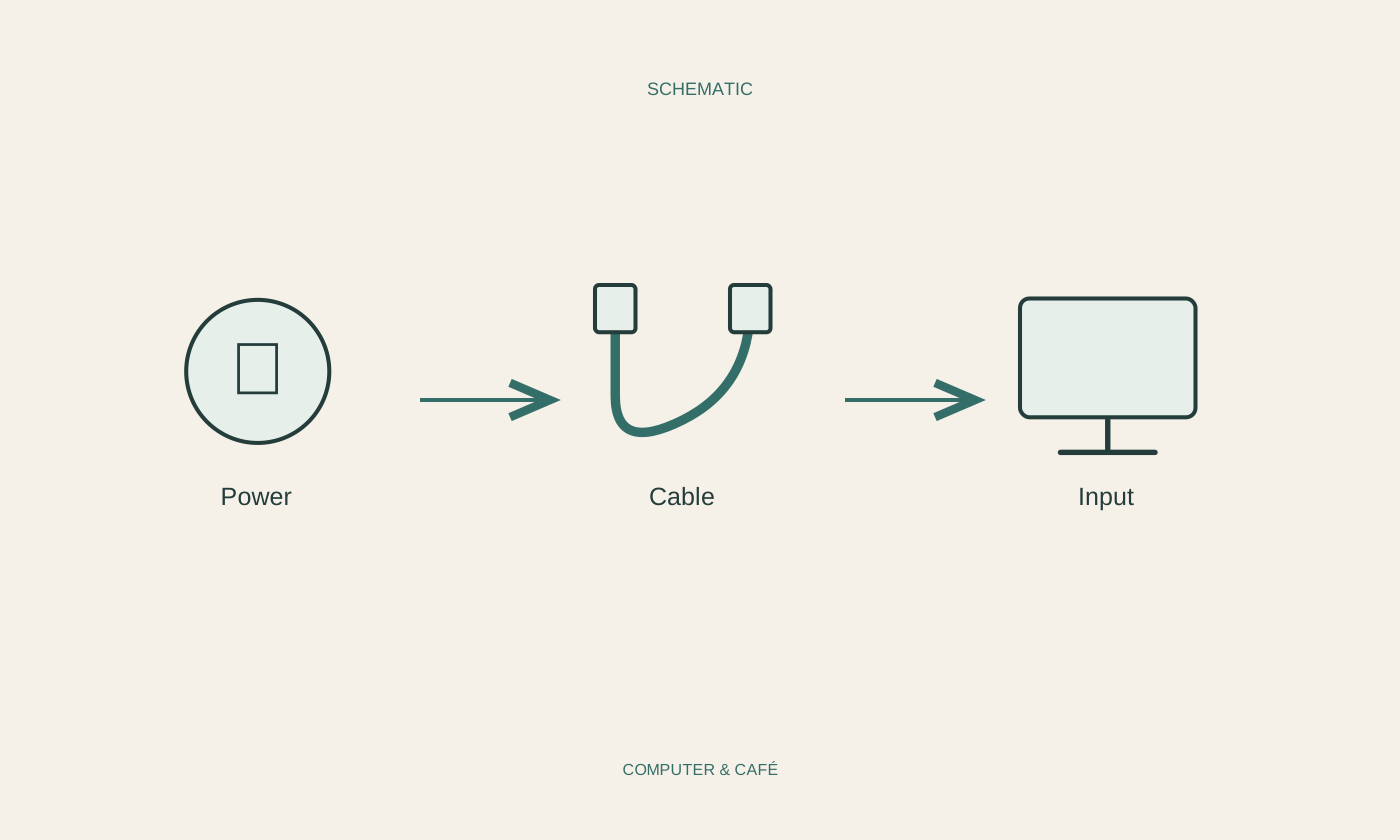
Separate power, monitor input, cable and actual video output into individual checks.