Rule out one unavailable website
Try another known website without following unfamiliar links in error messages. If only one service is unavailable, the problem may be there. Record the exact message and check whether other applications are affected. A browser may display a specific connection or certificate warning. Do not routinely dismiss it merely to continue. If dates appear wrong, inspect the computer’s clock. When several familiar destinations remain unavailable, move on to comparing the network. Repeatedly reloading the same page provides little additional evidence and can make a single service problem seem like a much broader connection failure.
Check the network actually selected
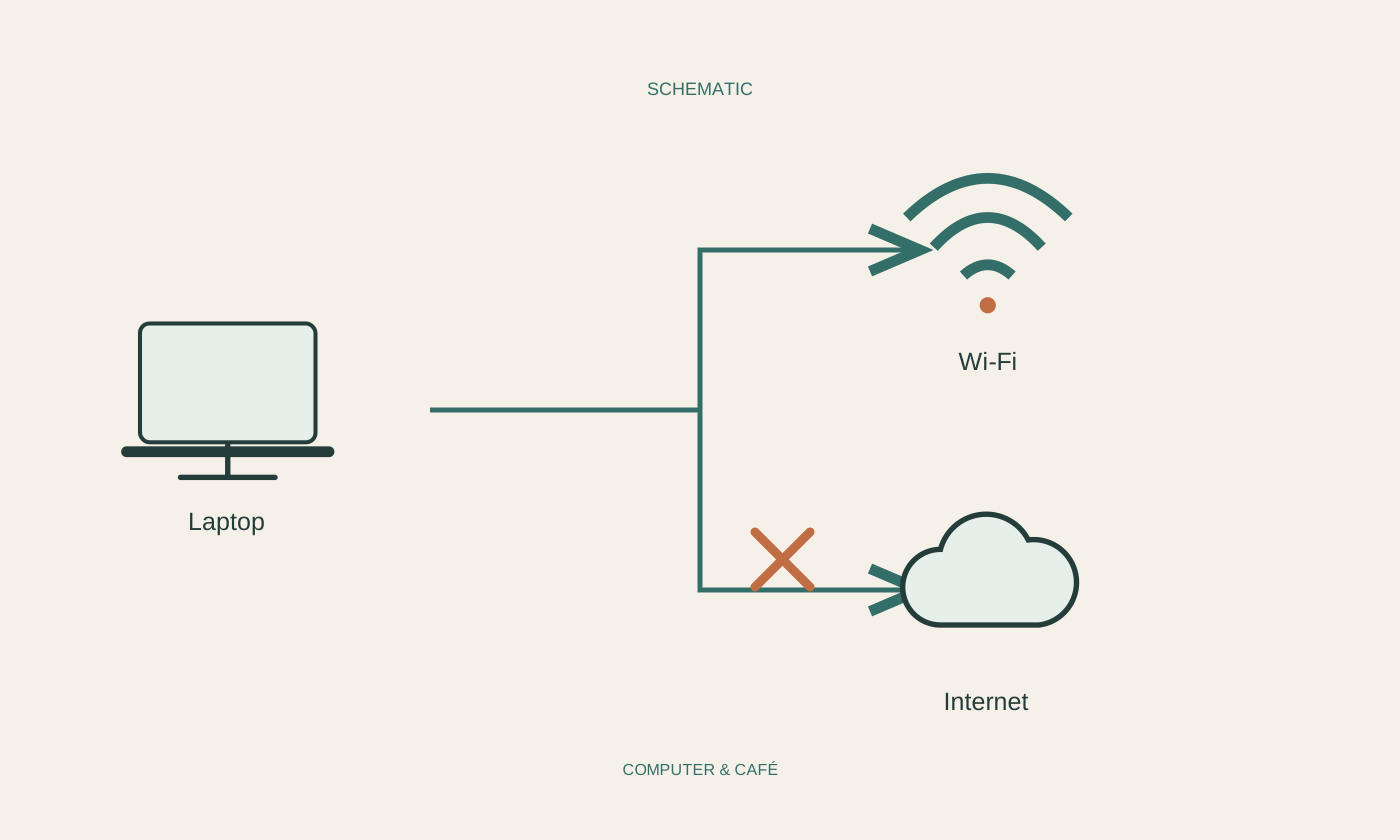
See which network the computer has joined. A remembered guest network or similarly named access point may have been chosen accidentally. Hotels and other public networks sometimes require a sign-in page. Follow the operator’s official instructions and do not hurriedly enter confidential credentials into an unfamiliar window. If access requires authentication, distinguish that process from the website you originally wanted to visit. A wireless connection may remain established without permitting general internet access until the entry process is complete. The word connected does not answer that separate question, so the network name and circumstances matter.
Compare a second device
Check whether another device reaches familiar websites through the same Wi-Fi. Ensure a phone is not silently falling back to mobile data. If several devices fail, inspect the router’s status indicators using its manual. Lights and colours mean different things on different models. A wireless indicator is not automatically an internet-service indicator. If only one computer is affected, its settings and active connection services deserve more attention. Record that observation before changing the router, because router changes affect other users and may disturb a working connection that is unrelated to the problem on this particular computer.
Account for special connection arrangements
A VPN, managed work environment or proxy configuration can influence the route to the internet. Do not blindly alter those requirements. For a work device, contact the responsible IT team and explain whether the problem occurs only with a particular connection. On a private computer, consult current guidance for any VPN you deliberately use. Do not disable protective features indiscriminately or install unfamiliar repair tools from a random search advertisement. The operating system’s built-in network diagnostics may provide clues. Read proposed changes rather than treating a broad network reset as an ordinary first step with no consequences.
Investigate the service connection methodically
If the router indicates no internet access, check the intended cables and the provider’s known outage information. Use another working connection where necessary to read official guidance. Restart equipment according to its instructions while considering other users. Do not confuse restarting with a factory reset, which can erase important configuration. Record the model, indicator states, time and affected devices for support. Once access returns, test the same destinations again. This establishes whether the broader connection works or whether only one previously affected application has happened to become available, leaving another part of the issue unresolved.
Check the destination, selected network, other devices and router access as separate steps.