Compare similar conditions
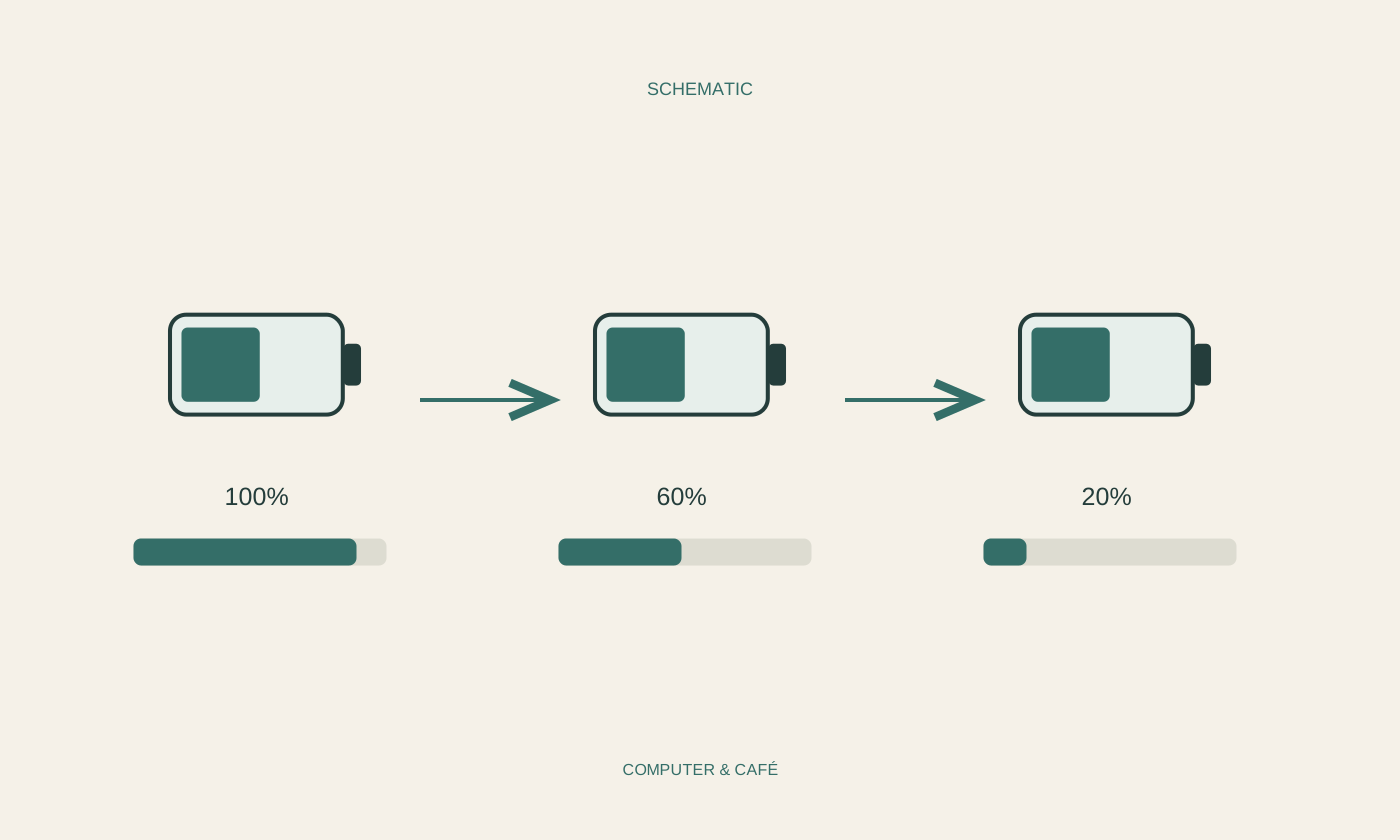
Do not compare a quiet morning of writing with a day of video meetings. Display brightness, active applications, connected accessories and wireless activity affect energy use. For a manageable session, record the starting charge, approximate duration and work actually performed. The timings need not be exact to the second; they should make substantial differences visible.
Check whether the battery was adequately charged in the first place. A connected cable does not guarantee that the intended charging power is available. Some devices deliberately limit charging through a battery-care setting. Read the status message and model documentation before treating a lower maximum percentage as evidence that something has failed.
Look for the main consumers
Use the operating system's energy-use overview if it provides one. An ongoing video export, a demanding website or a background application may explain the difference. Save your work and close recognised applications you no longer need. Do not remove unfamiliar system services merely because they appear in a usage list.
Try slightly lower display brightness while keeping text comfortably readable, and select an appropriate power mode. Compare the effect during a similar task. Changing brightness, software and accessories simultaneously makes the result difficult to interpret. Small controlled adjustments are especially useful when runtime has become noticeably shorter only recently, rather than gradually over the life of the machine.
Treat overnight drain as a separate question
If charge mainly disappears overnight, investigate that interval separately from active use. Record the battery level before putting the computer away and after opening it again. Check whether it entered the intended sleep state or whether an application kept it working. A closed lid alone does not explain every possible operating state.
For comparison, save everything and use the documented shutdown procedure. Substantially lower loss while shut down points towards behaviour during sleep, but does not automatically prove a battery fault. Avoid tightly packing a computer that is still working and warm into a bag. Establish its state before treating it as ready for transport.
Read battery-health information in context
If the manufacturer provides a battery-health display or diagnostic, use the one intended for your model. Read its explanation of capacity and service recommendations. Estimated time remaining changes with the current workload and is not a fixed promise. One reported value also cannot replace observations from several reasonably comparable sessions.
An older battery may store less energy than when new. Whether replacement makes sense depends on your tasks, actual runtime and the condition of the computer as a whole. Obtain parts and fitting advice from trustworthy model-specific sources. Not every built-in battery is intended to be replaced easily by its owner without professional assistance.
Do not optimise around signs of damage
A swollen case, unusual smell, visible damage or abnormal charging behaviour requires qualified support. Stop using or charging a device showing signs of battery damage. Do not press, open or try to reshape a swollen battery, and do not assume that deliberately running it flat will repair a physical problem.
For ordinary shorter runtime without those warning signs, your comparison notes are valuable: similar work, similar brightness, starting charge and result. Add the power supply used and any battery-health message. This evidence helps determine whether the next useful check concerns a setting, an application, the charging connection or a service assessment rather than another speculative adjustment.
Compare similar workloads and inspect energy use, charging state and battery-health information separately.