Computer Basics
Understand devices, familiar terms and the first useful steps.
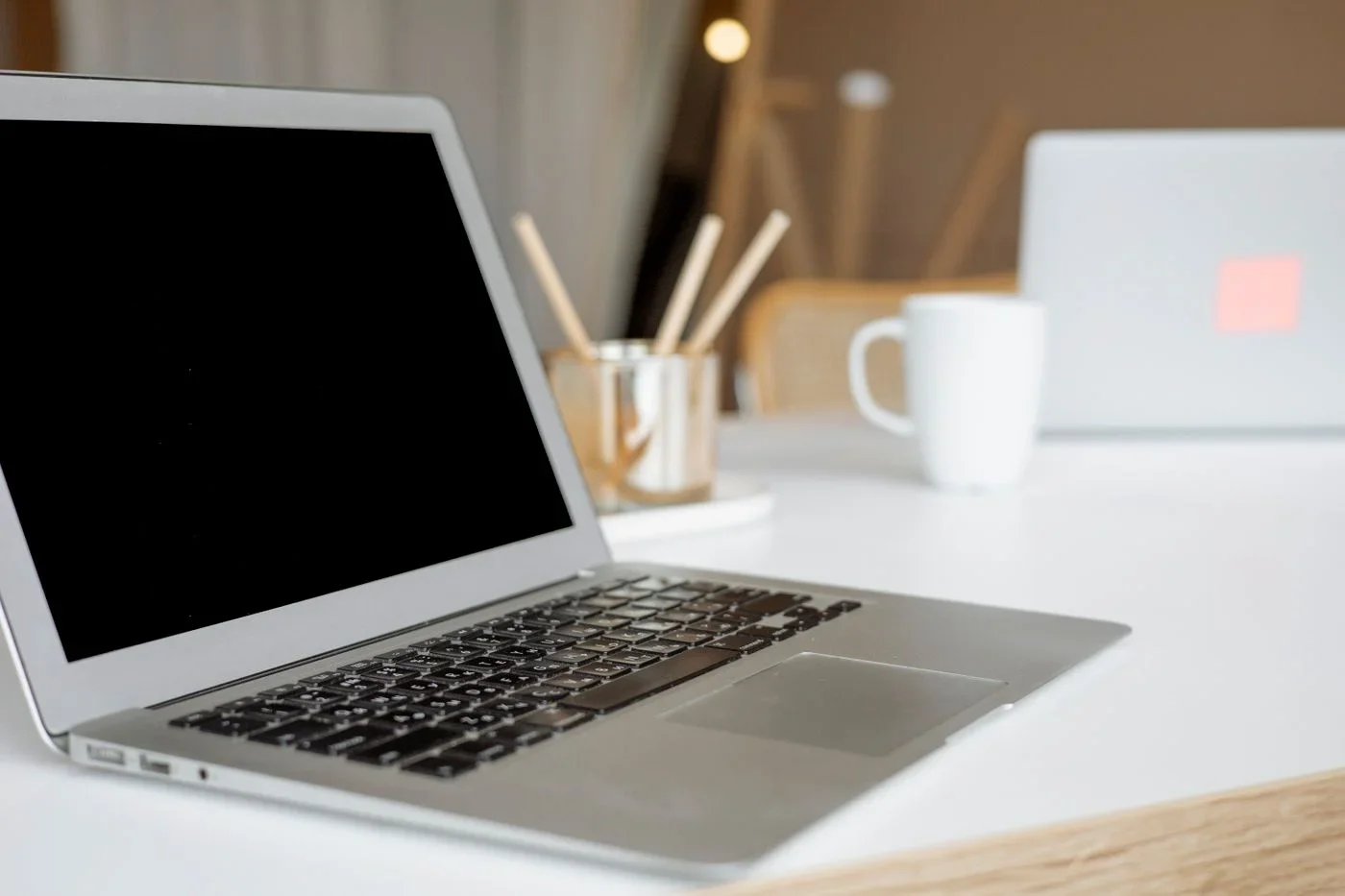
Set up a new laptop without rushing
A new computer does not have to be finished on its first evening. A sensible order keeps accounts, files and accessories manageable.
Read the guide ↗
Understand the ports on your laptop
A connector’s shape is only the beginning. Match the laptop’s exact specifications to the job before buying an adapter.
Read the guide ↗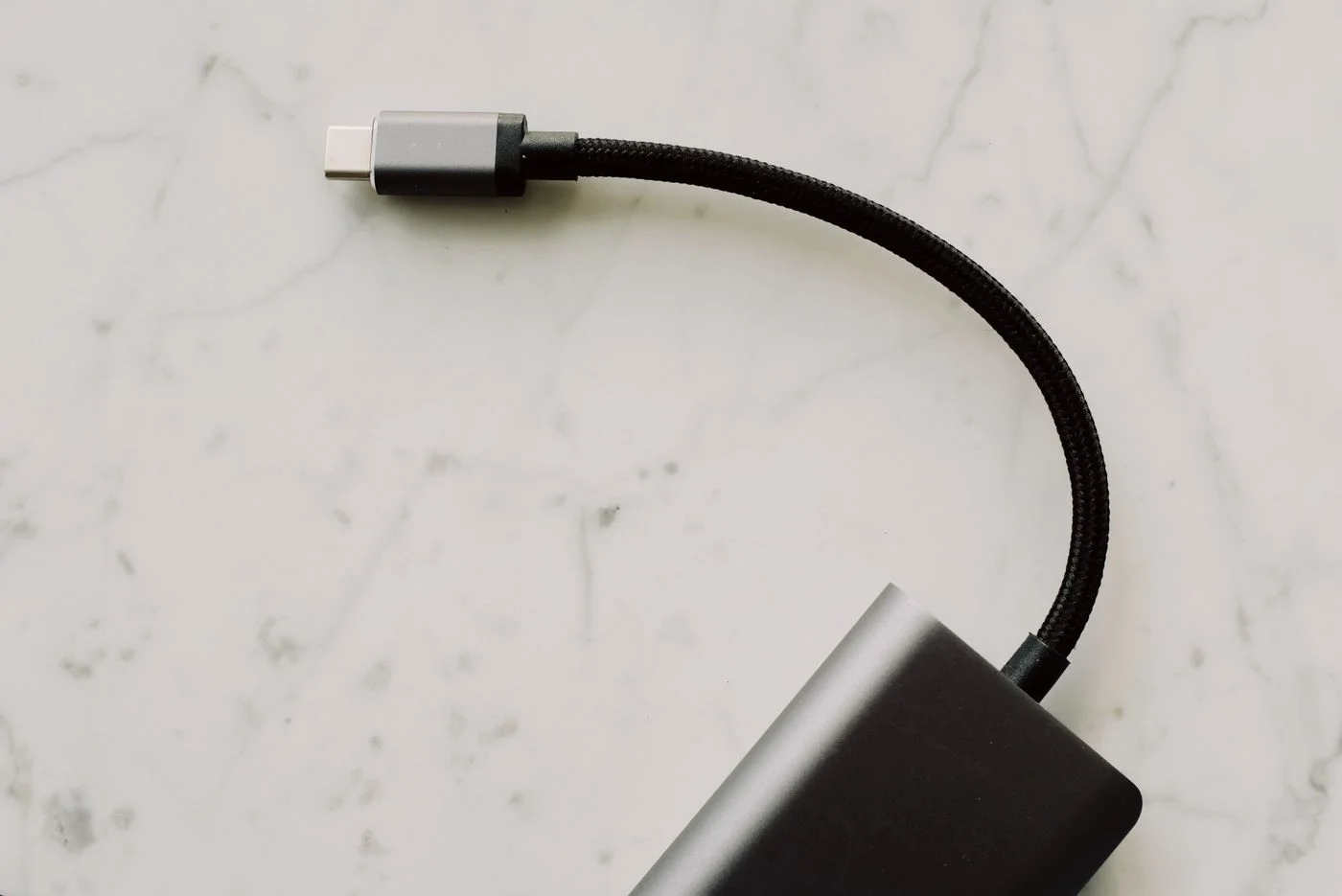
USB-C: one connector, different jobs
USB-C names a connector shape. Charging, display output and transfer performance depend on the whole connection.
Read the guide ↗
Put an external drive to useful work
An external drive can carry working files or hold backups. Decide which job it will perform before putting important data on it.
Read the guide ↗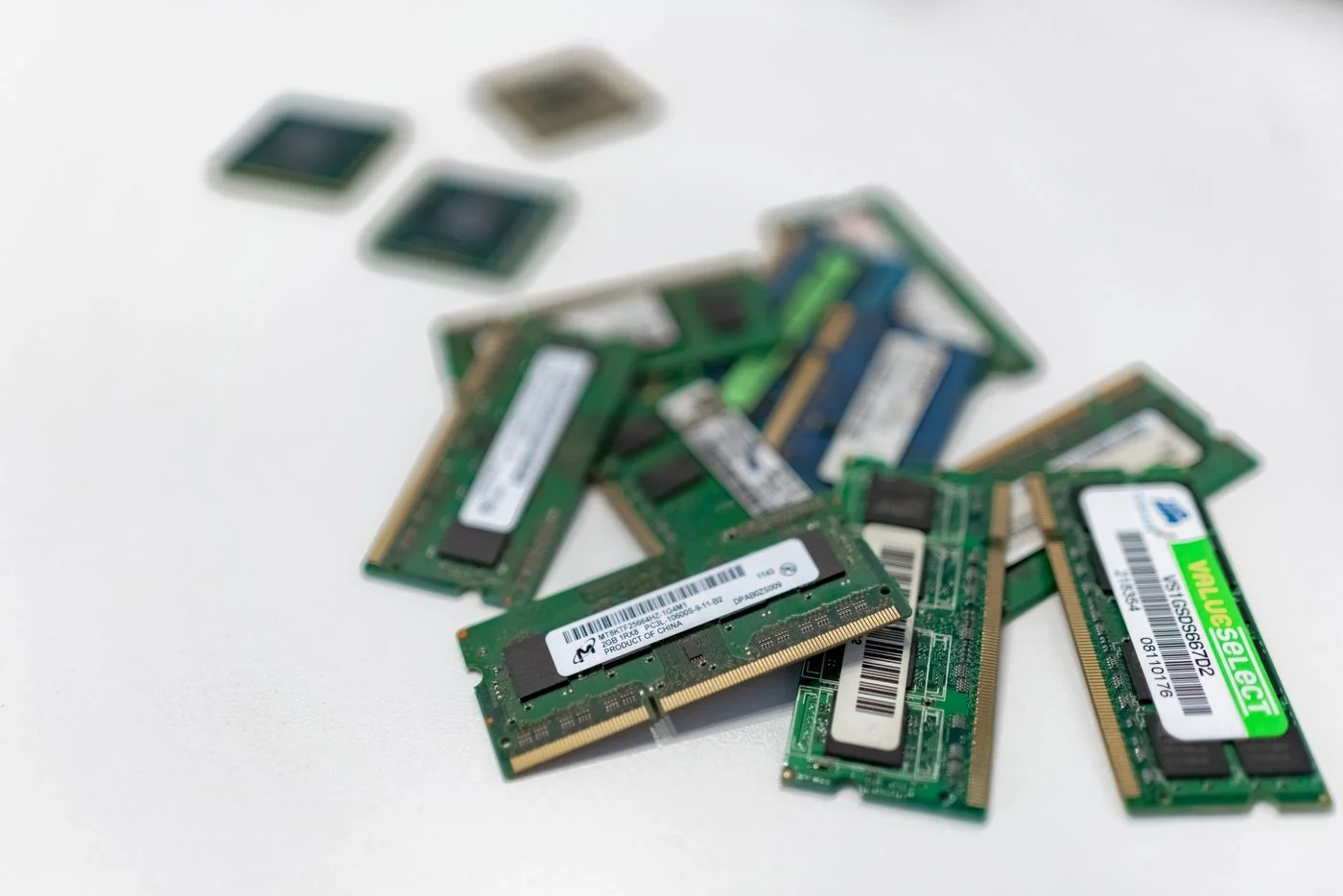
Tell memory and storage apart
Memory supports work in progress; storage keeps files. Separating them makes many computer messages easier to understand.
Read the guide ↗
Connect a second monitor
A second screen becomes useful when its connection, arrangement and text size fit the way you work.
Read the guide ↗
Get more comfortable with a touchpad
A touchpad is easier to learn in small steps. A few dependable movements matter more than memorising every available gesture.
Read the guide ↗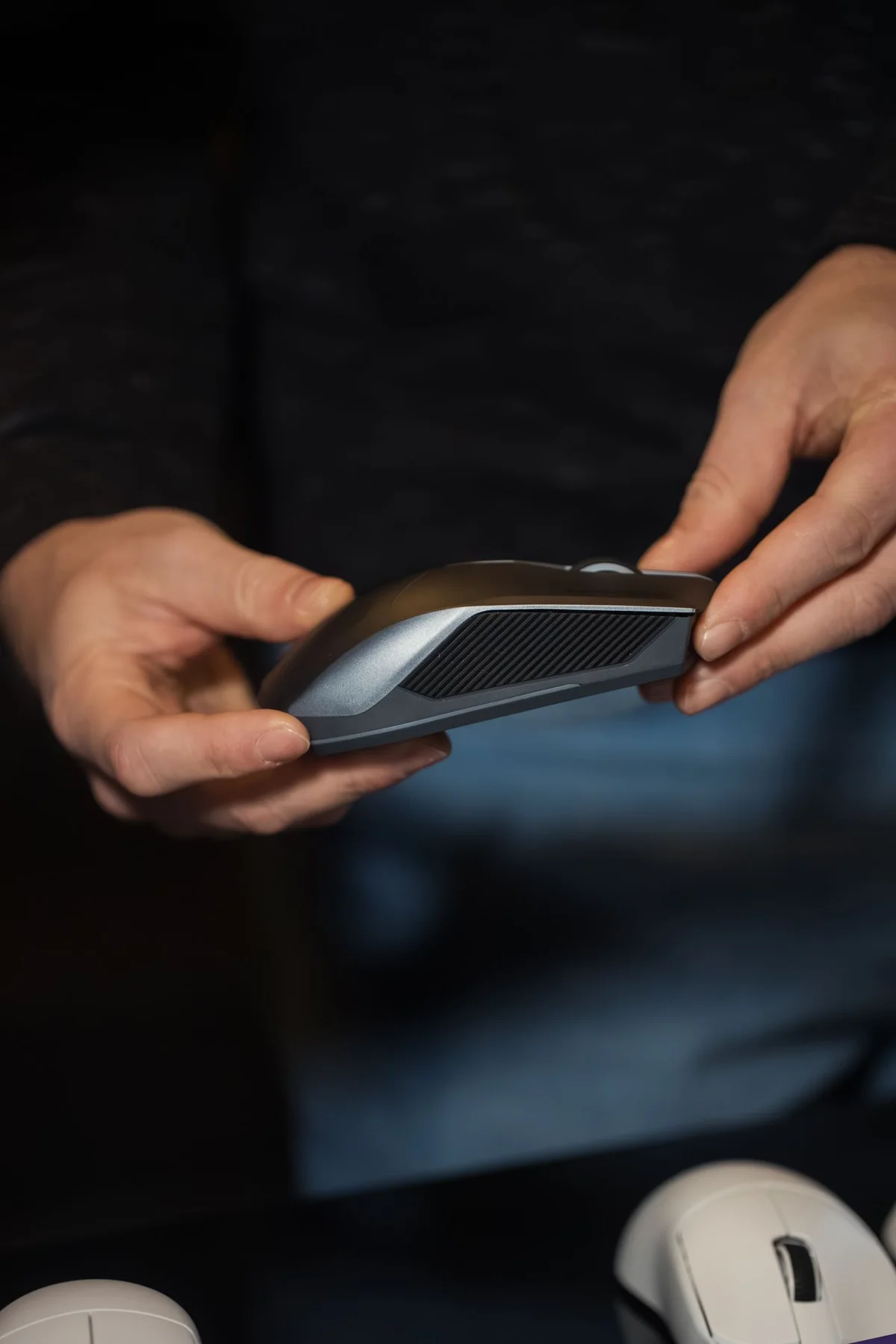
Find a mouse that suits your hand
A mouse should fit your hand, desk and tasks. A short practical trial is more informative than a long feature list.
Read the guide ↗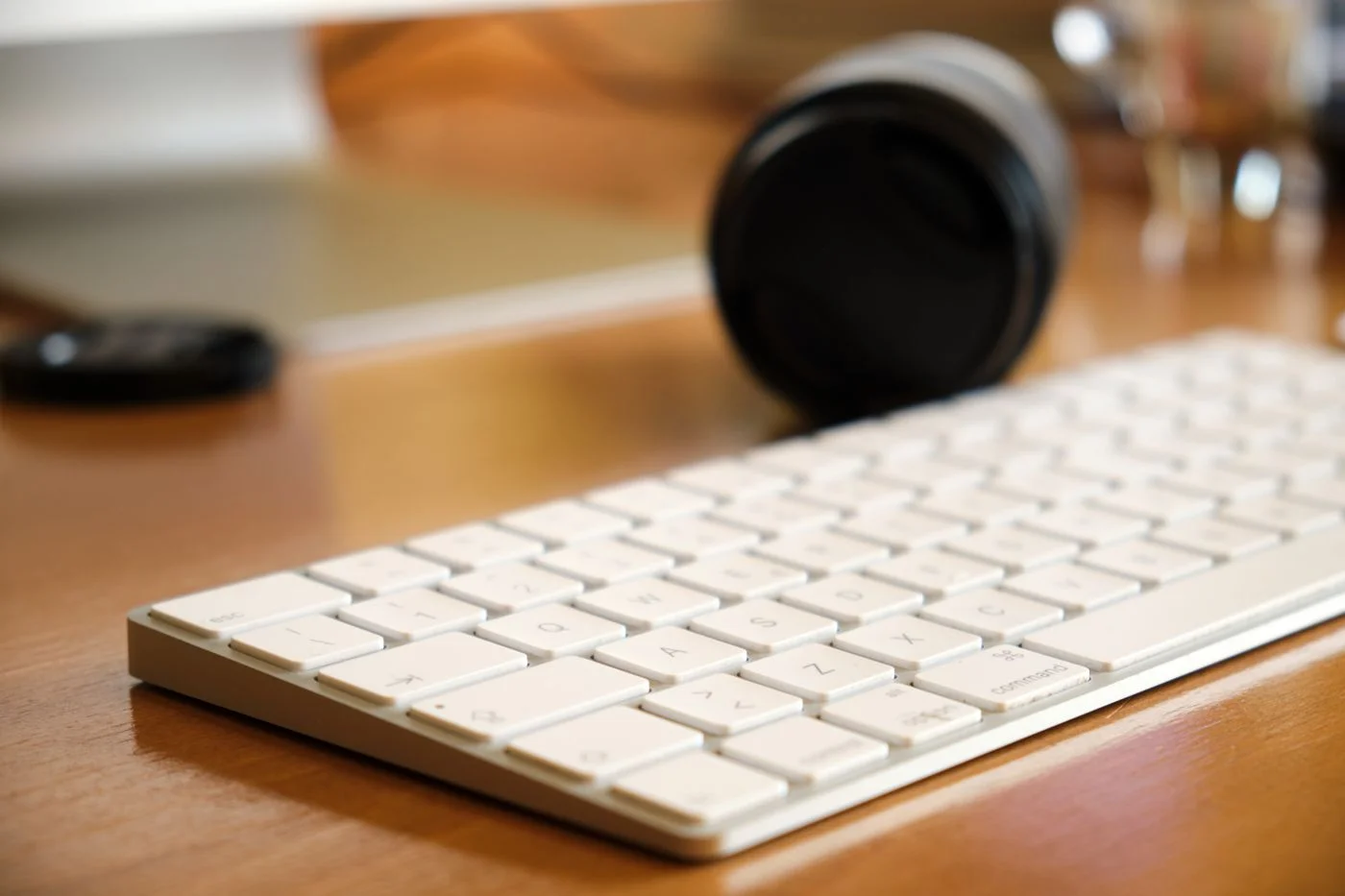
Get to know your keyboard
A few well-understood keys are enough to start. Practise typing, navigation and shortcuts in a disposable document.
Read the guide ↗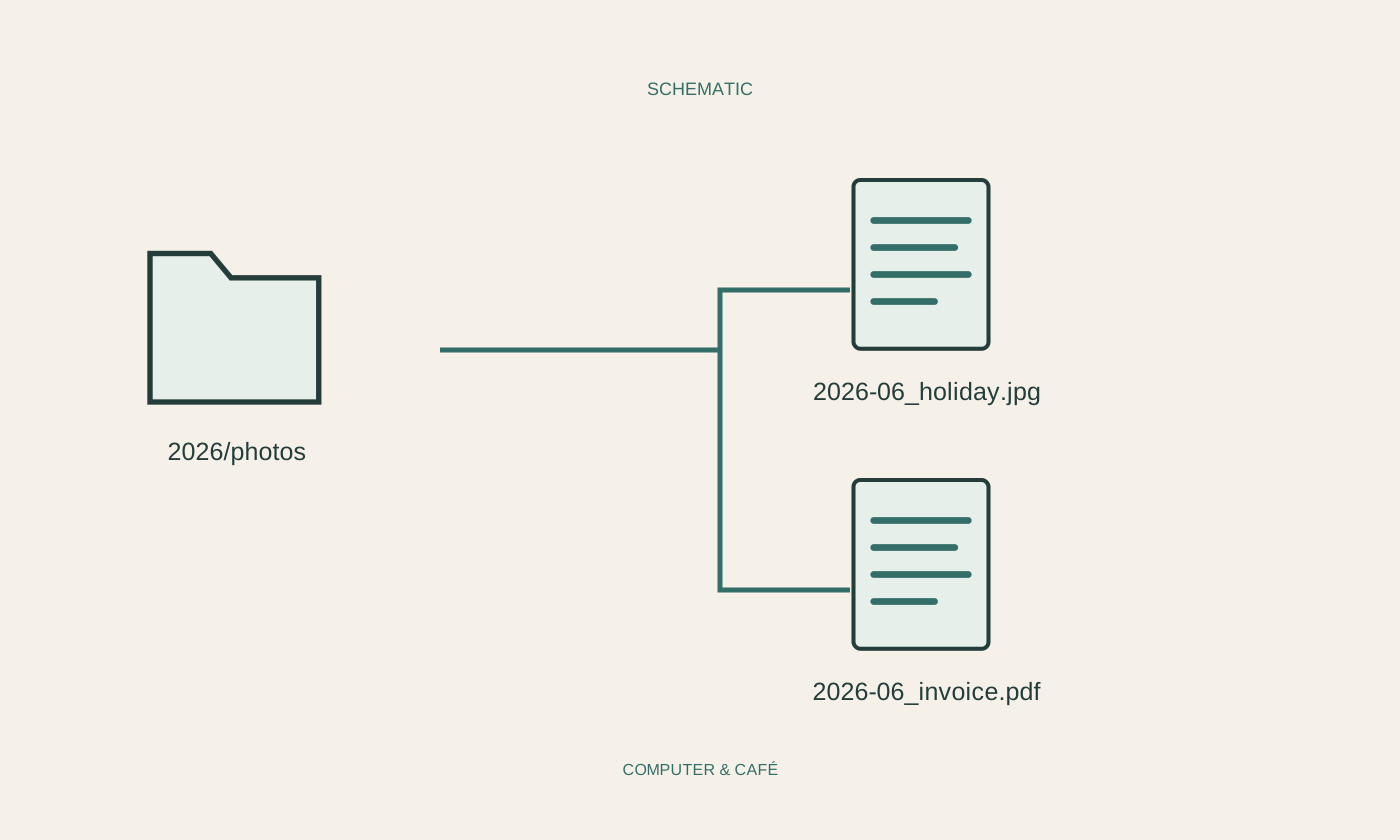
Give files and folders useful names
Useful filenames answer a simple question: what is this? A small, consistent system makes documents easier to find later.
Read the guide ↗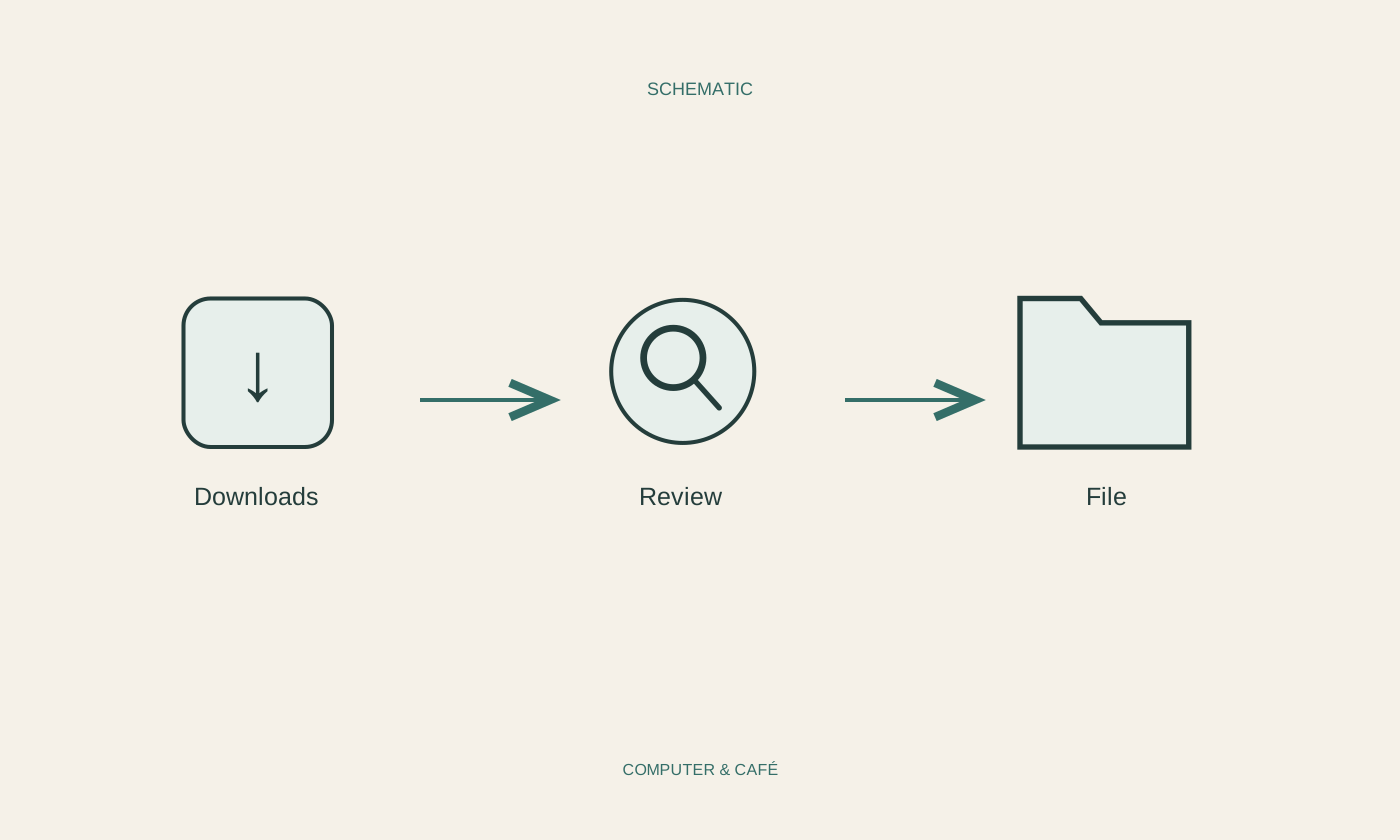
Find and organise your downloads
Treat Downloads as an inbox, not a dependable archive. First establish which file was saved and where it went.
Read the guide ↗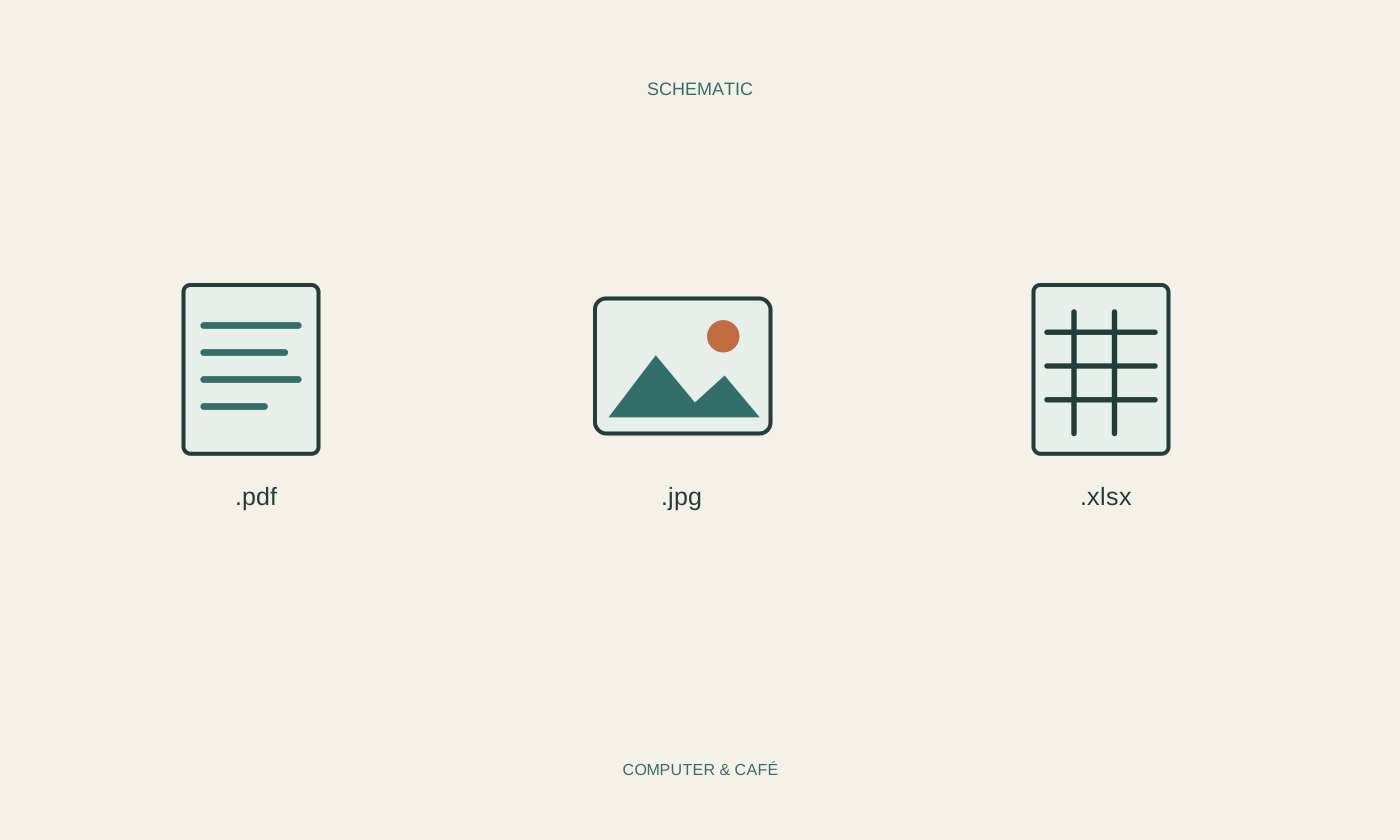
Make sense of file extensions
A file extension indicates a format. It does not explain all the contents or establish that a file is trustworthy.
Read the guide ↗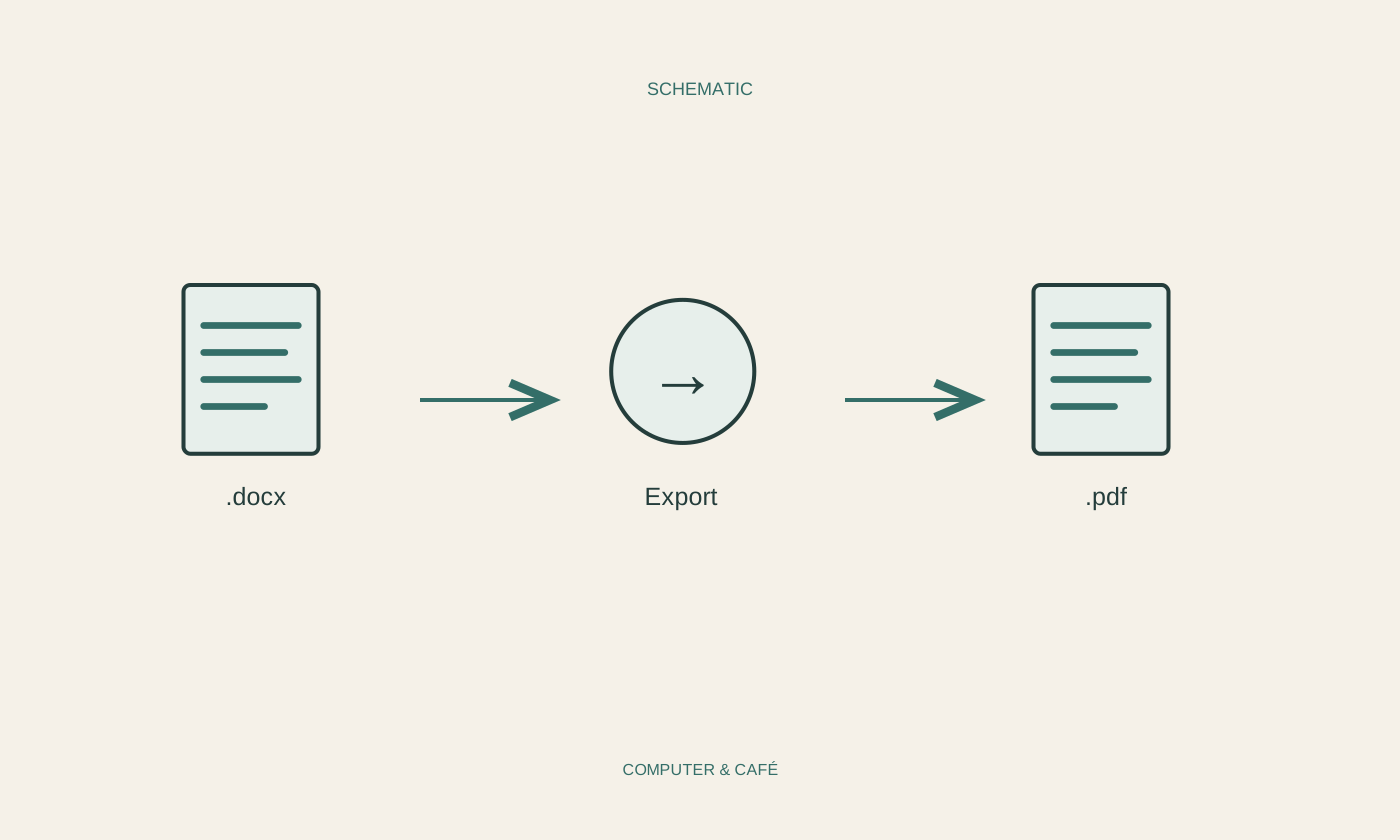
Share a document as a PDF
PDF is useful for distributing a finished document. The important step is inspecting the exported file itself.
Read the guide ↗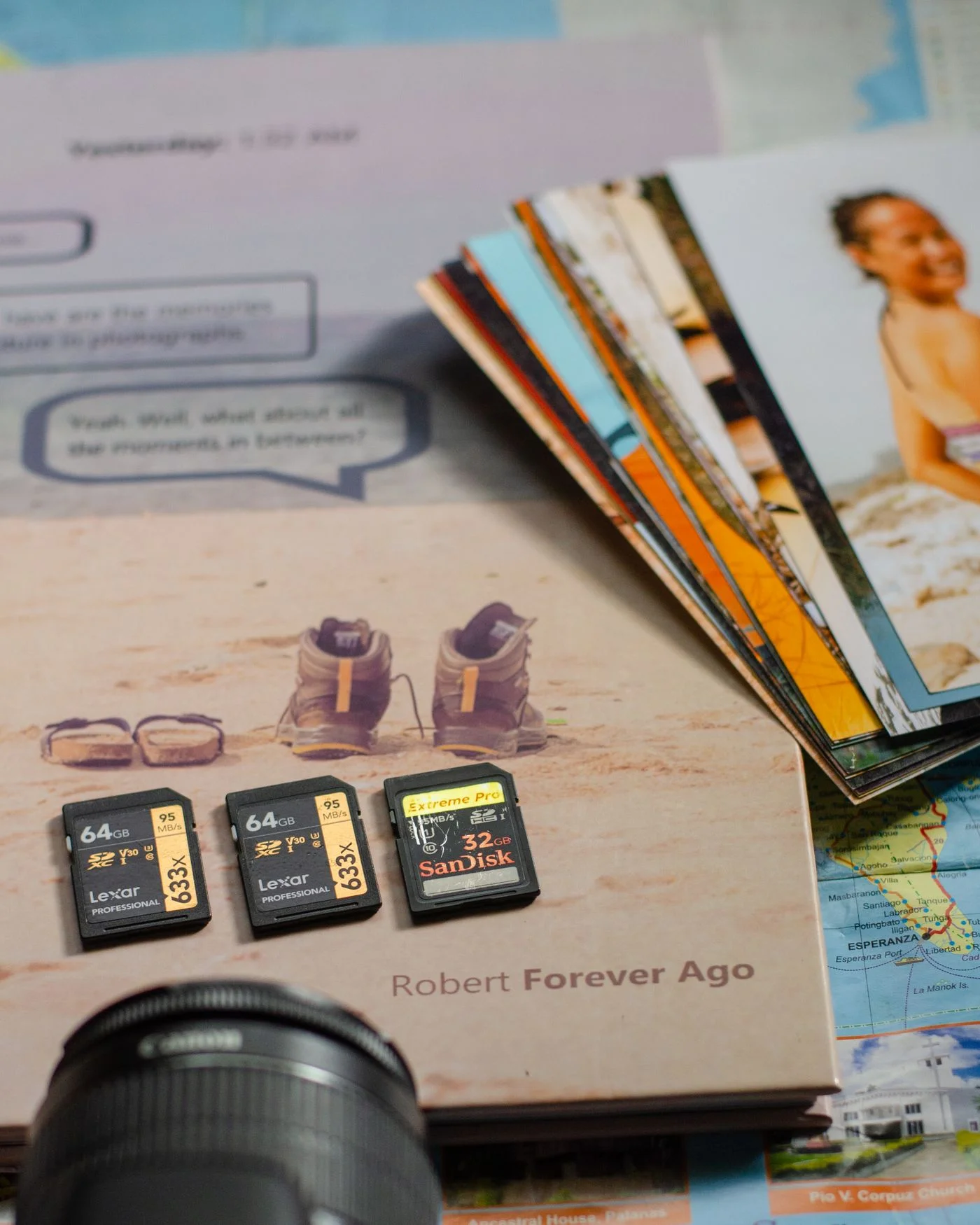
Transfer photographs from a memory card
Transferring photographs is more than copying files. Keep the card until the transfer and an additional backup have been checked.
Read the guide ↗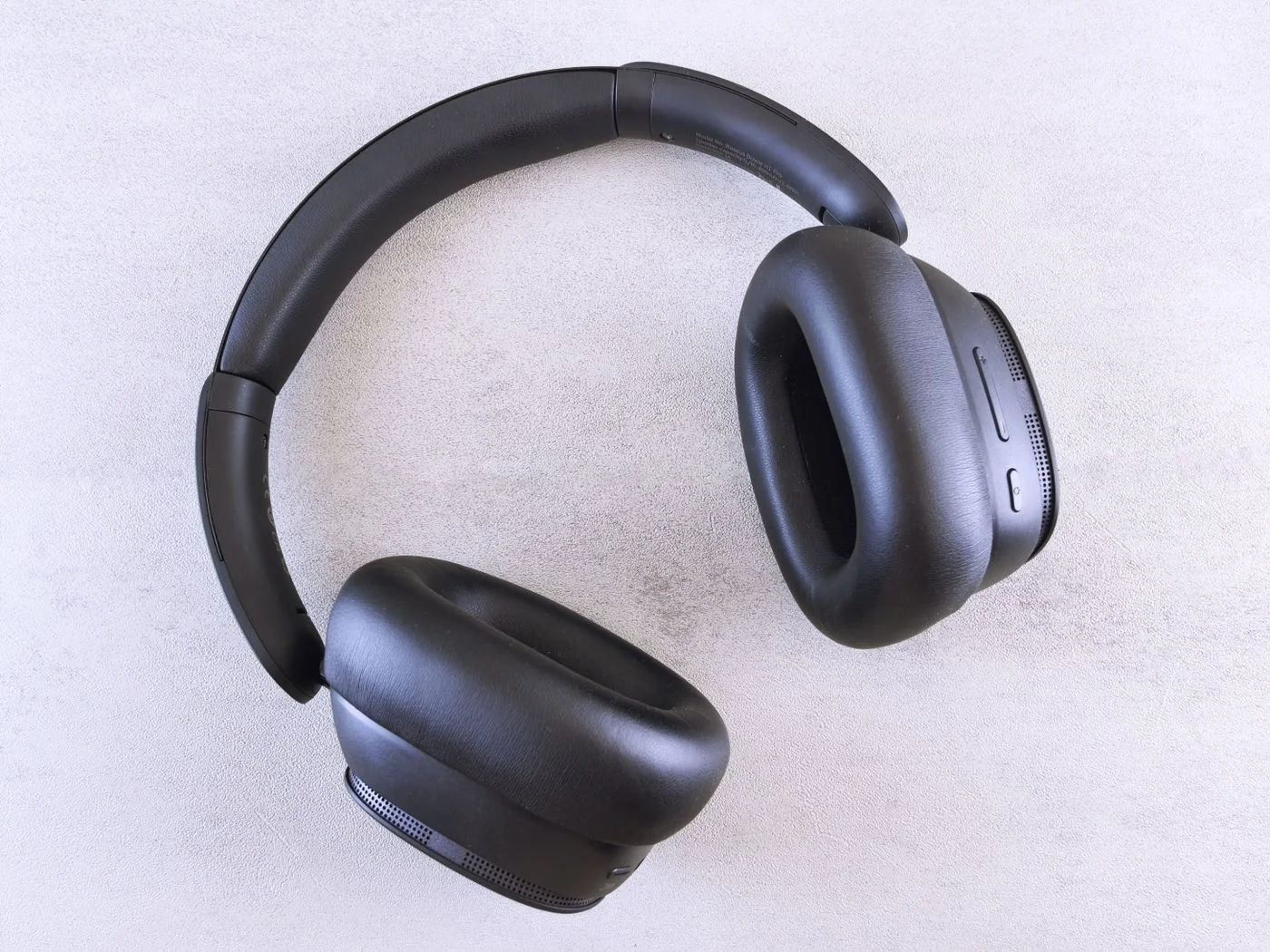
Connect Bluetooth devices deliberately
Bluetooth removes a cable but still needs a clear device pairing. Begin with one accessory and one known computer.
Read the guide ↗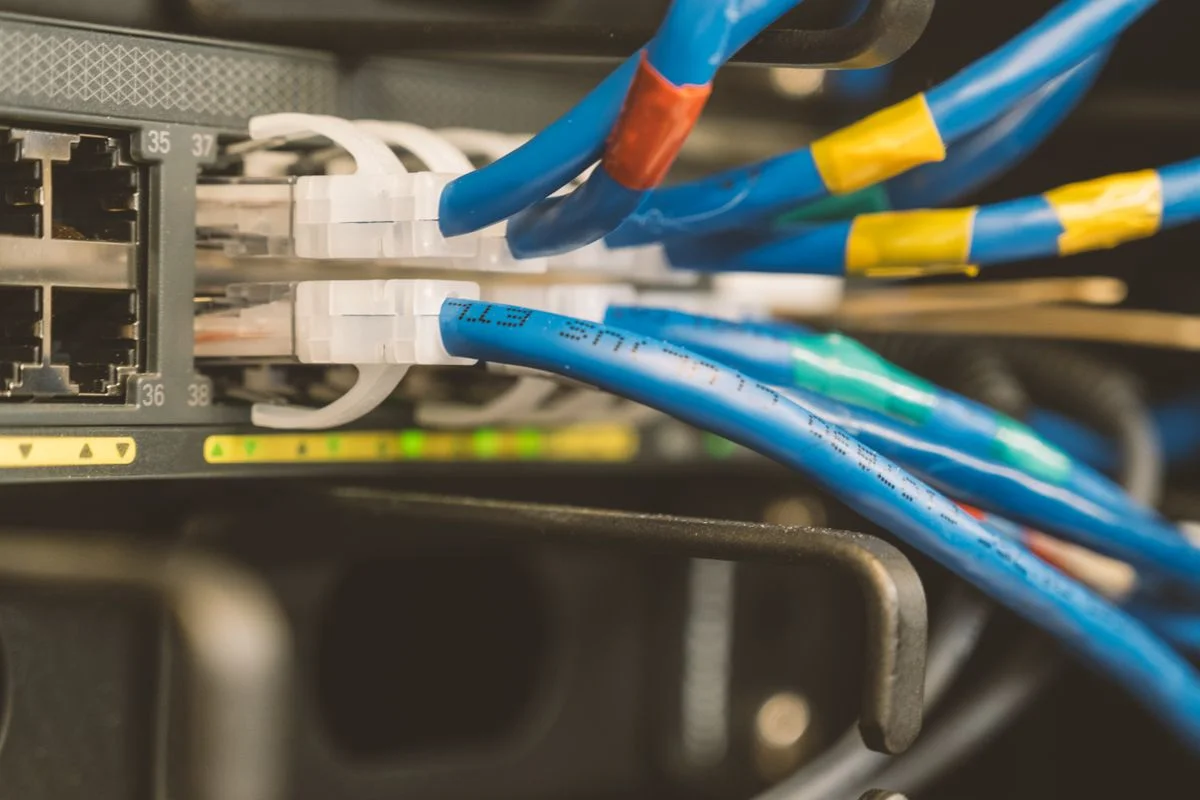
Understand Wi-Fi and Ethernet
Wi-Fi and Ethernet connect a computer to a network. The useful choice depends mainly on the location and the work you do there.
Read the guide ↗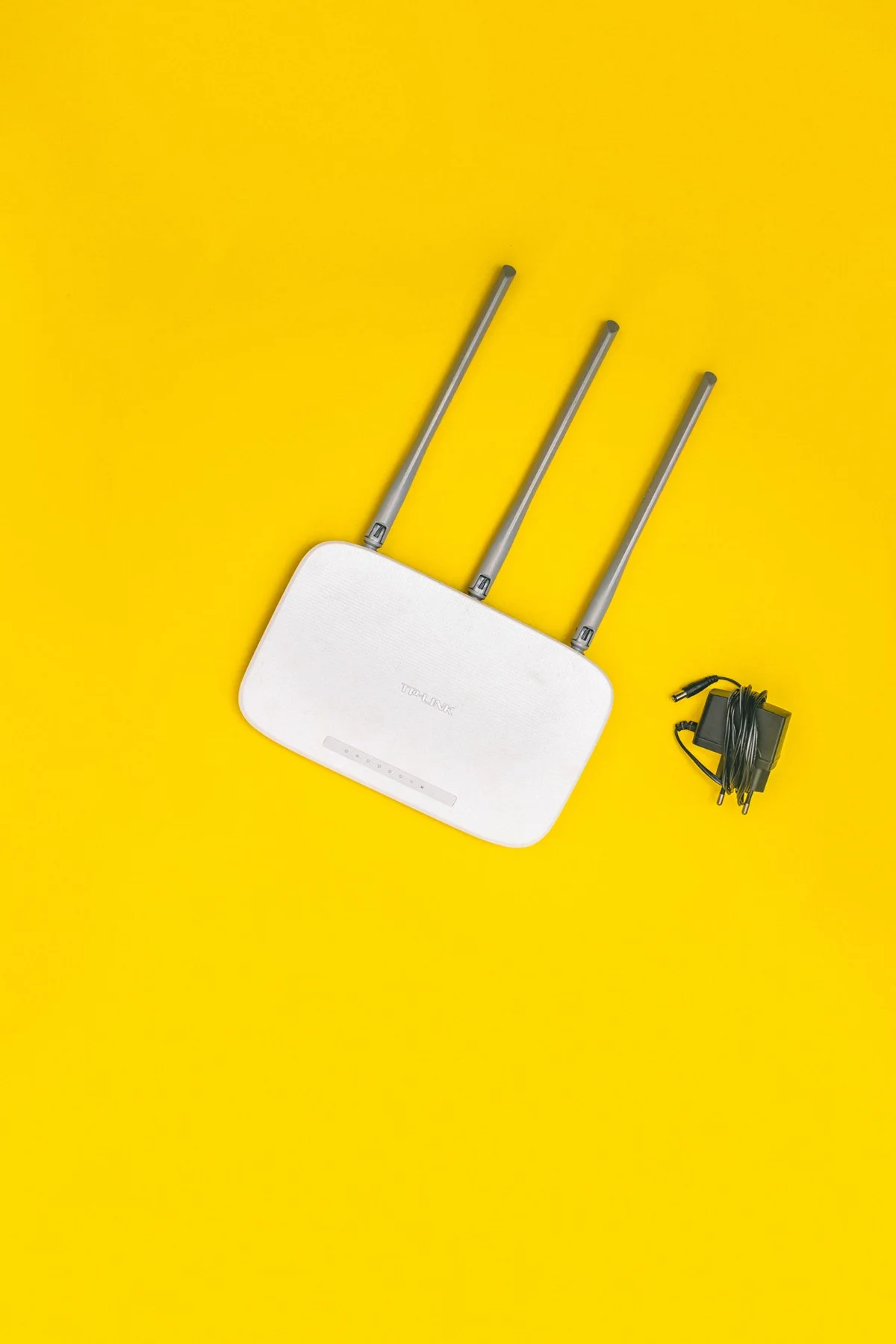
Find a better position for your router
A better router position starts with observation. Test changes where the connection is actually needed.
Read the guide ↗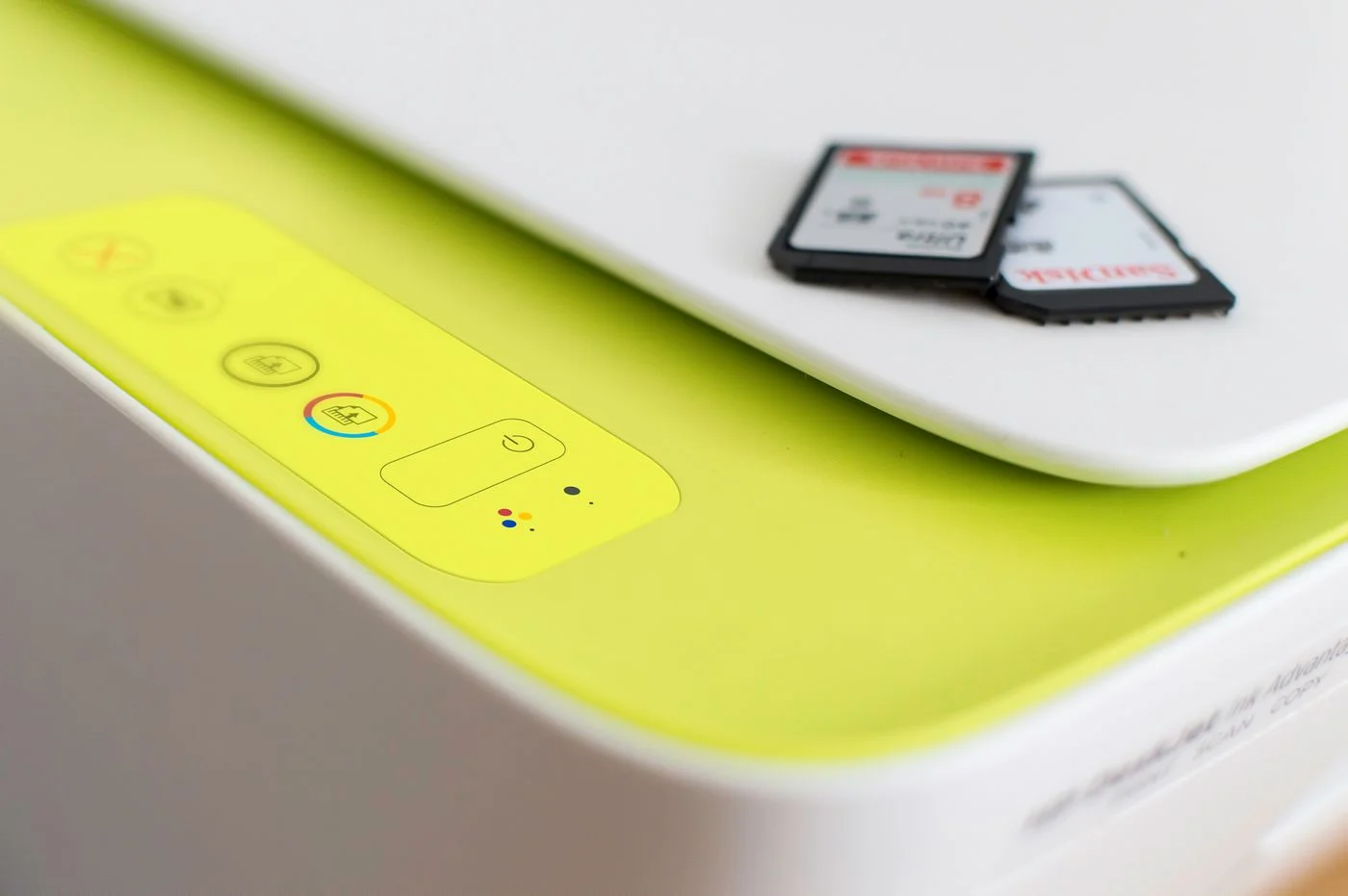
Set up a printer for everyday use
A printer is ready when an ordinary page arrives reliably. Work from device preparation to a simple test print.
Read the guide ↗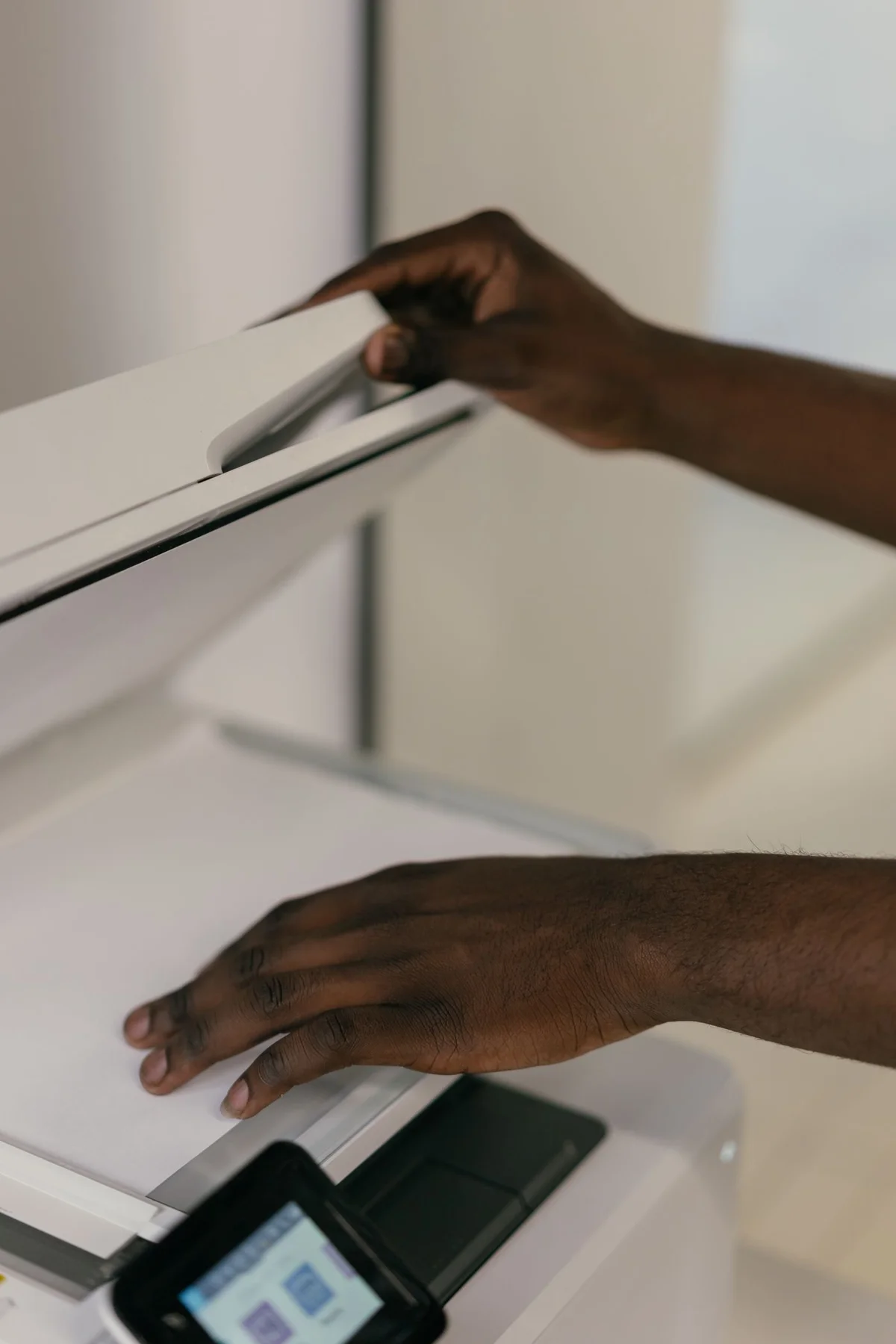
Scan paper documents clearly
A useful scan is complete, readable and easy to find. Preparing the paper carefully saves later correction work.
Read the guide ↗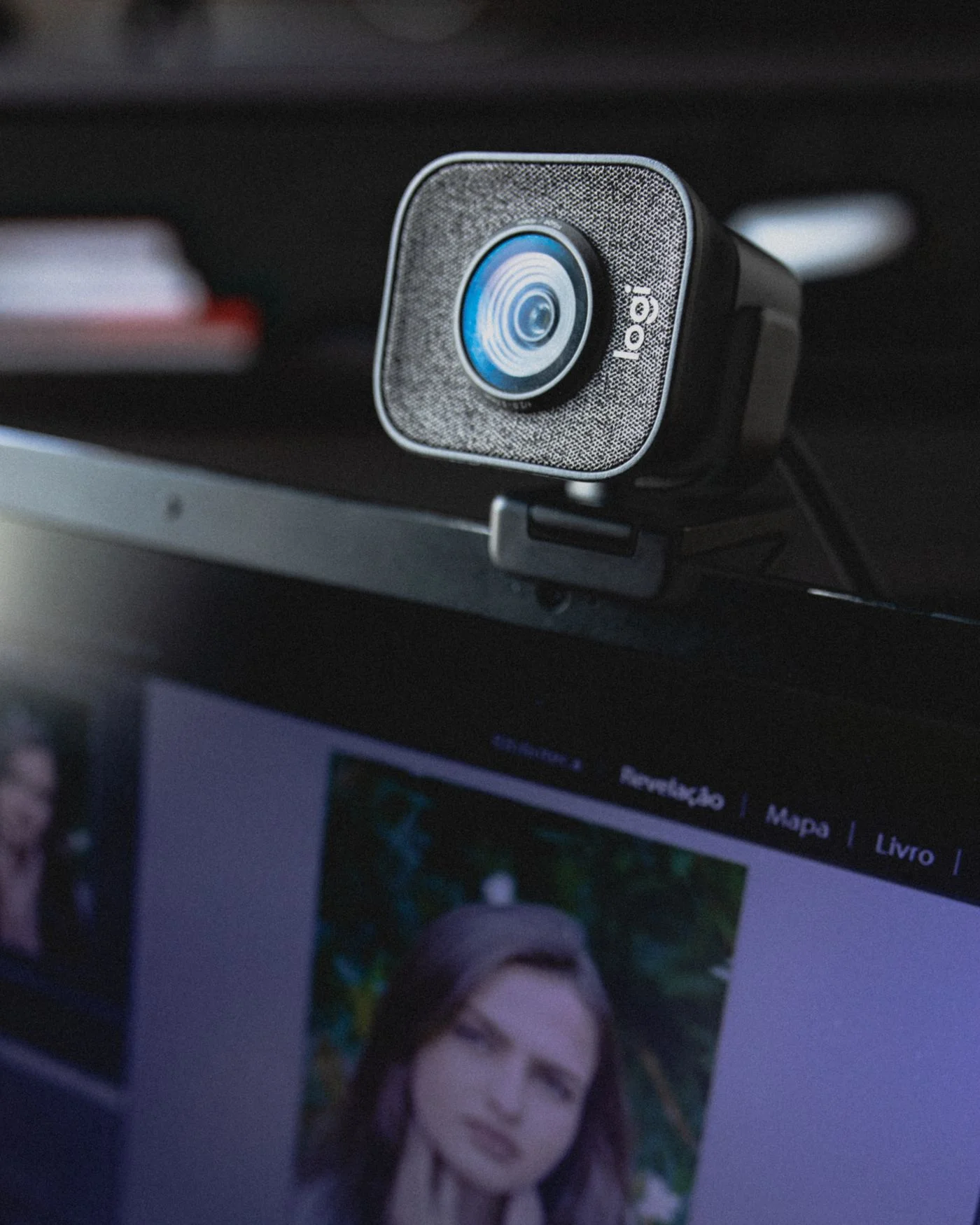
Prepare your webcam for a call
A sensible camera position and a brief preview check are often enough to make a call begin more calmly.
Read the guide ↗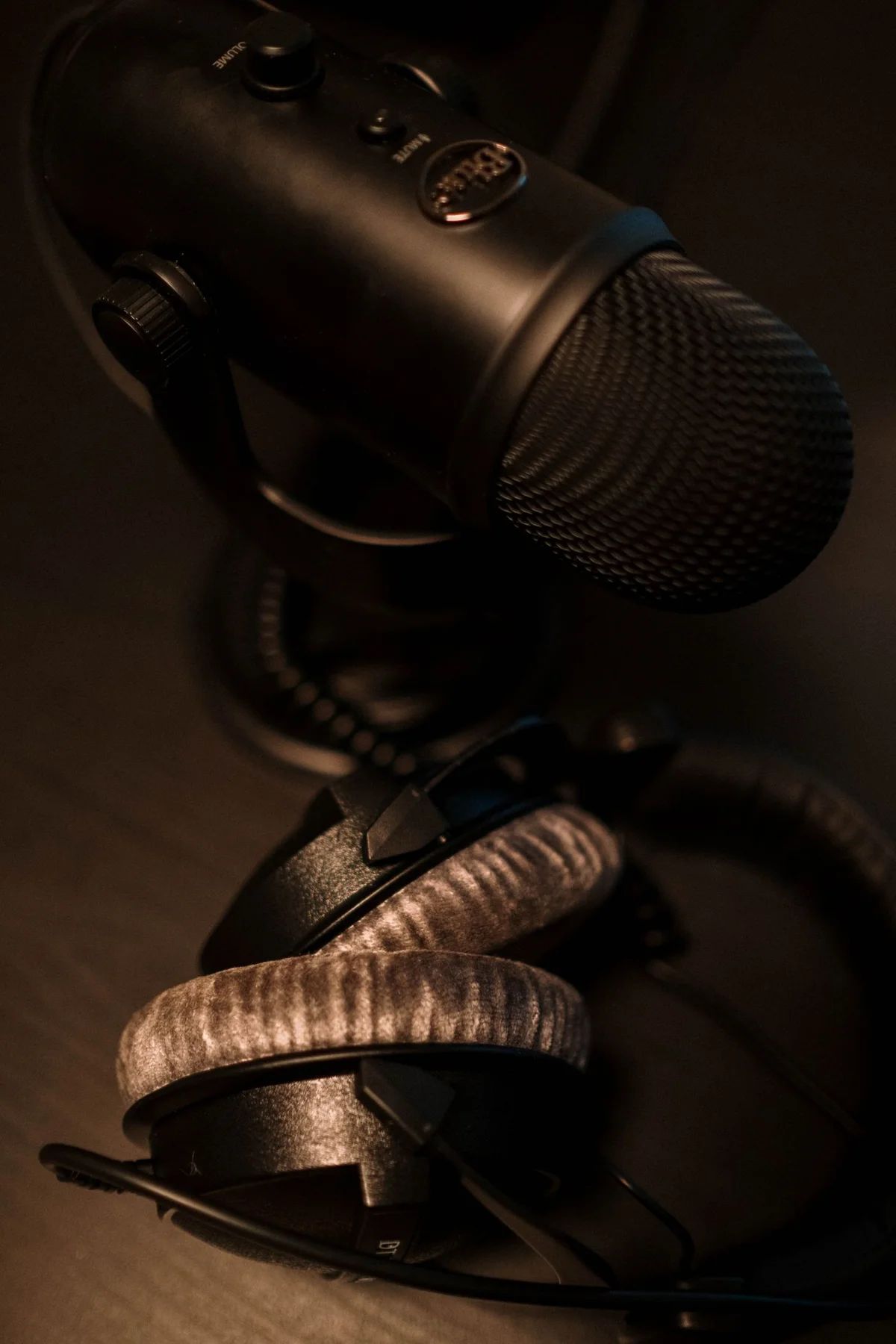
Check headphones and microphone separately
Hearing and being heard use different paths. Check headphones and microphone separately.
Read the guide ↗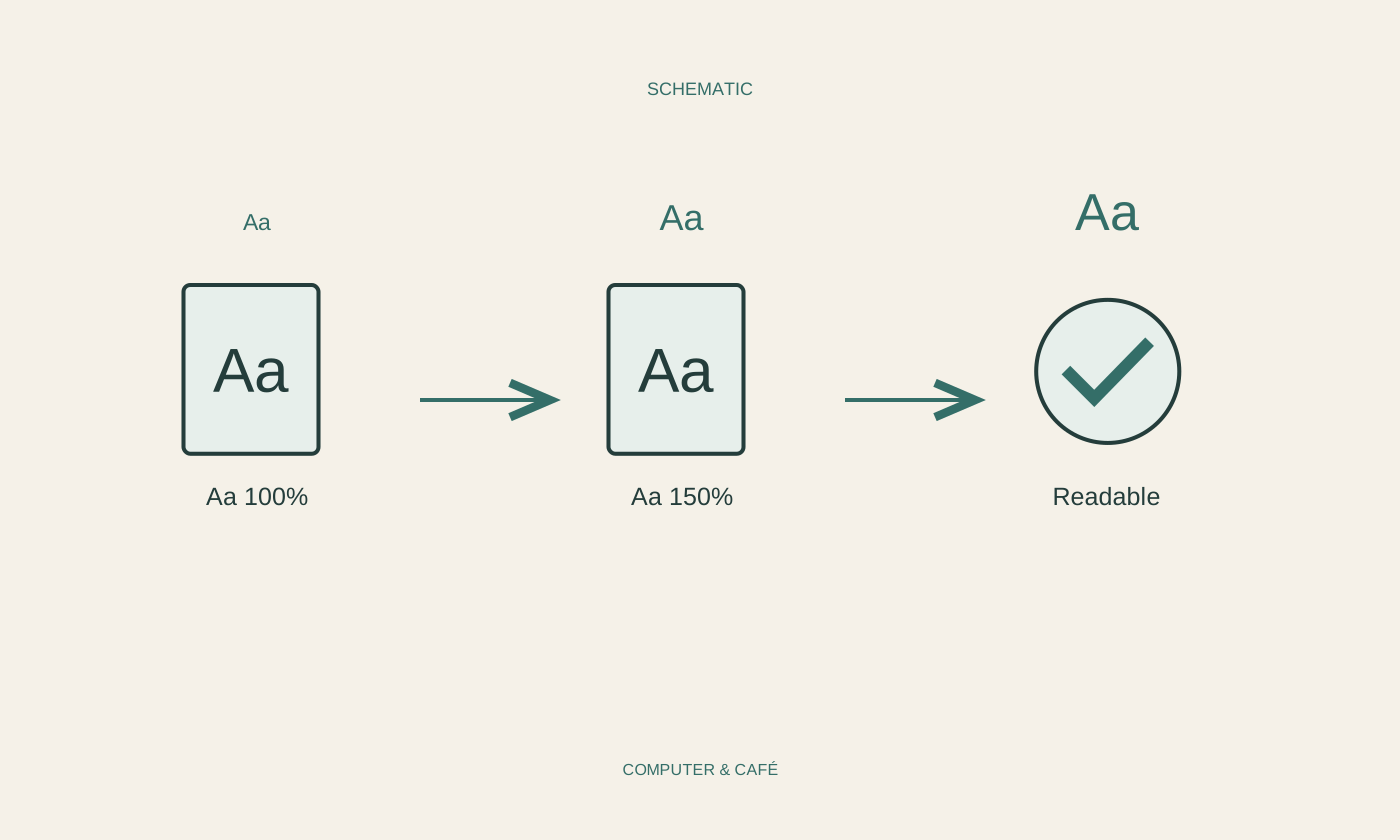
Make on-screen text easier to read
Readable text does not depend only on a larger monitor. Text size, display scaling and application zoom do different jobs.
Read the guide ↗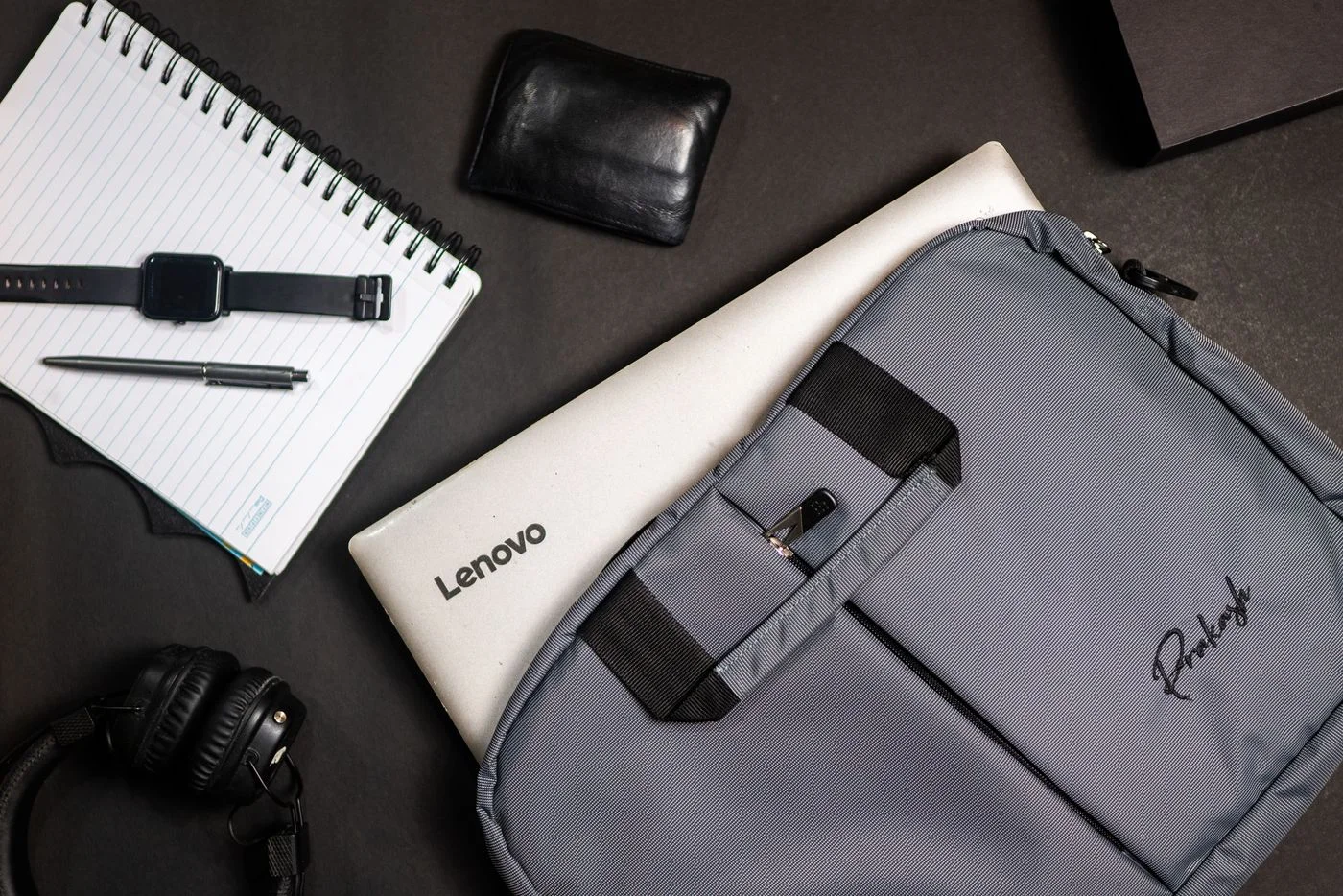
Carry a laptop with its accessories organised
Transport is easier when the laptop, cables and small accessories each have a consistent place.
Read the guide ↗
Set up a tablet for comfortable reading
A tablet can be a comfortable reading device when text settings, support and offline access fit the situation.
Read the guide ↗