See the picture as others will
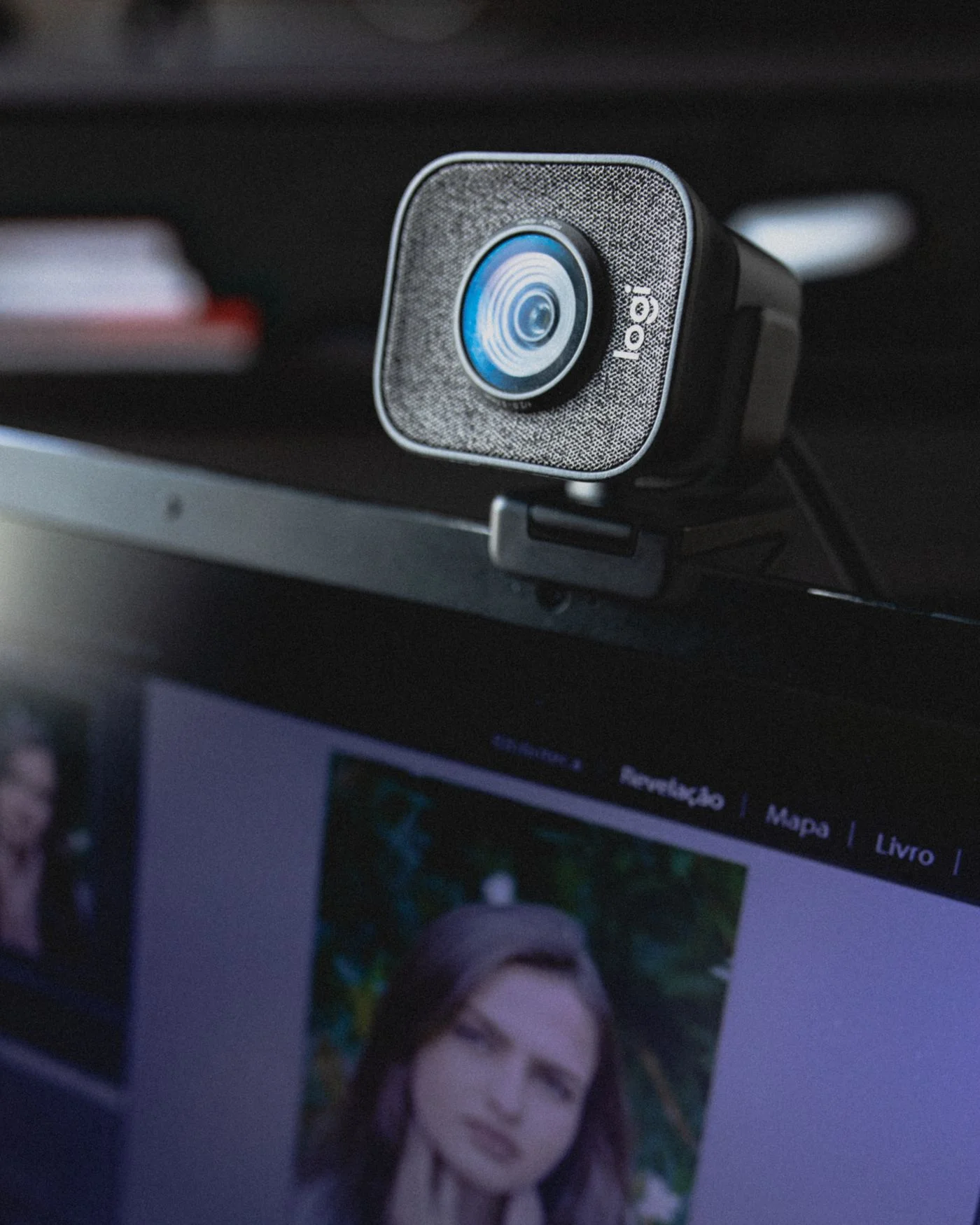
Open the intended calling application’s camera preview before other people join. Sit where you will remain during the conversation. Check that your face and upper body fit the frame and that the angle feels understandable. A very low camera often includes too much ceiling; a high one can make you look upward throughout the call. Place the equipment securely rather than balancing it on loose objects. The appropriate height depends on the workstation. What matters is that ordinary movement leaves the arrangement stable and that you can still reach the controls comfortably without disturbing the camera.
Keep lighting and background simple
Notice whether your face is visible or a bright window behind you makes the picture difficult. Where practical, change your direction or lighting and compare the preview. Fairly even light from ahead or slightly to one side can help without an elaborate setup. Avoid shining a glaring light into your eyes. Inspect the background for private papers, reflections or objects you do not want to transmit. A virtual background can be convenient, but it does not reliably conceal every movement and object. Remove confidential information from the visible area instead of depending entirely on a software effect.
Choose the intended camera in the application
With several cameras, the calling application must use the correct source. An external webcam can be connected while the built-in camera remains selected. Open the video settings and compare the preview. Also check any physical shutter or camera button on the computer. A closed cover is not a software fault. If the application cannot access the camera, inspect the relevant operating system permissions and, where applicable, browser permissions. Grant only the access needed by the known application. Labels and menus change, so consult the current help from the system provider or service if the available settings are unclear.
Do not confuse picture and sound
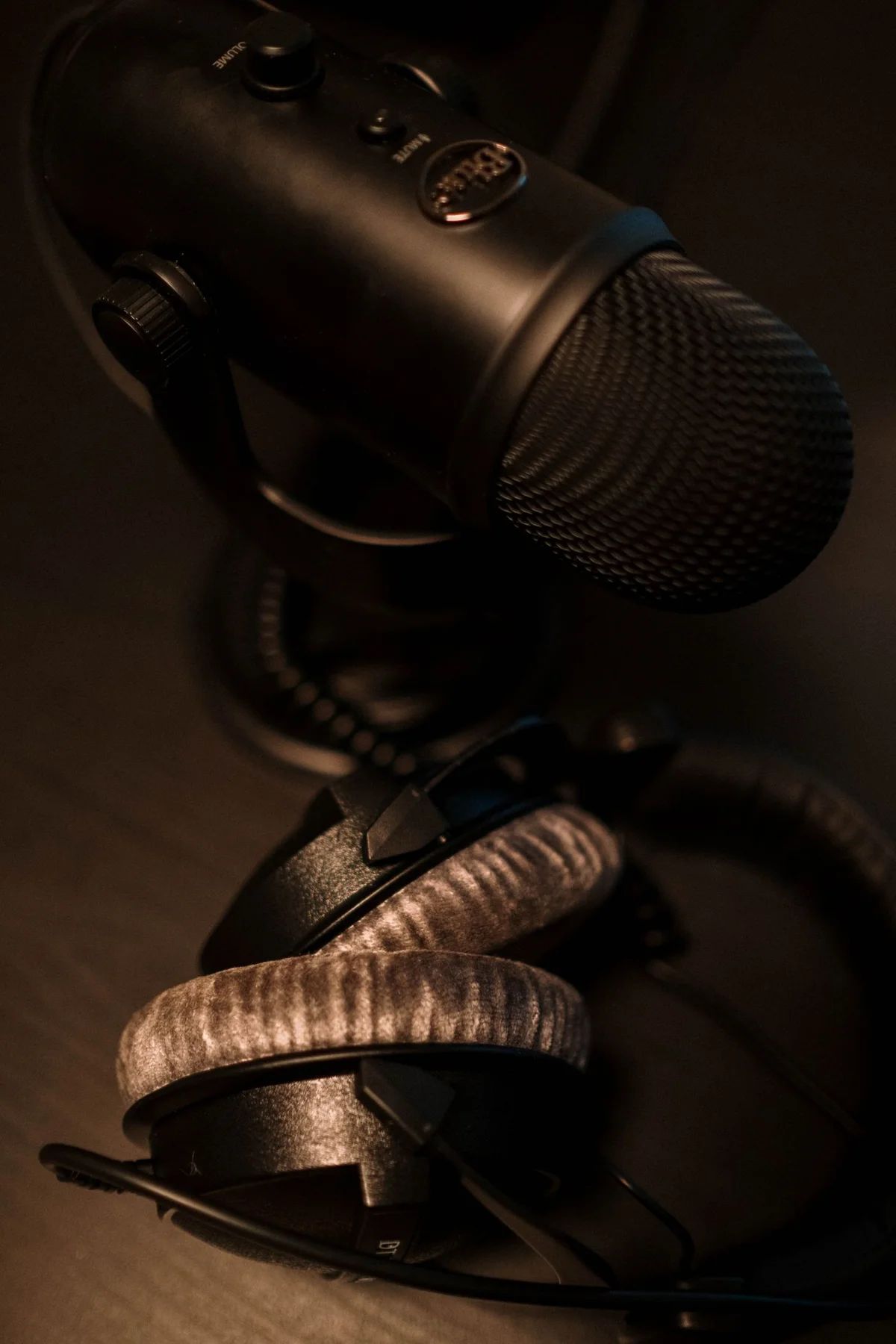
A working preview says nothing about the selected microphone. Test recording and playback separately in the calling application’s device settings. An external webcam may introduce another microphone, which is not automatically in the best position. Speak at a normal level from the intended seat. Confirm that sound comes from the headphones or speakers you expect. A short test call or built-in test function is more useful than changing every setting repeatedly. It lets you distinguish a later video issue from an independent audio problem and avoids adjusting the camera when the other person actually cannot hear you.
Simplify the arrangement before joining
Close other applications that may be using the camera if you do not need them. Save open work and manage distracting notifications as appropriate. Check power and the external camera’s connection without stretching its cable. If the camera still fails after simple checks, joining with audio can be a practical temporary option when the occasion allows. Explain the problem plainly rather than changing drivers indiscriminately during the conversation. Keep a record of the working arrangement for the next appointment, especially when a dock or several cameras are involved, so preparation becomes a brief check rather than a repeated investigation.
Check preview, lighting, camera selection and audio separately before the conversation.