Describe the everyday result you want
Write down what should work after connecting the laptop. You may need one monitor, a keyboard, network and power, or two displays and several drives. Record exact models and intended tasks. A docking station with many ports is not automatically suitable if it cannot support the combination you actually need to use at the same time.
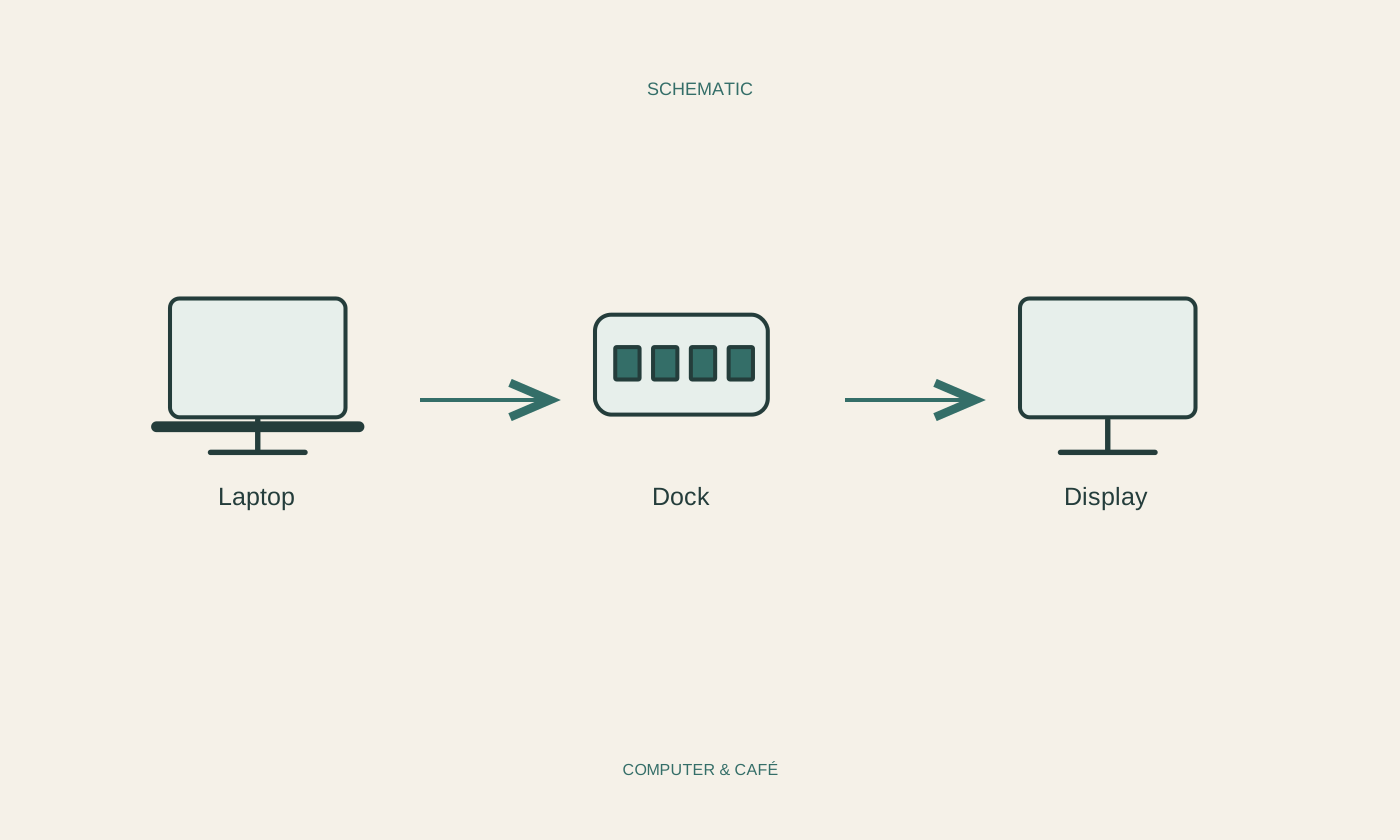
Separate essential functions from occasional preferences. Someone connecting only a mouse and printer has different needs from someone working with several displays. Consider how often the laptop leaves the desk too. Cable length, accessible ports and a clear reconnection routine may matter more in daily use than a rarely used extra socket. Sketch the proposed arrangement with every connection included.
Check host capability before counting ports
Read the specifications for the particular laptop port. USB-C is a connector shape, not proof of video output, a particular data rate or charging capability. The dock must fit the computer’s capabilities, and the connecting cable must support the intended operation too. A physically matching plug does not remove these requirements or establish that every advertised dock feature will be available.
Review the dock manufacturer’s compatibility information for your operating system and required functions. Some solutions require extra software or have system-specific restrictions. Obtain software only from official sources and follow organisational rules on managed devices. If details remain unclear, ask a precise question including laptop model, system, dock and intended displays. A general question about USB-C compatibility is often too vague.
Evaluate displays and charging separately
For each display, check resolution, connection and the desired operating mode. Two video sockets do not prove your computer can drive two independently extended workspaces at the intended resolution. Read the specifications for the exact simultaneous arrangement and account for the existing cables. Display mirroring and an extended desktop are different outcomes, even when both screens show a picture.
Compare the dock’s delivered charging power with the laptop’s requirements and manufacturer guidance. An advertised total may differ from what is passed to the computer. Check whether a suitable power adapter is included or assumed. Video, data and charging are separate capabilities even when carried through one cable. A mouse working through the dock therefore proves neither the desired display arrangement nor adequate power for your routine.
Plan an understandable acceptance test
After setup, test individual functions and then the complete combination. Check display arrangement, keyboard, network and an unimportant file-transfer example. Open copied files and watch for unexpected disconnections. Observe power behaviour during the intended use without turning one indicator into a general performance claim. A useful test resembles what you will actually do at the desk.
Try ordinary disconnection and reconnection after transfers finish and storage is safely ejected. Briefly record the connection order and relevant settings if they matter to this arrangement. If something fails, simplify the setup and compare direct connection. A dock earns its place when it reliably simplifies the repeated move between travel and desk, with its limitations understood rather than discovered during an urgent task.
Check the complete combination for video, data and charging before choosing a dock.