Observe the behaviour precisely
Move the mouse slowly in straight lines and describe the result. Does the pointer jump unpredictably, stop briefly or simply move too fast? Does one click register twice? These differences should not disappear under one general description. Check whether the behaviour occurs throughout the desktop or only in one application. Save open work before further experiments. Choose an unimportant area without valuable files or consequential buttons. You can then test deliberately without an unexpected click moving something important or confirming an action, which would create a second problem while you are trying to understand the first.
Inspect the surface and sensor
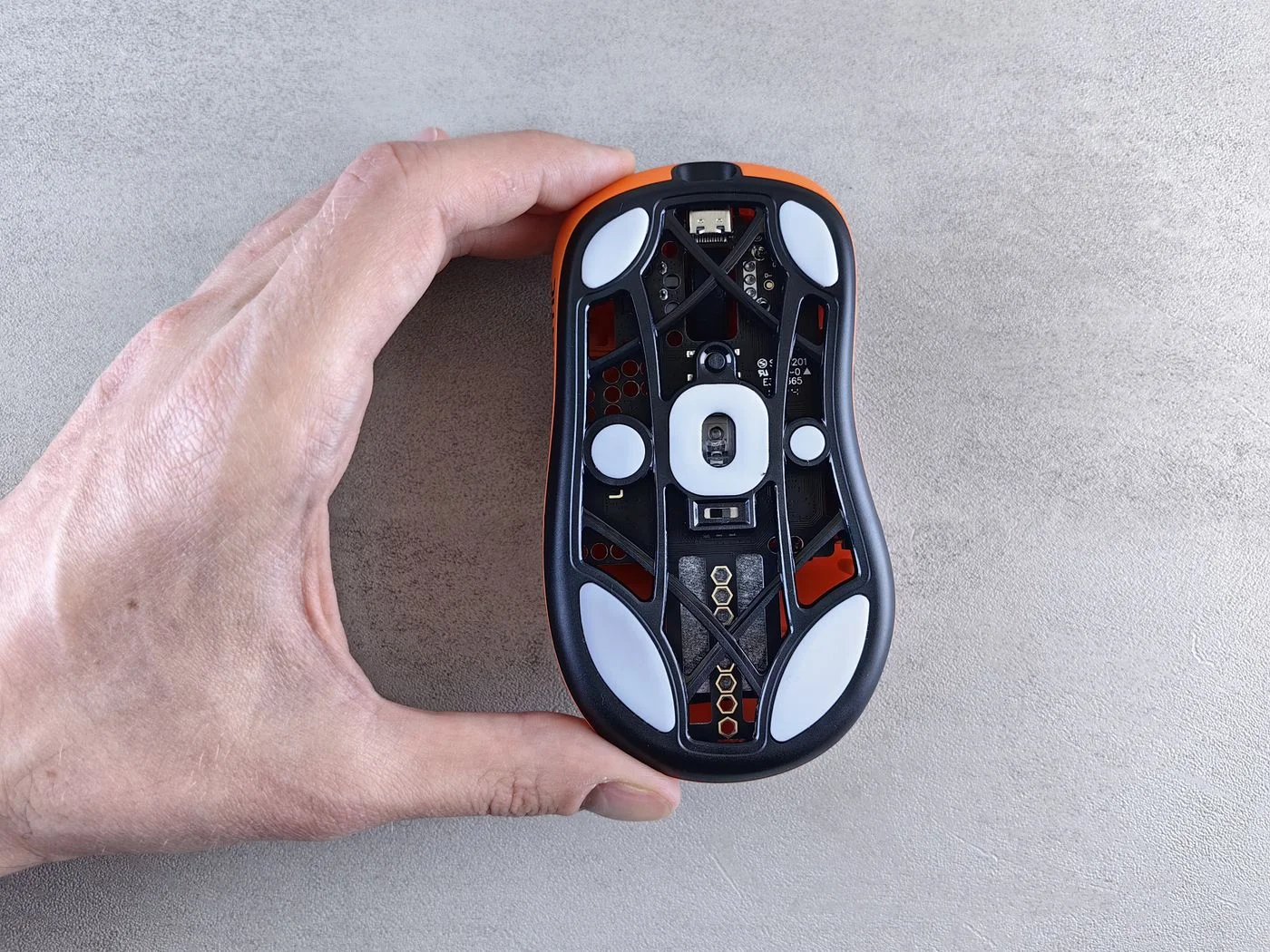
Try the mouse on a suitable, even surface. Highly reflective, transparent or irregular materials can interfere with tracking on some models. A previously reliable mouse mat offers a simple comparison. Inspect the underside for visible dirt and clean it only as the manufacturer recommends. Do not push objects into openings or apply unfamiliar liquids. Also check whether the cable catches on the desk edge or is trapped under something. A physically restricted mouse feels different from an error in pointer processing, but the two can easily be confused during hurried work, especially when the obstruction comes and goes.
Simplify the connection
For a wired mouse, check the intended port and an undamaged connector. A direct connection can temporarily remove a hub as another variable. For a wireless mouse, inspect battery or charge level and the intended receiver or Bluetooth connection. Ensure another input device is not moving unintentionally at the same time. Touching a laptop’s touchpad can also change the pointer. Disable it temporarily only if control of the computer remains available. Avoid changing every connection together so a successful attempt still tells you something understandable about which part of the setup affected the behaviour.
Separate speed from interruptions
High pointer speed can make small movements seem excessive, but it is not the same as a connection dropping. Record the existing setting and adjust one value in small steps. Repeat the same movement test. If the mouse has special buttons, check whether one accidentally changed a sensitivity level; its manual explains their actions. Manufacturer software may also use its own profiles. Notice whether a profile activates only in a particular program. Keep a change only when it recognisably improves the observed problem. Numerous simultaneous adjustments can create a different feel without establishing why the original difficulty occurred.
Preserve a useful comparison for support
Where possible, try a known working mouse on the same computer or the suspect mouse on another suitable device. Follow pairing instructions and avoid losing your only means of control. Record whether the behaviour follows the mouse or remains with the computer. This comparison is a clue rather than a complete hardware diagnosis. For damaged buttons or persistent interruptions after simple checks, use official support guidance. Keep the model details and working settings. After replacement or an update, you can then assess whether the specific behaviour has actually disappeared instead of relying on an immediate impression that things feel different.
Separate surface issues, connection interruptions and excessive pointer speed through individual comparisons.