Powering on is not the same as pairing
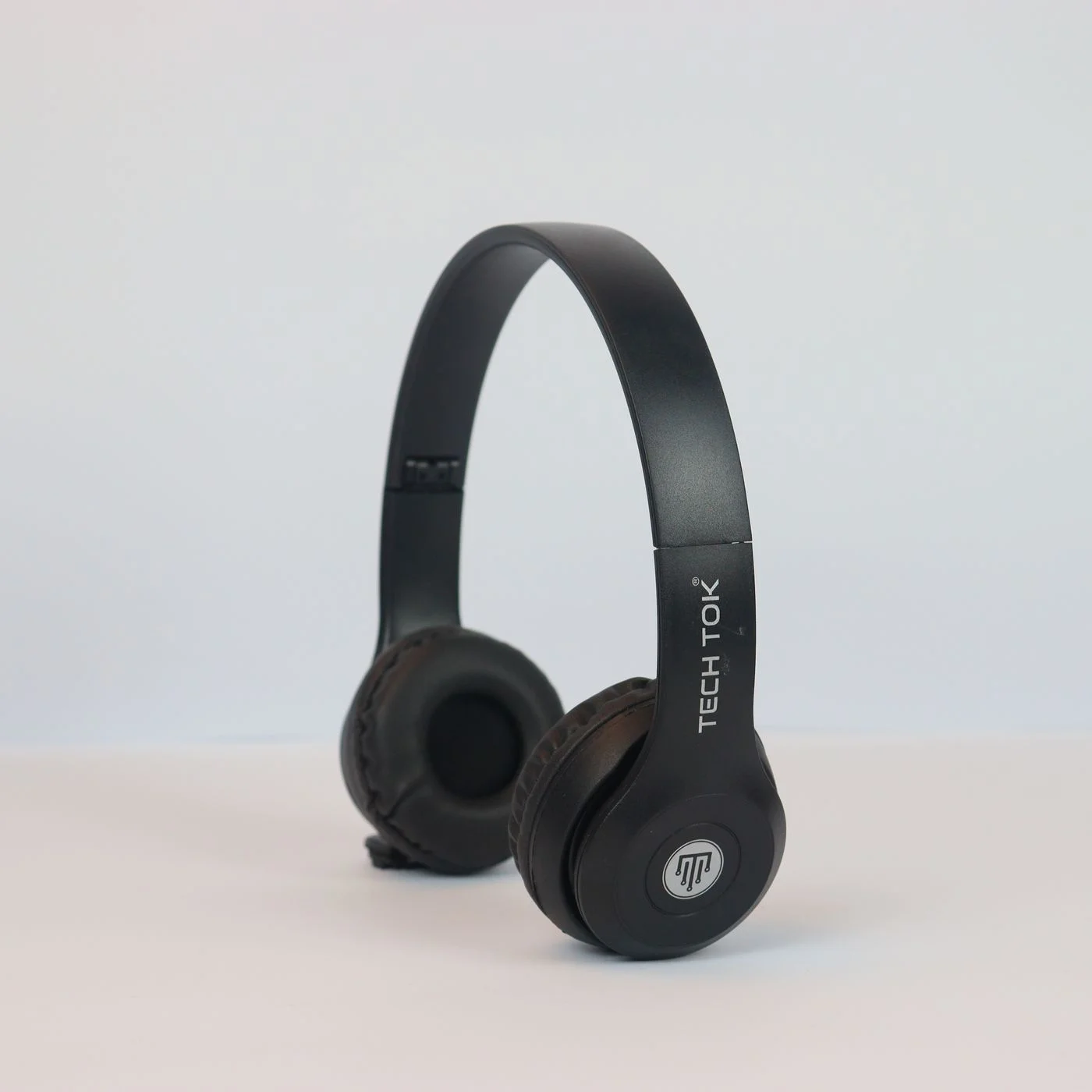
A Bluetooth headset that is switched on is not necessarily available to new devices. Many models first reconnect to a familiar phone. A new computer usually needs the headset's specific pairing mode. Check the button sequence and indicator light in the manual for your model instead of holding different buttons experimentally. On another headset, a similar gesture may reset stored settings.
Charge the headset and keep it near the computer during the test. With separate earbuds, check the case and both earpieces rather than assuming the battery shown for one represents the whole set. An empty component can behave differently from a fully charged pair.
Remove competition from another connection
Look at the phone or tablet normally used with the headset. If the headset is connected there, disconnect it temporarily through that device's Bluetooth settings. You do not need to erase it from every saved list immediately. Put the headset back into pairing mode and then search for available devices on the computer.
Some headsets support multiple simultaneous connections; others support only one. Even with multiple connections, the active audio source can change when a call arrives on a phone. Check the particular model's documentation. The word Bluetooth alone does not tell you how many audio sources your headset can manage at once.
Identify the entry before selecting it
Compare the discovered name with the manual and the name shown on your other device. A shared room may contain several nearly identical headsets. Avoid selecting unfamiliar devices at random. If your own model appears under several entries, the manufacturer's guidance should identify the entry intended for ordinary audio playback.
After selecting it, wait for the computer to report that the connection is established. Pairing means the devices recognise each other, but does not guarantee that the headset is the selected sound output. Check the system audio settings next. A meeting application may also need its own microphone and speaker selections adjusted separately.
Renew only the connection that is failing
If your headset appears as a saved device but still will not connect, pairing it again may help. Remove only that headset's entry from the computer, start the manufacturer's pairing procedure and reconnect. Note the device name first so that you do not remove a different accessory with a similar label.
A complete headset reset belongs later in the process and should follow the model's official instructions. It can remove other stored connections that you will then need to rebuild. On a managed work computer, Bluetooth or particular accessories may also be restricted by policy. Ask the responsible support team rather than trying to bypass those controls.
Find which device the failure follows
Try the headset with a second familiar device and another Bluetooth accessory with the computer. If the headset works with your phone but no accessory connects to the computer, investigate the computer next. If only this headset fails everywhere, its state or settings deserve attention. These comparisons narrow the problem without proving a hardware failure by themselves.
Then use the relevant built-in troubleshooter or the manufacturer's official support instructions. Record the model, operating system and exact symptom: invisible during discovery, pairing refused, or connected without sound. Those are different problems. Describing the right one helps support suggest a useful next test instead of repeating checks you have already completed.
Check pairing mode and existing connections before resetting the headset or clearing saved devices.