Name the job first
Write one sentence describing what the new application needs to do. Is it opening a PDF, cropping photographs or joining a meeting? Then check whether an application you already have can do it. Additional software also means more settings, updates and possibly another account to maintain.
If you only need to open a file, an unfamiliar website’s demand to install a supposedly essential helper is not a sufficient reason. Ask the real sender about the format or request another version. Software should not be installed simply because a message makes the request sound urgent.
Check the source independently
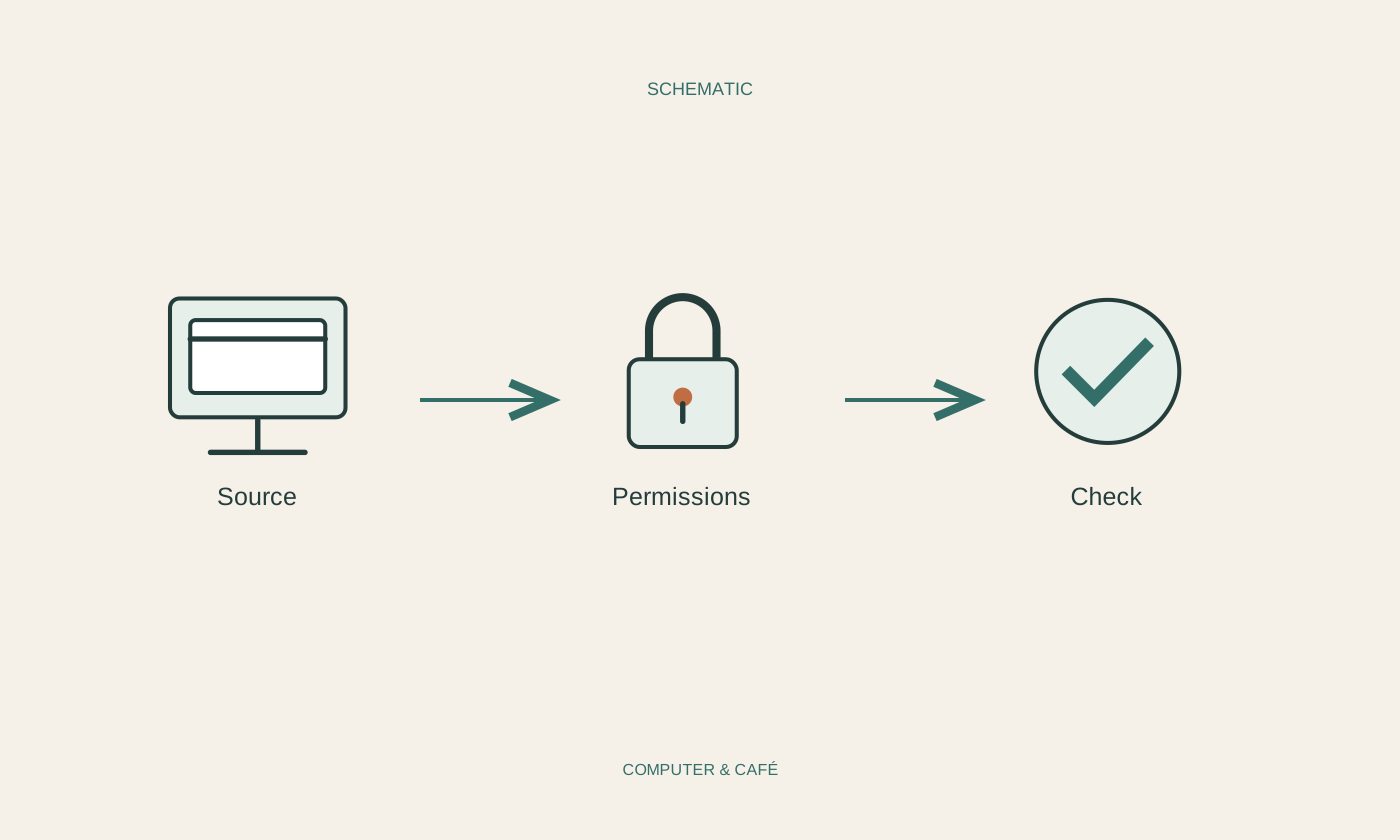
Start at the provider’s official website or your system’s intended app store. Pay attention to the publisher name and the exact spelling of the address. A similar name or a prominent search result does not establish that you have reached the provider you intended.
For unfamiliar software, compare the function and support information across the provider’s own pages. Are there understandable contact and help pages? Is your operating system explicitly supported? Reviews can provide clues but cannot replace these checks. Being listed in a store also does not mean that every application will suit your requirements.
Connect permissions to a real purpose
A meeting application may need camera and microphone access for a call. A simple calculator would not ordinarily have the same reason. Consider each requested permission in relation to the feature you actually intend to use. Some access is requested only when that feature starts and need not be allowed across the board in advance.
An administrator prompt during installation means that broader changes are being requested. Do not approve it out of habit. A managed work computer also has organisational rules. Ask about the intended installation process instead of switching off protections or using a personal copy to get around them.
Understand costs and file access beforehand
Before creating an account, read whether the feature you need is free, time-limited or part of a subscription. A free download tells you little about that. Also check whether you can export edited files in a usable format rather than leaving them accessible only inside the application.
With sensitive documents, establish whether processing happens on your computer or sends content to a service. A local-looking interface may still use online features. If the explanation is unclear, do not make private or confidential work documents your first experiment. Choose a harmless test file instead.
Begin with a limited trial
Keep important originals unchanged and test with a copy. Inspect the actual result: can an exported document be opened elsewhere, and has the necessary content survived? A successful installation tells you only that the software was installed, not that it performs your particular task reliably.
If you keep the app, establish how its updates are delivered. If it does not suit you, remove it through the system’s intended uninstall process. This does not automatically end a subscription or close an online account; those may need separate attention with the provider. Keep these decisions distinct so a brief trial does not become a forgotten ongoing commitment.
Install only when the purpose, source and requested access make sense. Use harmless copies to test unfamiliar software.