Check the invitation and access in advance
Read the invitation, date and any relevant time zone before the meeting begins. Establish whether a familiar application or browser entry is intended. If installation is necessary, use the official source and allow time for setup. Do not follow an unexpected offer of assistance that also asks for account details or remote access to the computer.
Keep the organiser’s contact route somewhere accessible independently of the meeting room. Check the displayed name and selected account, especially when personal and work accounts coexist on one device. A brief early test can reveal an incorrect sign-in without making all participants wait. Managed devices follow organisational rules; missing permissions should be resolved through the designated process rather than through an improvised workaround.
Try listening and speaking separately
Select the intended sound output and microphone in the meeting application. These settings can point to different devices. Hearing music through headphones does not prove the call is using their microphone. Use an available test function or make a short non-confidential recording and listen to the result. Check the whole path rather than only whether a device name appears in a list.
Inspect mute controls in the application and on any headset. Read instructions for unfamiliar lights or switches instead of guessing their meaning. When several devices are in one room, avoid leaving multiple microphones and speakers active without a plan. If feedback occurs, simplify the arrangement and establish which device should handle sound. Do not randomly change every audio setting at the same time.
Prepare the camera and surroundings deliberately
Open camera preview and inspect framing, background and lighting. Check whether private papers or other people are visible. A cover, hardware switch or missing permission can explain an empty preview. Select the correct camera before assuming a fault. Exact access controls depend on the operating system and application, so follow the instructions relevant to your setup.
Keep required papers within reach and close unnecessary windows. If screen sharing is planned, prepare the actual document and reduce distracting notifications. Share only the needed area where possible. Preparation avoids later searching through private folders in front of an audience. Also keep a simple way to take notes so important questions do not disappear among several open applications while you are concentrating on the conversation.
Make joining and leaving explicit
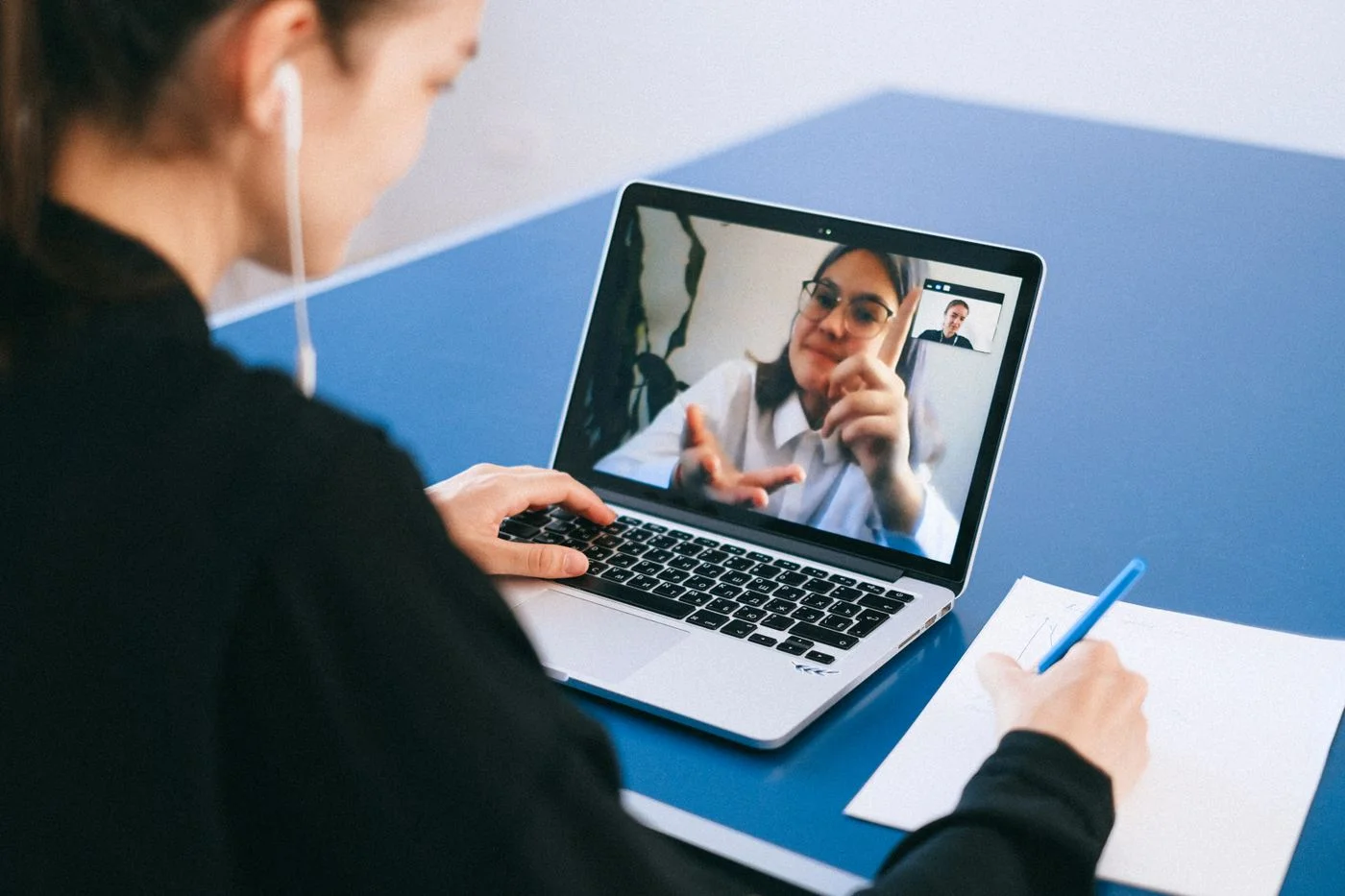
Join with enough time for a final check and allow for a possible waiting area. Once inside, inspect the actual microphone and camera indicators. If the arrangement is new, briefly confirm that others can understand you. This small check is more useful than continuing a long conversation with the wrong audio device selected and nobody knowing why the sound is poor.
If the connection fails, describe the visible message and use the contact route you prepared. Afterwards, stop active screen shares and leave the room using its designated control. Check whether any shared files still allow access; ending a conversation does not end persistent file sharing. Save your notes and restore temporary settings where they are no longer needed for the next task.
Test microphone and output separately, and check what others should see before sharing anything.