Give each expense its own row
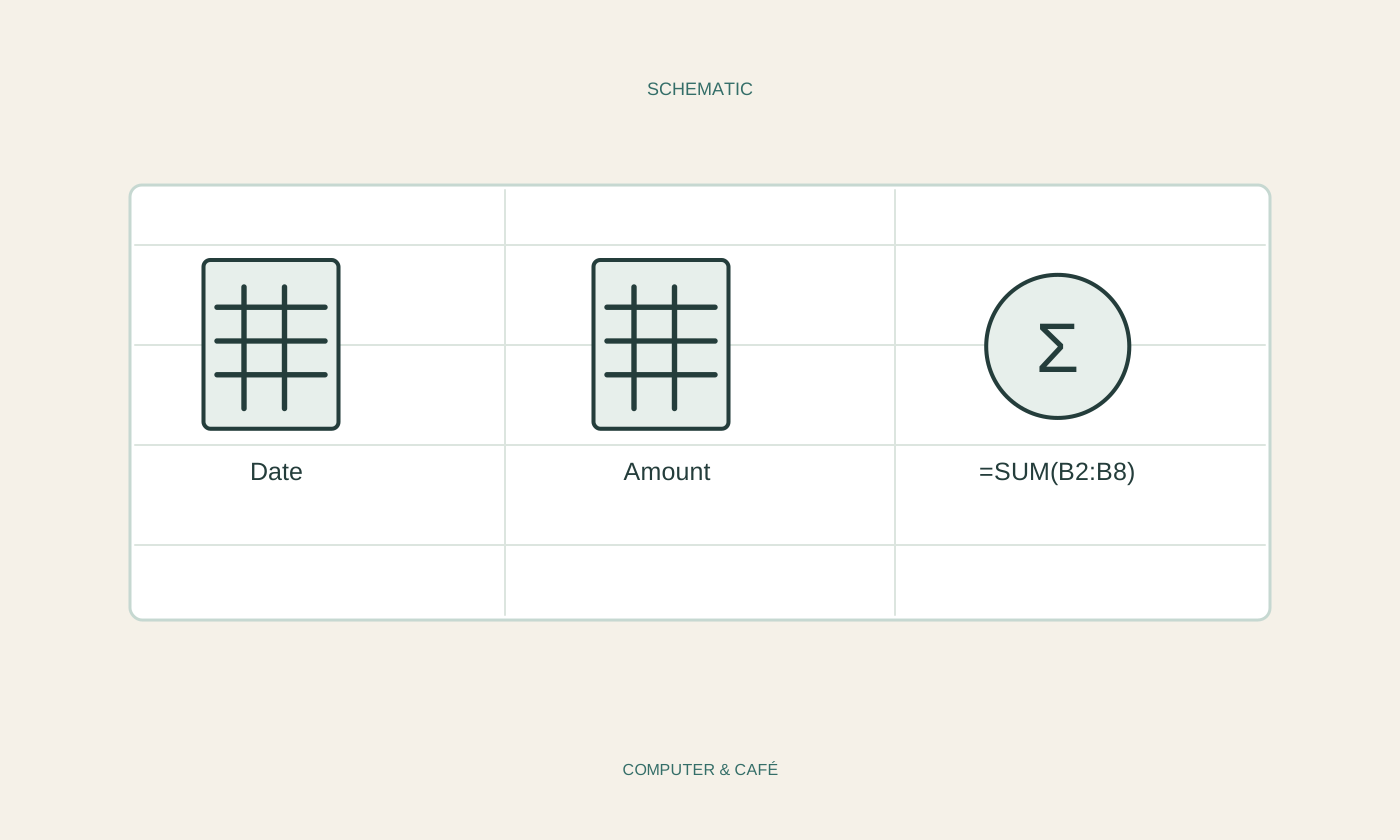
Begin with columns for date, description, category and amount. Decide that one row represents one transaction. A grocery receipt and train ticket should not share the same cell. This small rule makes sorting, filtering and checking totals much easier as the sheet grows.
Start with a limited period, such as one week. Enter the available receipts and check each line as you go. The file does not need to become a complete financial plan. Its first job is to represent the recorded spending clearly. Account numbers and full payment details are usually unnecessary for that purpose and should not be collected without a specific reason.
Keep categories limited and consistent
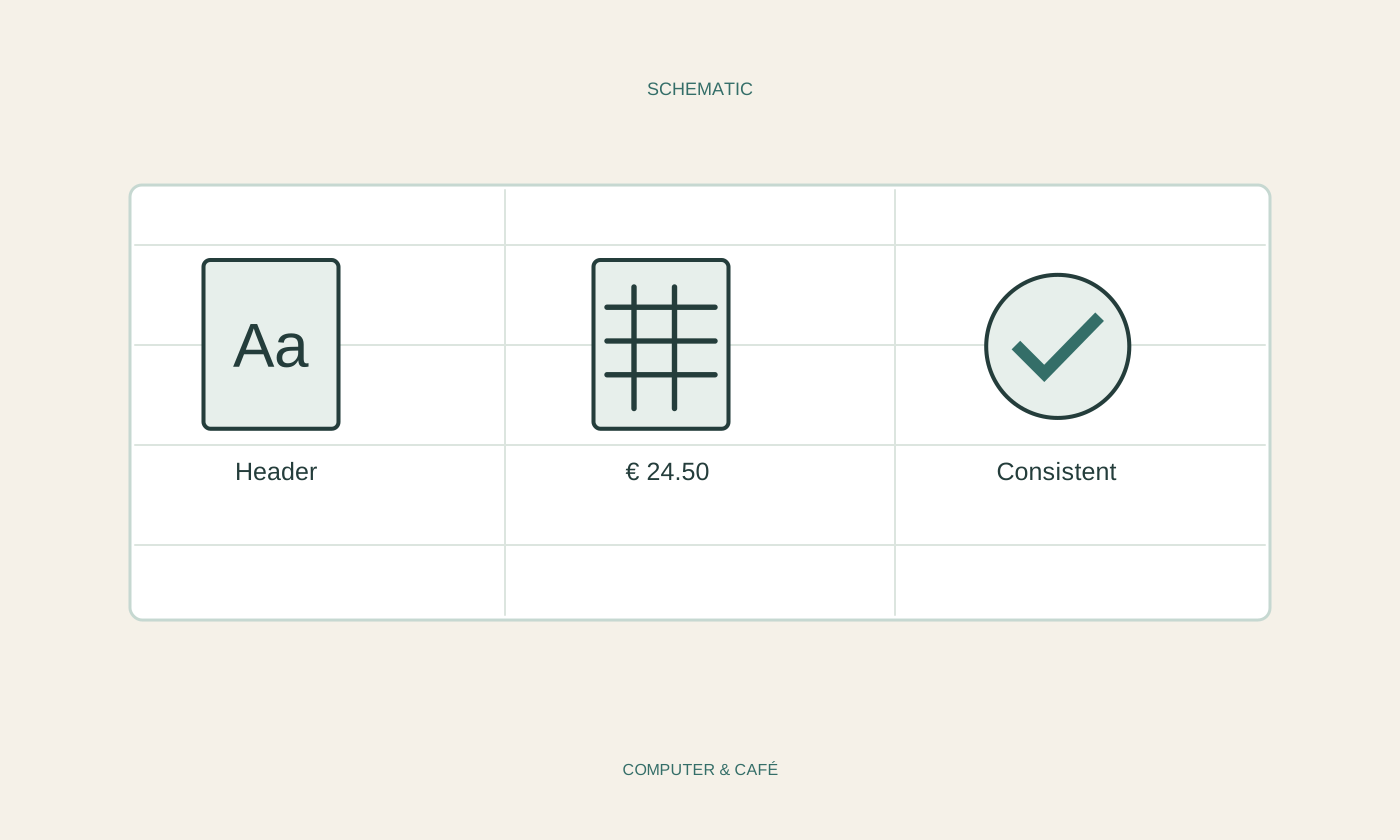
Use a few understandable categories such as food, transport and household. Spell the same category consistently. Rail, travel and transport may otherwise become three separate groups when you intended one. A dropdown list can help later, but it is not essential for your first small set of checked entries.
Decide how to show refunds and reimbursements. Negative amounts can work when their meaning is explicit. Do not mix different currencies into one total as though they share the same unit. If several currencies occur, identify and review them separately initially. Automatic conversion introduces additional assumptions that need to be recorded and understood before the result means anything useful.
Enter amounts as numeric values
Use consistent numeric entry and let the spreadsheet apply the currency display. The expected decimal separator depends on language settings. Try a few known values to confirm that the application recognises your entries as numbers. An amount that looks numeric on screen can still be stored as text.
A sum function adds numeric values within a specified range. LibreOffice Calc's SUM function ignores text and blank cells in a range. An expense accidentally stored as text can therefore be missing from the total. Check the first results with a simple independent calculation rather than trusting an answer solely because it looks plausible and has the correct currency symbol.
Check the formula as the sheet grows
Place the overall total somewhere clearly separate from individual transactions. After adding rows, verify that the formula includes them. A range ending at row twelve will not necessarily include a new expense in row thirteen in every arrangement. The calculation must continue to match the structure you are actually using.
Test the file with an easily recognised extra amount and see whether the total changes accordingly, then remove the test entry. When sorting, keep whole rows together. Sorting only the amount column would separate values from their descriptions and make the contents unreliable even though each individual number still looked perfectly normal.
Maintain an editable working copy
Save the editable file with a recognisable name and include it in the backup of important documents. A PDF may provide a snapshot for sharing but does not replace the spreadsheet and its formulas. Before sharing, inspect private descriptions and any unnecessary personal detail that another person does not need.
At the end of the selected period, look for missing receipts, unusual amounts and duplicate entries. Only then begin comparing categories. A small, checked table is a better foundation than an elaborate chart built on incomplete data. Add new columns or features only when there is a real question the existing structure cannot answer, rather than expanding the file simply because more features are available.
Use one expense per row, consistent numeric entries and checked totals before adding analysis.