Build the list around real tasks
Write down what you regularly do on the existing device: read messages, work on invoices, view photographs, print or join calls. Add specialist applications and connected accessories. This task list tells you more than an unchecked inventory of every installed program. Not every old application needs to move to the replacement, particularly if you no longer understand why it was installed.
For each task, note where its data lives and which account is used. Include local folders, external drives and cloud files visible only as references. Check organisational rules before moving work information. The list should support manageable checks, not become a page of openly written passwords. Refer to the protected location of secret information rather than copying it into the checklist.
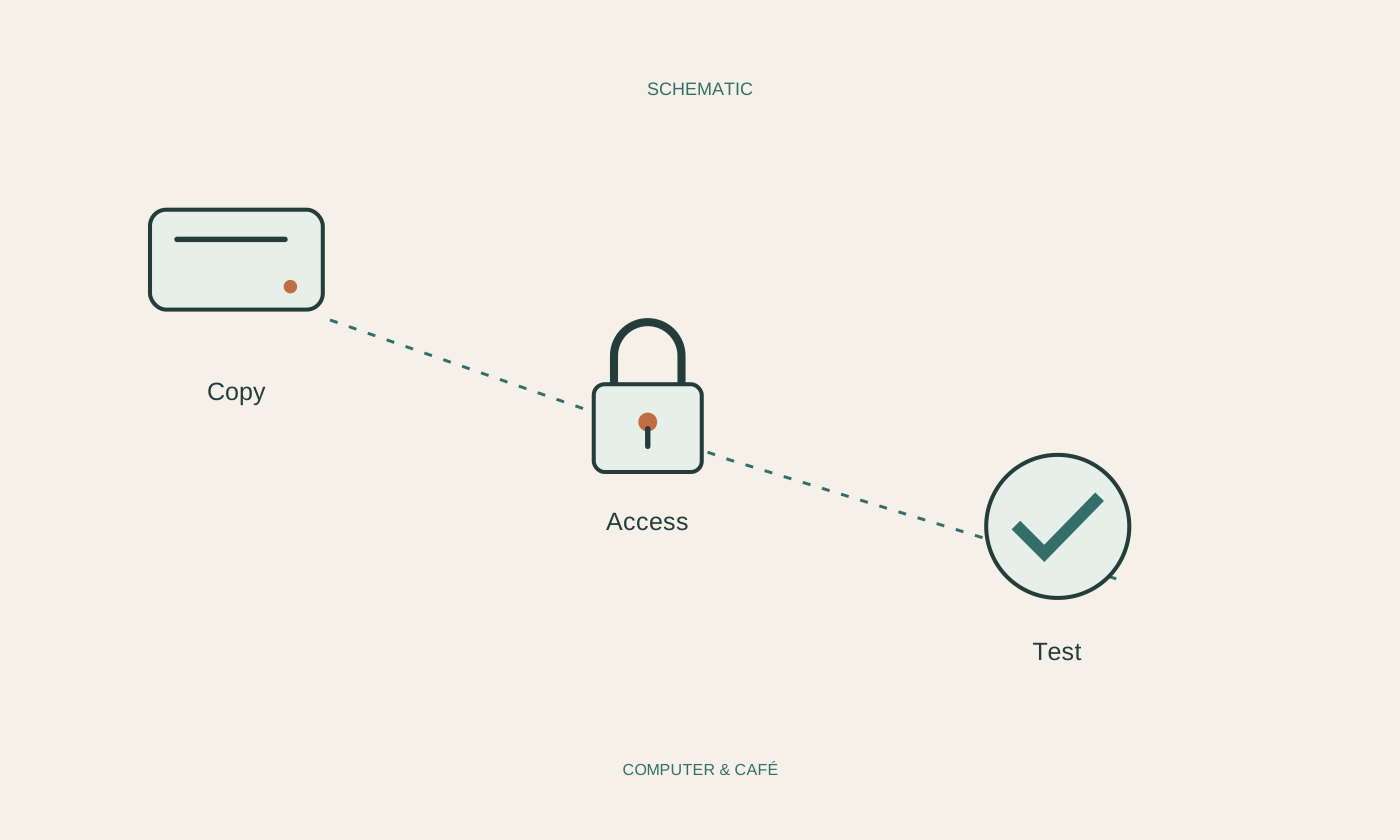
Copy files and back them up independently
Before transferring anything, create a suitable backup of the collection you need. Open some important files from it and check specialist formats in an appropriate application. Then copy a small selection to the new device. Move the larger collection only after this trial works. Leave the original files in place while you establish that the replacement is genuinely usable.
Compare contents, folder structure and available attachments, not just file counts. An application may require databases or settings missing from a simple document copy. Use its supported export or transfer process. Check backup independently of synchronisation, since changes can spread between connected devices. A new computer becomes a practical replacement when the information you actually depend on can be used there.
Test sign-in before signing out
Sign in to the services you need on the replacement and check additional verification. If a phone is changing too, explicitly include its sign-in methods in the plan. Do not erase the old device while it remains the only working route to an important account. Review supported recovery routes and any required encryption recovery keys before giving up access to the original setup.
Check account names carefully so that a fresh sign-in does not accidentally create an empty second collection. Application licences follow their own transfer conditions; a copied installer is not evidence of entitlement. Record unresolved sign-in issues by service without exposing secret values. Remove old device associations only after successful checks and in accordance with the relevant provider’s official instructions.
Finish with a small working rehearsal
Edit a familiar document on the new device, save a copy and reopen it. Print an unimportant page if needed, and check the camera, microphone and frequently used accessories. Test essential documents without a connection if you expect to need them while travelling. Mark only tasks you actually checked as complete; installing an application is not the same as completing its ordinary workflow.
Keep a short remaining-items list and do not reset the previous computer merely to finish quickly. Once transfer has been checked, establish backup and, where relevant, separately prepare the old device for handover. This order separates two jobs: making the new routine work and ending the old personal setup. The checklist should conclude with observable results rather than a vague feeling that everything was probably copied.
Check copies, sign-ins and ordinary tasks on the new device before resetting the old one.