Check the collection outside the device
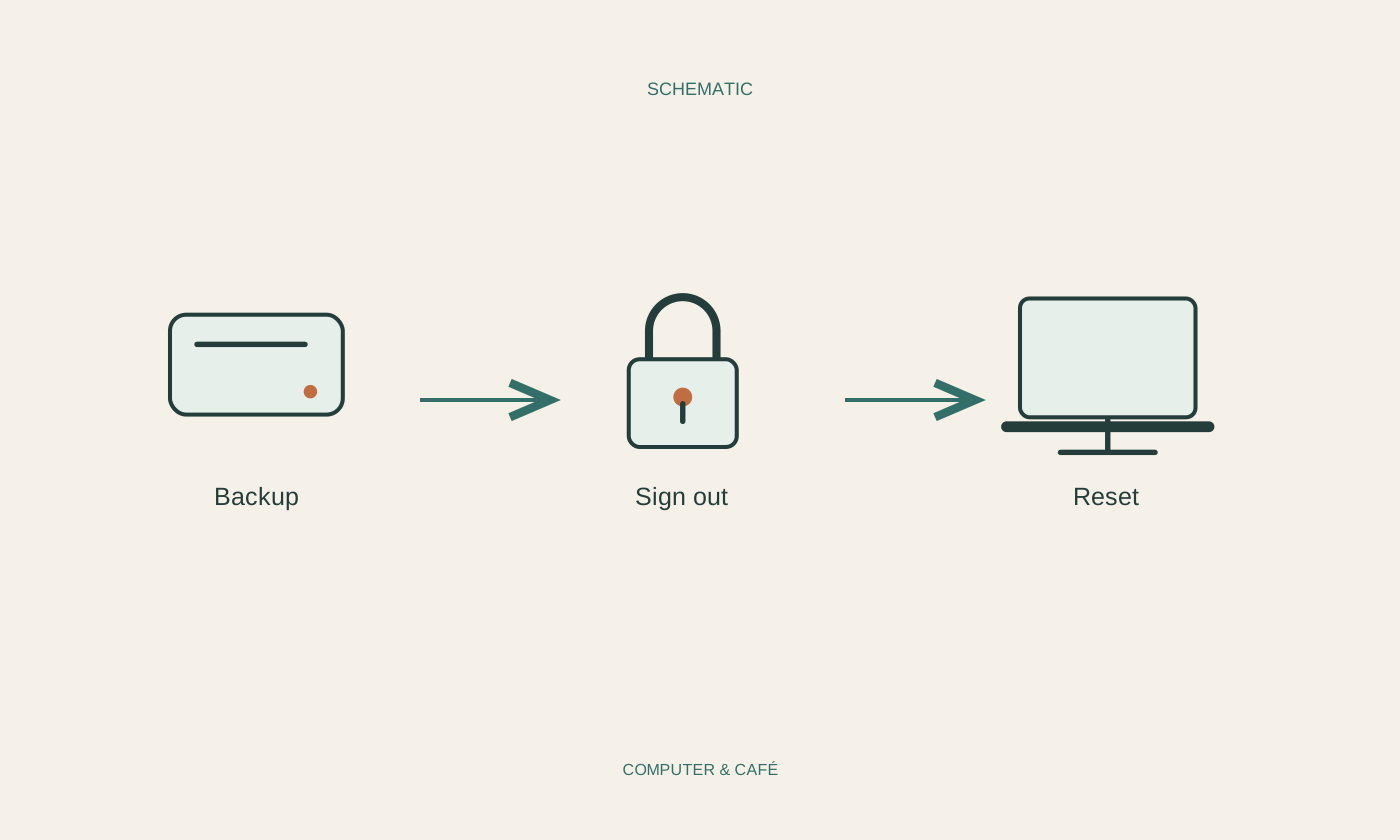
Gather the documents, photographs and other personal data you need into a suitable backup. Include local downloads, desktop files and specialist applications whose data may not appear as ordinary documents. Consult each application’s instructions for a usable export or backup. Copying a program shortcut does not automatically preserve the data belonging to the program, its settings or its account access.
Open important files on another device and test the intended recovery methods. Check whether cloud entries have actually downloaded. Before resetting, keep necessary device-encryption recovery keys in a secure independent location. Do not begin erasing while the only complete version might still be on this computer. A short delay is easier to resolve than the loss of irreplaceable originals.
Consider account and device links
Review the accounts, licences and additional sign-in methods connected to the computer. Follow official instructions for signing out and removing the device from relevant account-management pages. Transfer any verification method you still need to a suitable alternative and test it first. The next owner should not need your personal credentials to start using the computer independently.
An organisation decides how its work devices are returned and how their data is handled. Do not undertake a private erasure on such equipment. For your own computer, remove external drives and memory cards after checking their contents and backup. Consider accessories that may store data as well. Cleaning the exterior and deleting visible files do not replace the supported steps for separating personal accounts.
Use the procedure for this exact computer
Use the current instructions from the operating-system provider or device manufacturer. Windows options that retain personal files differ from those intended to remove contents. Microsoft states that its consumer data-cleaning option does not meet government or industry erasure standards. Do not describe an ordinary reset as a guarantee that every piece of previous data is unrecoverable.
On a Mac, the available method depends partly on hardware and system version. Apple’s Erase All Content and Settings feature is not available on every older model. Follow the designated alternative process for unsupported devices. Where especially sensitive information or binding erasure requirements are involved, obtain qualified help with an appropriate procedure rather than treating a general beginner’s guide as a security assurance.
Finish the handover deliberately
Allow the supported process to finish and follow instructions about power and restarts. Afterwards, check the resulting state against the manufacturer’s directions. For a handover, the appropriate setup starting point should normally be left for the next person. Do not sign into your own account again merely to see a familiar desktop after erasing it.
Record the model, included accessories and known limitations for the handover. Do not pass along personal recovery keys or passwords as if they were required accessories. Retain the checked backup independently of the computer you are giving away. Later, review relevant account device lists and remove unnecessary links according to the provider’s instructions. A completed handover covers data, accounts and an understandable device state, rather than just an empty desktop.
Erase only after checking the backup, and do not treat an ordinary reset as a guarantee against recovery.