Decide what needs to survive
Start with information you would genuinely miss: your documents, photographs, project files or an important contact list. Applications can often be installed again; things you created are harder to replace. Look beyond the usual Documents folder for material stored elsewhere.
Some applications keep their contents in a library or database. Copying one visible folder may not capture everything. Check the application’s help for its intended export or backup procedure. Note how you would bring the saved information back into the application later.
Choose an independent copy
A copy in another folder on the same drive may help with a single mistake, but not with failure of that drive. Choose a separate destination, such as an appropriate external drive or a dedicated backup service. Consider who should have access to it.
A continuously synchronised folder is not automatically independent. Deletions and damaged files may be copied across. If a service keeps previous versions, check its specific recovery rules and time limits. Use those features deliberately as part of protection rather than assuming their scope from a green status icon.
Make the process understandable
Start with a small selection of important files and a clear destination. Check whether the backup application actually includes the intended folders. Defaults may leave some locations out, and connecting a drive does not necessarily begin a backup automatically.
Give an external destination a recognisable name. Record when the backup runs and which tool creates it. Keep necessary passwords or recovery information secure and separate from the only device being protected. An encrypted backup is useful in an emergency only if you can still unlock it.
Test recovery in practice
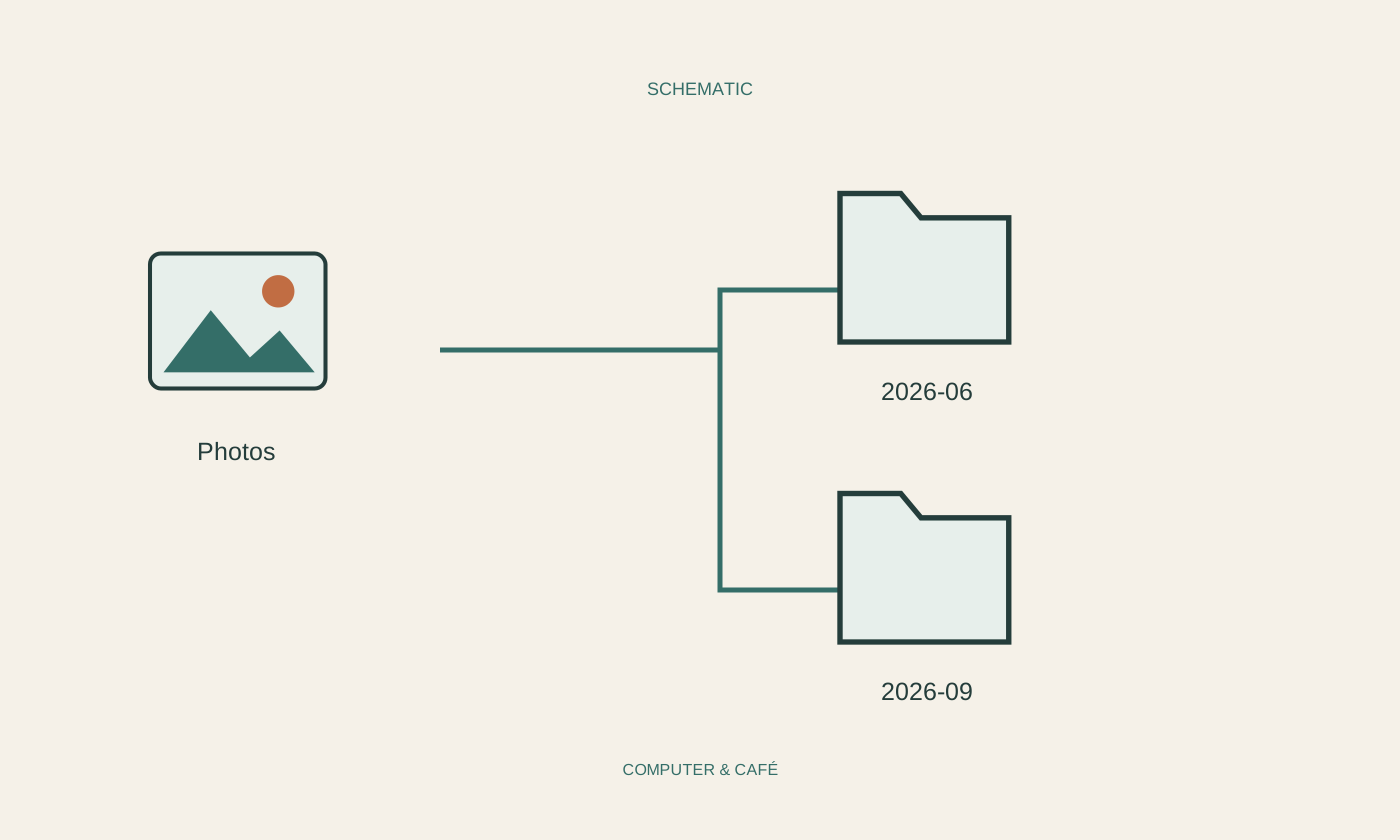
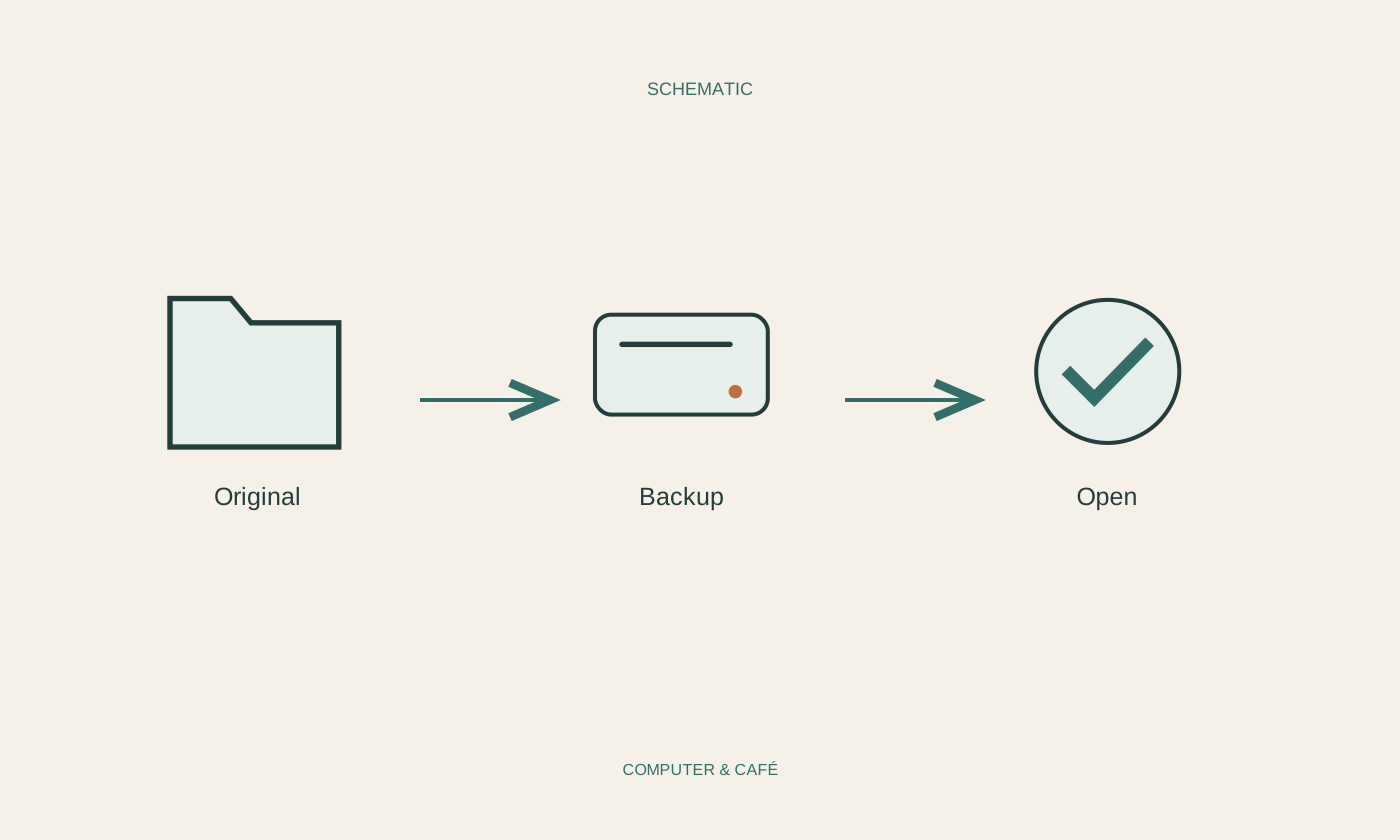
Choose an unimportant file from the backup and restore it into a separate test folder. Do not overwrite the current original for this test. Open the recovered file with the appropriate application and inspect its contents. For photographs, a filename is not enough; look at the actual image.
Then try another example from a different part of the collection. This may reveal that documents are included but a photo library is missing. If recovery fails, investigate now. A successful status message from the backup application cannot replace checking the result.
Include new work regularly
Choose a schedule around how often your important files change. Someone creating new material every day needs a different routine from someone adding occasional documents. Automatic backups can help, but their coverage needs checking after changes to folders, devices or accounts.
For external drives, a copy safely disconnected after backup is isolated from some problems that could affect a permanently connected destination. Store important copies so that one incident does not affect every device at once. The appropriate combination depends on the value and amount of information involved.
Understand the plan without the old computer
Imagine the original computer no longer starts. Do you know where the backup is and which software you need? Can you reach the login information? A brief note describing the destination, date and recovery process can save a great deal of searching.
Check the process again after moving to another computer. Can the new machine open the recovered files, and are its new files now included in backups? Keep the previous backup until those questions are answered. The move is not complete until the next recovery remains possible too.
Regularly restore a few files into a separate test folder. A checked recovery shows whether the backup can actually help.