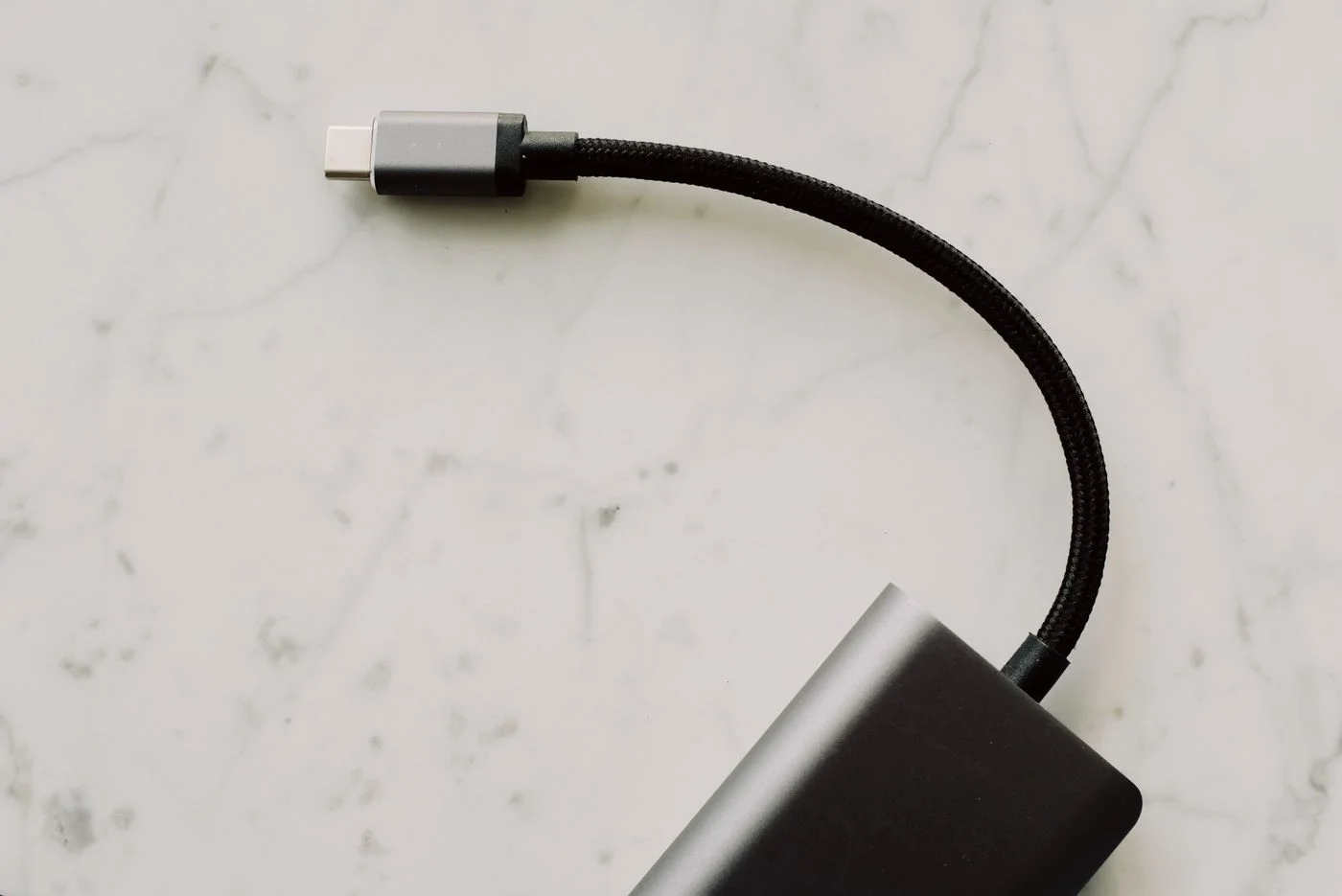
Distinguish working storage from a backup
Moving a file onto an external drive frees space on the computer, but it does not create another copy. If that drive fails, the file may be lost. A backup means keeping important information in more than one appropriate place. Decide whether this drive will provide extra working space, transport files or hold backups. Avoid mixing those roles without noticing. A drive carried around each day faces different risks from a backup kept safely at home. Write down its purpose and give it a recognisable name in the operating system so you can distinguish it from other connected storage.
Look before saving anything
After connecting the drive, check its displayed name, capacity and existing files. A used drive, or one already in your collection, should not be assumed disposable. A prompt to format it is not a harmless setup question: formatting can make existing data inaccessible. Cancel if you do not know what is on the device. For a genuinely new drive, the file system and setup should suit the operating systems you intend to use. Follow the drive maker’s or operating system provider’s guidance instead of choosing whichever option happens to sound familiar.
Start with a manageable copy
Create a clearly named folder and copy several disposable test files to it. Open them from the external drive afterwards. For a larger transfer, inspect different file types and older subfolders as well as the file count. Keep the originals until the copies have been checked. Do not disconnect a cable during a write operation. If copying seems slow, consider the amount of data, connection and background activity before assuming a fault. Many small files behave differently from one large file. The maximum speed printed on the packaging does not promise that performance for every real copying task.
Make backups recoverable
A suitable backup application can be easier to manage than repeatedly creating folders with similar names. Check which folders it includes and whether older versions are retained. Restore a small selection into a separate test folder, keeping current originals untouched. After a backup finishes, disconnect the external drive following the operating system’s instructions. Storage left permanently connected can also be reached by malicious software. An additional appropriately protected copy in a separate location can help if the whole workspace is lost. Encryption is especially useful for portable personal data, but its password or recovery information must be stored safely too.
Disconnect and store it deliberately
Use the operating system’s eject or safe-removal function where it is provided for the drive. Wait for active work to finish and pull the connector rather than the cable. Store the drive dry and protected from knocks, following its maker’s requirements. A damaged socket, unusual mechanical noises or repeated disconnections are reasons to avoid further writing and check the copies you already have. On a backup drive, record the date of the last verified backup. That makes it clear whether the device holds current information or is simply sitting reassuringly in a cupboard.
A backup is an additional checked copy, not merely a folder moved elsewhere.