Find out what is using the space
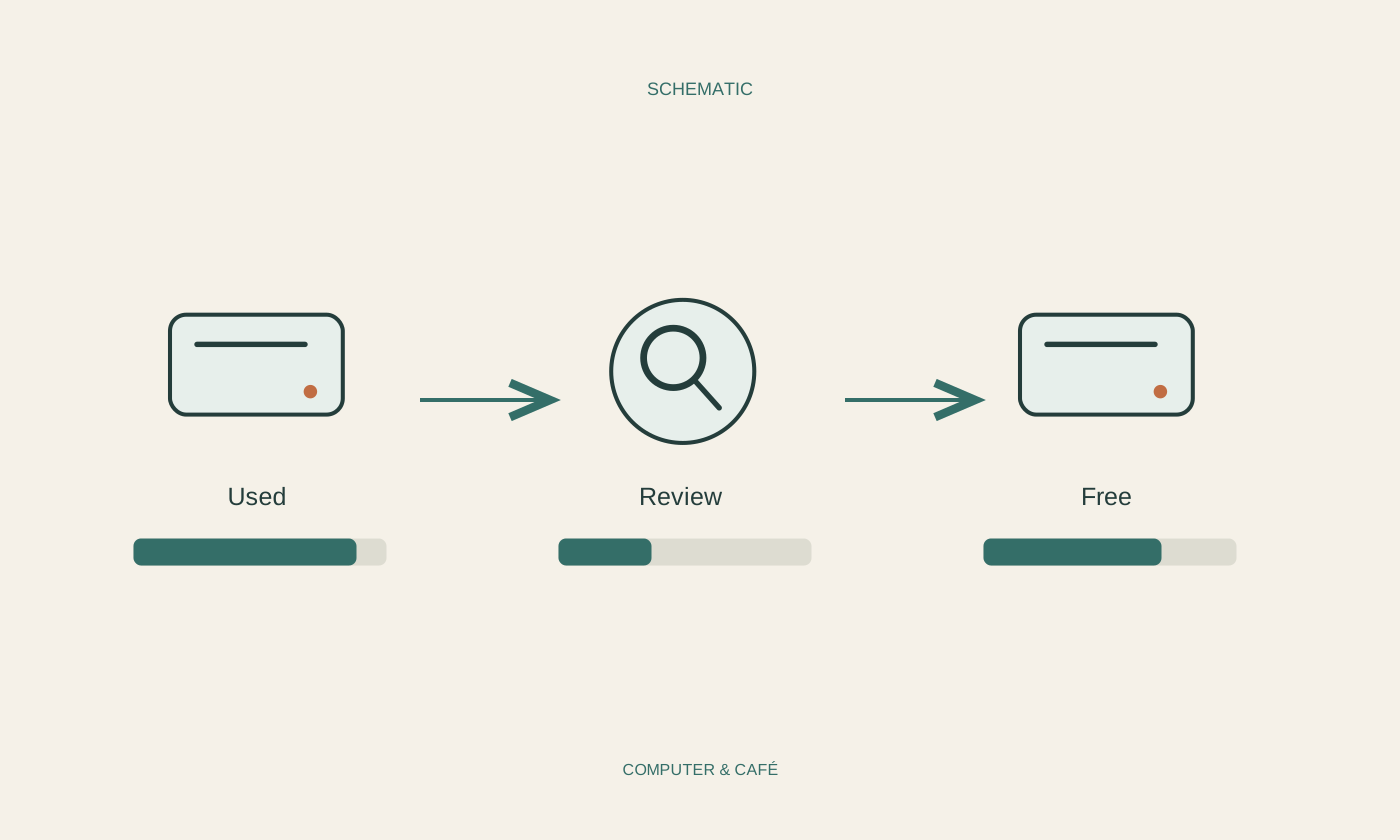
Open your operating system's storage overview and allow it to finish calculating. Compare personal files, installed applications and the other reported categories. The largest category is somewhere to investigate, not an instruction to erase everything inside it. Avoid browsing system folders and deleting files merely because their names look unfamiliar or temporary.
Note the amount of free space and the task that is failing. Importing a large video may need more immediate room than editing a short document. A specific target helps you choose a sensible cleanup instead of spending hours removing tiny files that make almost no difference to the underlying problem.
Begin with large files you understand
Look in your own downloads, video and export folders first. Sort by size and inspect the conspicuous items individually. An old installer or abandoned video export may be expendable, while a similarly named project folder may be essential. If you are unsure, inspect the contents and establish which file contains the editable original.
Treat apparent duplicates carefully. Two photographs with the same name can have different resolutions or edits. Compare their size, dates and contents before choosing a version to retain. A duplicate finder can identify candidates, but it should not remove your only original automatically while you assume that a matching name means matching content.
Copy before you remove an original
For large files you still need, copy them to suitable alternative storage. Check the destination and open several copied files. Only then decide whether to remove the local versions. Important documents should still have an additional backup: otherwise one external drive simply becomes their new single point of storage.
Label that drive and record which collection it holds. Reclaimed space is not very useful if the associated project becomes impossible to find later. Remember that some applications link to images or media in their original locations. Moving those source files can break the links even though the files themselves still exist elsewhere.
Understand what happens to cloud files
Deleting from a synchronised folder can remove the file from the cloud and other devices too. If you want to keep it online while releasing local storage, use the service's documented command for that purpose. OneDrive explicitly distinguishes freeing up space from deleting. An online-only file will subsequently need an internet connection unless a complete local copy is downloaded again.
Wait for successful synchronisation before releasing a local copy and check access through the intended service. Keep travel documents and urgently needed material available offline deliberately. Seeing filenames in a folder does not establish that their complete contents are stored on the computer and accessible without a network.
Check the result against the original problem
Uninstall unwanted applications through the operating system's intended mechanism rather than deleting their folders. Read whether personal data or settings will also be affected. Use built-in cleanup for temporary files and inspect its selections. A downloads folder can contain personal documents and should not automatically be treated as disposable material.
Finally, check available storage again and repeat the task that originally failed. Empty the recycle bin only after reviewing what you removed. A modest routine for old downloads and exports then keeps maintenance manageable. It becomes a brief decision about recognisable files instead of an urgent attempt to recover space while another job is waiting.
Inspect large files, verify copies and only then remove originals. Releasing local cloud storage is different from deleting.