Prepare a clear package
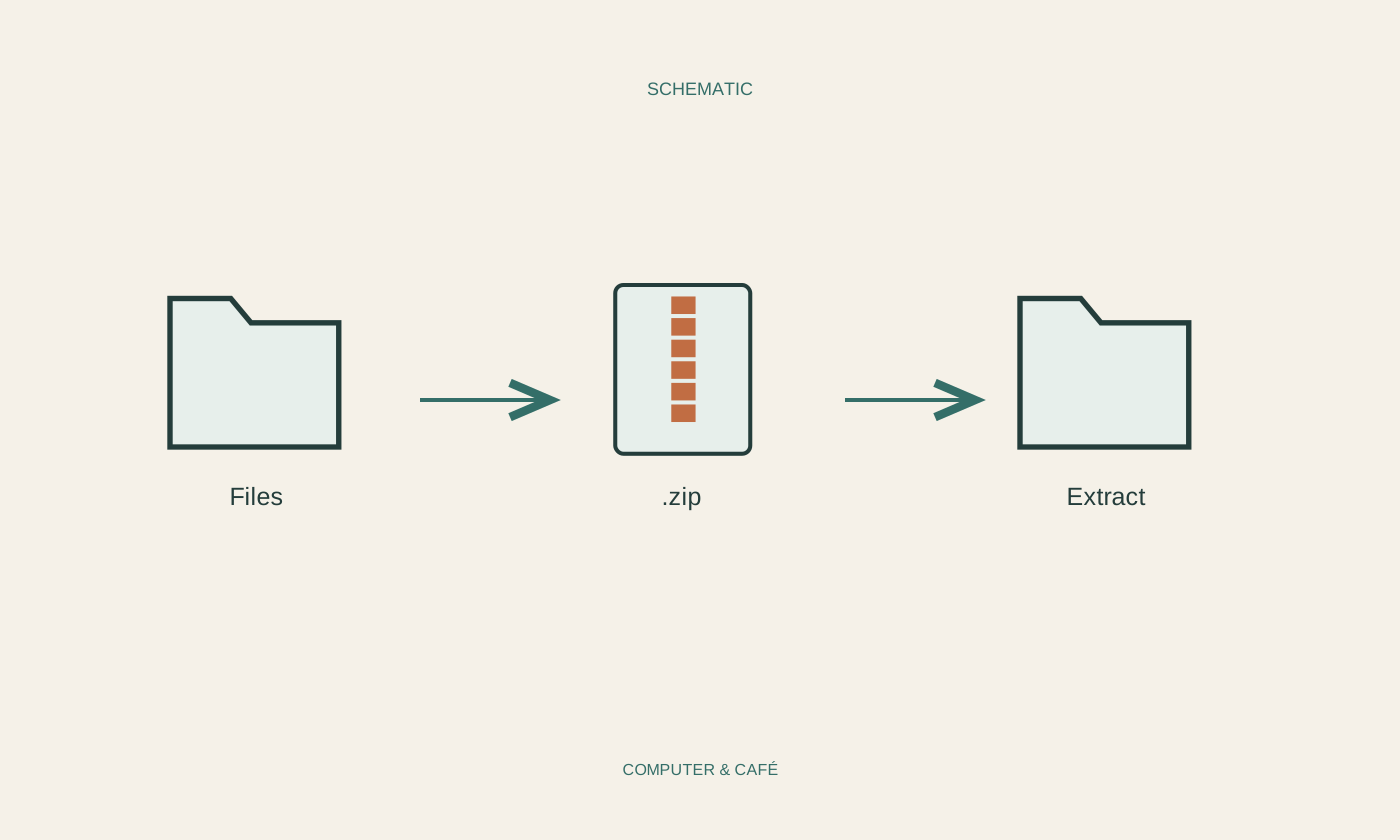
First gather the files into a new working folder. Use copies if you are unsure whether the originals need to remain in their existing locations. Decide which version should actually be sent. Two drafts with almost identical names will not make that decision easier for the recipient.
Name the folder after its contents, such as “October_Travel_Documents”, and review everything inside. Remove obsolete drafts, private notes and files intended only for your own working process. For a larger package, a few clearly named subfolders are more useful than one long, unsorted list.
Distinguish bundling from shrinking
ZIP combines files into an archive and may reduce their size through compression. The saving depends on the contents. Photographs and videos that are already compressed often become little smaller. A large media package will not necessarily fit into an email simply because its name now ends in ZIP.
Use the intended compression function of your operating system or a trusted archive application. Windows can create ZIP files through File Explorer or the context menu, though wording varies by version. Creating an ordinary ZIP does not automatically add encryption or effective access protection.
Check the finished file
Wait for creation to finish, then check the resulting archive’s name, extension and size. Make sure you later send the ZIP itself rather than a shortcut to the working folder. A descriptive filename with a date helps distinguish different deliveries without requiring someone to inspect every file.
Open the archive to check that the expected folders and files are present. For a fuller test, extract it into a new, empty test folder. Open several documents and images there. This checks the portable package rather than only the originals that were already available on your computer.
Choose a clear extraction destination
An archive view can look almost like a normal folder. Before doing substantial editing, it is clearer to extract the contents fully to a known location. Otherwise it may be difficult to tell whether changes were saved to a temporary copy, the archive or somewhere else.
Do not extract an unfamiliar or new package over an existing working folder without checking. Files with the same names might be replaced. A separate destination lets you compare first. For unexpected archives, verify the sender independently and do not run included programs just because they arrived alongside a document.
Explain the handover
When sending the archive, briefly say what it contains and which file should be opened first. ZIP cannot replace that explanation. If an application needs linked pictures or data files, those dependencies must also be included correctly and placed where the application expects to find them.
If the package remains too large, use a suitable file-sharing method with appropriate access permissions. Send sensitive documents only through a channel intended for them. Keep the checked package and its originals at least until the handover is confirmed and you have made your own retention decision.
Extract the finished ZIP into an empty test folder and open a few examples. That checks the package you are actually handing over.